> ## Documentation Index
> Fetch the complete documentation index at: https://tyk.io/docs/llms.txt
> Use this file to discover all available pages before exploring further.
# Manage Organizations
> How to manage organizations in Tyk developer portal
## Introduction
Quite often, API Providers have to provide API Products to other companies. In fact, 90% of our customers say that their primary audience is other companies. In this case, they are dealing with not just individual developers but with teams of developers.
Unlike individual developers, companies require more sophisticated machinery to access API credentials:
* Usually, a company is represented by a team of developers, not just an individual. Communication between API Providers and API Consumers mustn’t rely on a single individual that may leave a company or be fired;
* API Consumers need to share access credentials securely within their team. Without that capability, they have to share credentials with internal communication tools, which is a horrible practice. Credentials may be stolen, exposed to an incorrect audience, or not appropriately updated;
* Those teams have an internal hierarchy: some users have admin responsibilities with broader permissions, while other teammates’ permissions are restricted to only accessing API Credentials;
* API Consumers should be able to maintain their teams by themselves: invite new members or remove ones that left the team.
So, simply put, there are two main challenges that the new API Consumer organization management capability solves:
* How to share securely share access credentials between team members;
* How to manage user permissions on the API consumer side.
**Prerequisites**
Before starting, you need to set up an email server because it’s used to send invitations to API Consumer team members.
Please refer to the email notifications documentation to set up the email server.
Please refer to the [email notification section](/5.8/product-stack/tyk-enterprise-developer-portal/getting-started/setup-email-notifications) for further instructions for setting up the email server.
## Admin Settings and Governance
You can control if API Consumers can register an organization and if such registration requires approval from the portal admins.
To enable API Consumer organization registration, navigate to the Settings/General menu and scroll to the API Consumer access section. In that section, there are two settings that control API Consumer registration:
* **Enable API consumers to register organizations**: when this setting is enabled, API Consumers can register organizations, and the respective button appears in the navigation menu;
* **Auto-approve API consumers registering organization**: When this setting is enabled, no approval is required from the portal admins for an API Consumer to register an organization. If this setting is disabled, API Consumer can register organizations, but they won’t be able to invite team members.
This is how it looks in the portal's UI:
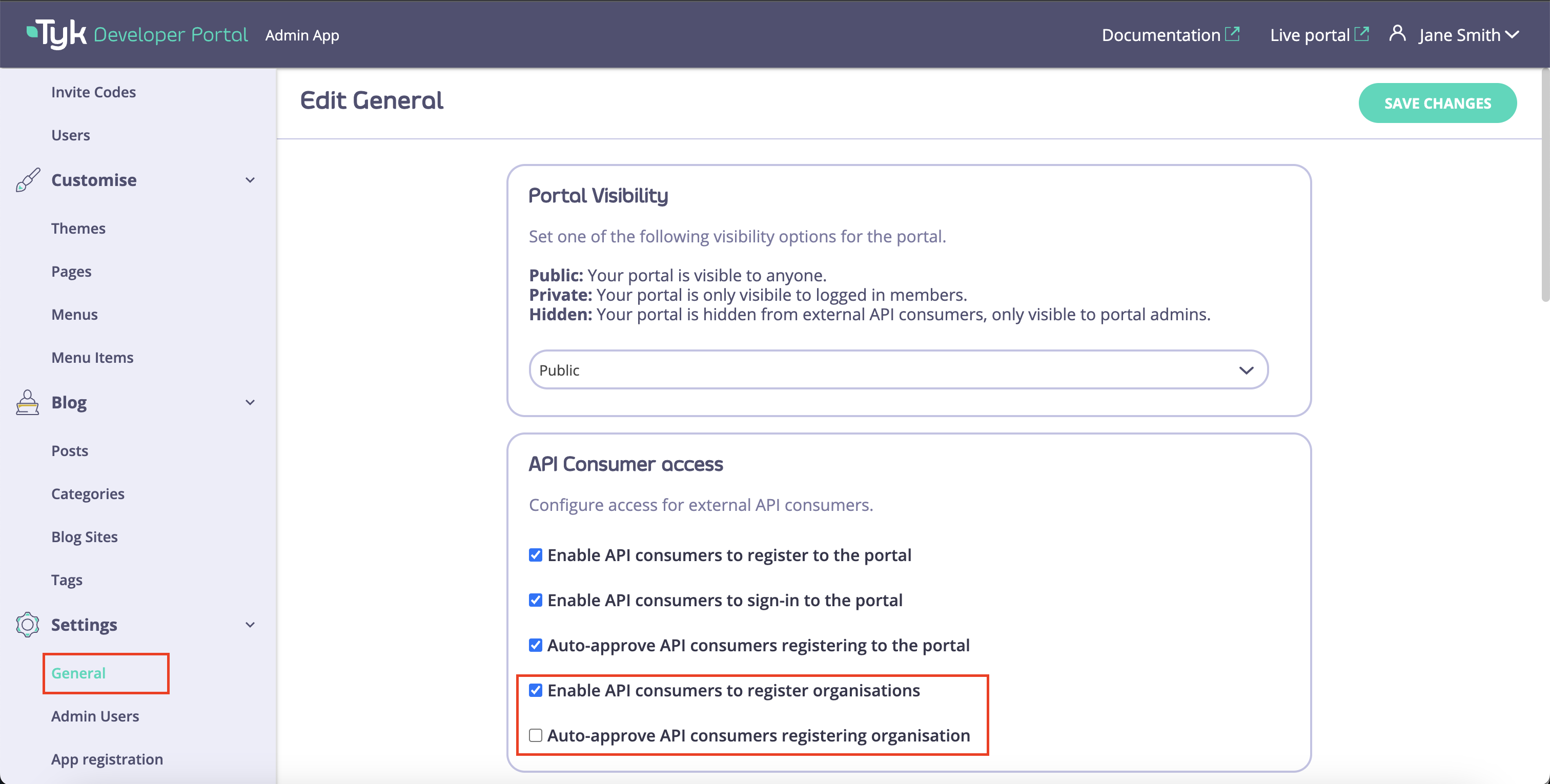
To proceed with the following steps, enable the Enable API consumers setting to register organizations.
## Self Registration
**Steps for Configuration**
1. **Request org registration**
Register a developer account or use an existing one and log in to the developer portal as a developer.
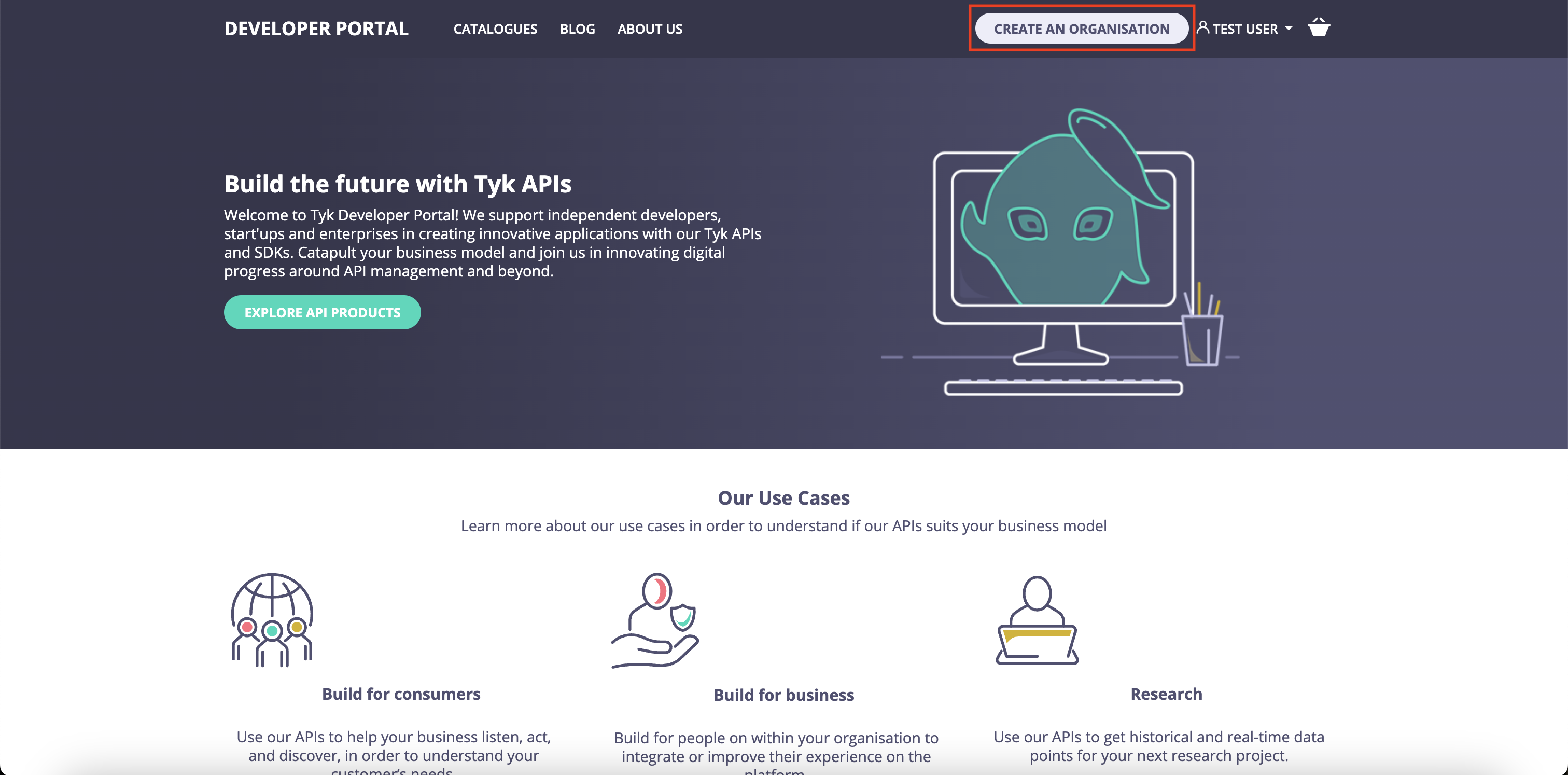
To start the organization registration flow, click on the **Create an organization** button in the top right corner of the screen.
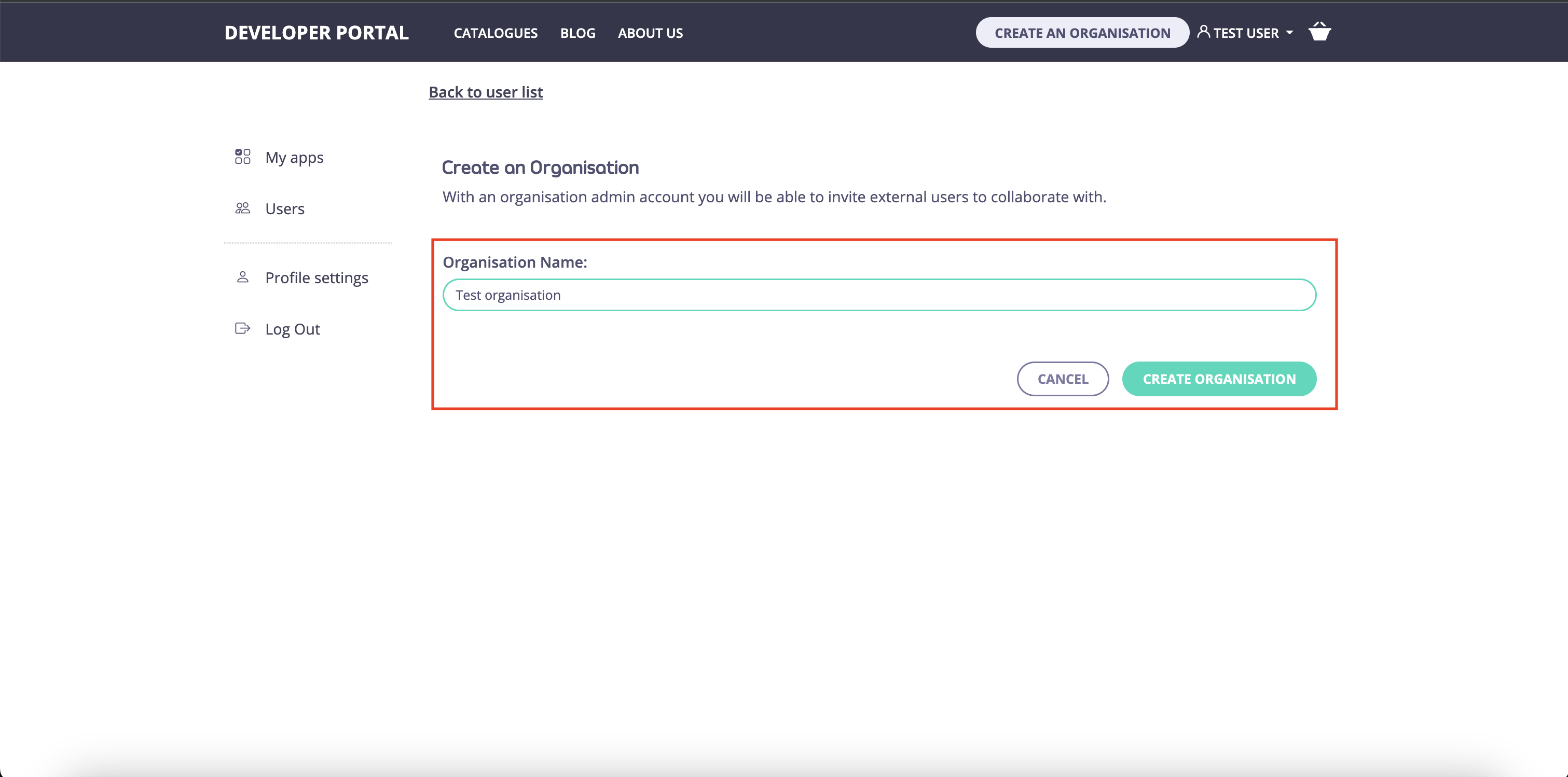
You will be navigated to the screen where you can specify the name of your future organization.
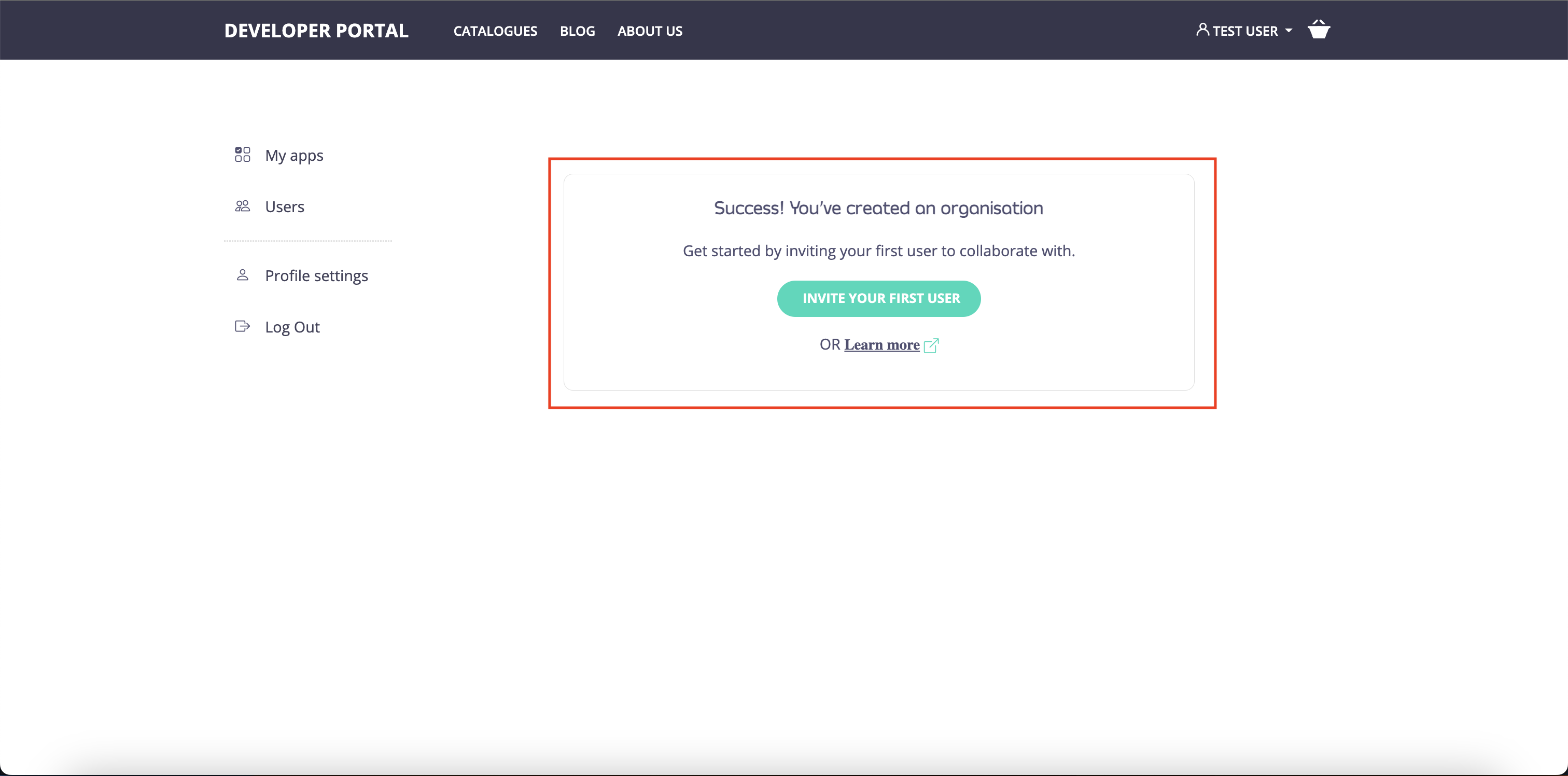
If the **Auto-approve API consumers registering organization** setting is enabled, the new organization will instantly be provisioned.
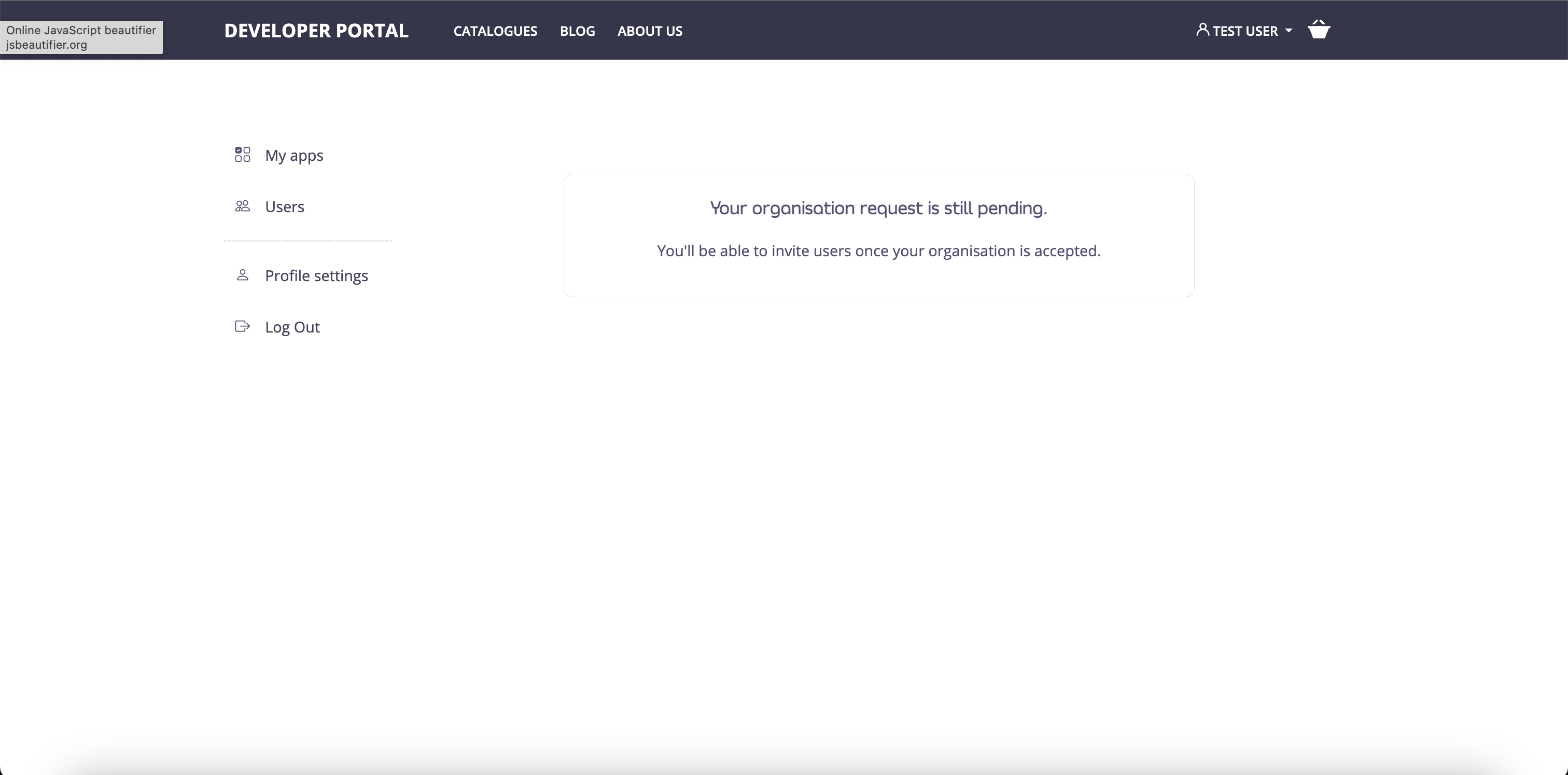
Otherwise, the developer will have to wait for approval from admin users.
 2. **Approve or reject organization registration requests**
If the **Auto-approve API consumers registering organization** setting is disabled and the email settings are configured correctly, the admin users will be notified about the new organization registration request via email.
2. **Approve or reject organization registration requests**
If the **Auto-approve API consumers registering organization** setting is disabled and the email settings are configured correctly, the admin users will be notified about the new organization registration request via email.

If the **Auto-approve API consumers registering organization** setting is disabled, the new API Consumer organizations won’t be immediately provisioned.
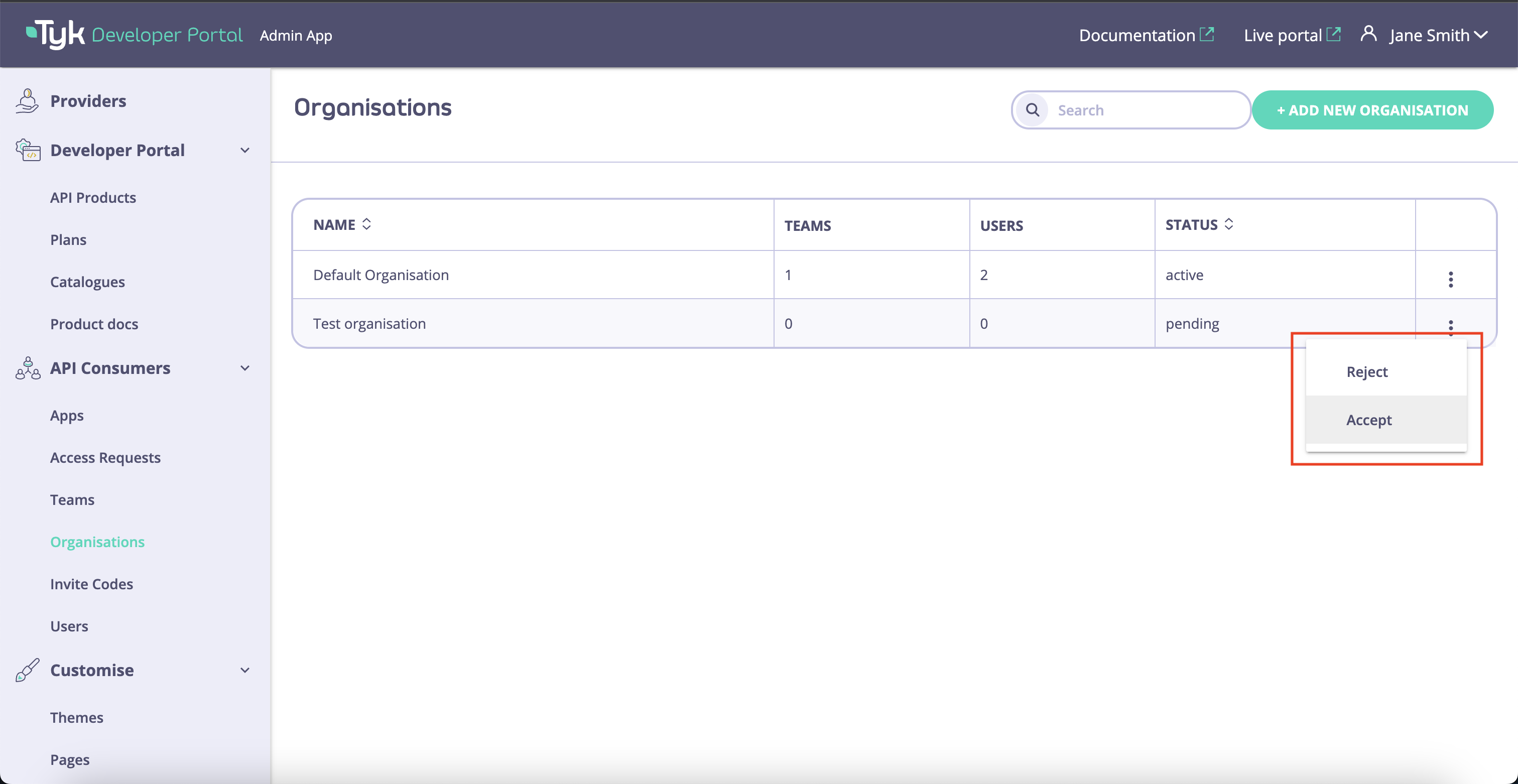
As an admin user, you can approve or reject organization registration requests from the Organization menu.
 When admin users approve or reject organization registration requests, the respective email notification is sent to API Consumers.
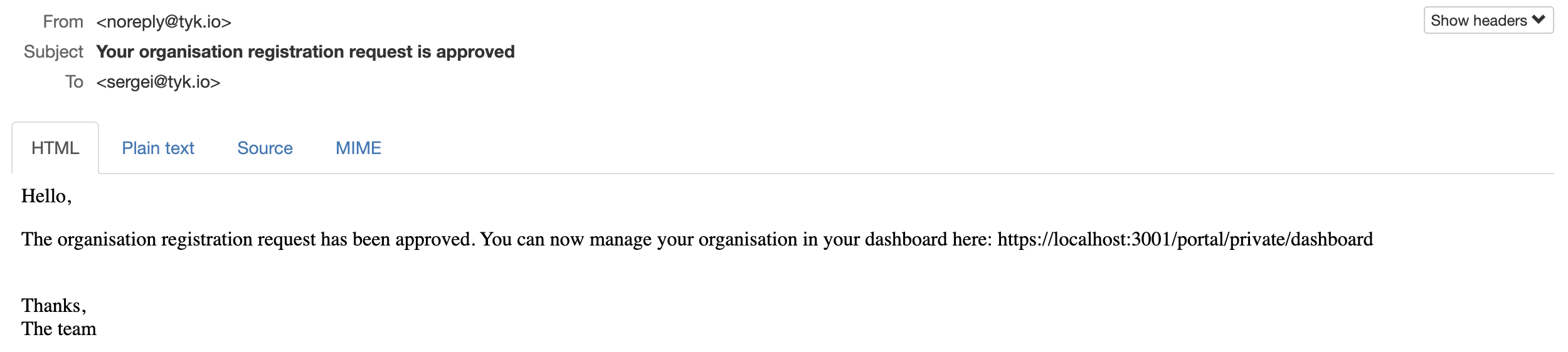
Notification when organization request is approved:
When admin users approve or reject organization registration requests, the respective email notification is sent to API Consumers.
Notification when organization request is approved:
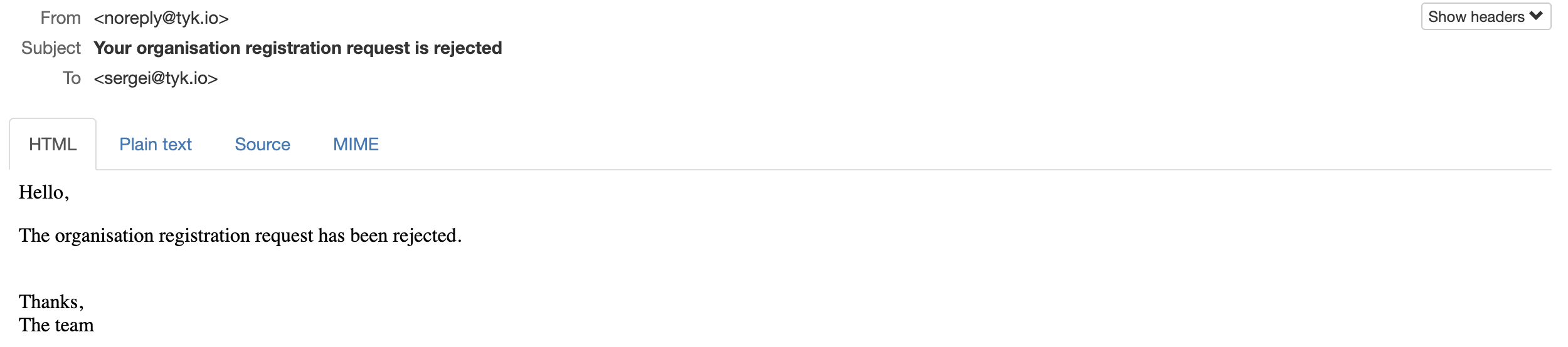
Notification when organization request is rejected:
Both emails are customizable. Refer to [the email customization documentation](/5.8/portal/customization/email-notifications) for further information on the email customization.
3. **Invite or remove teammates**
Once admin users approve the organization registration request, API Consumers can invite teammates.
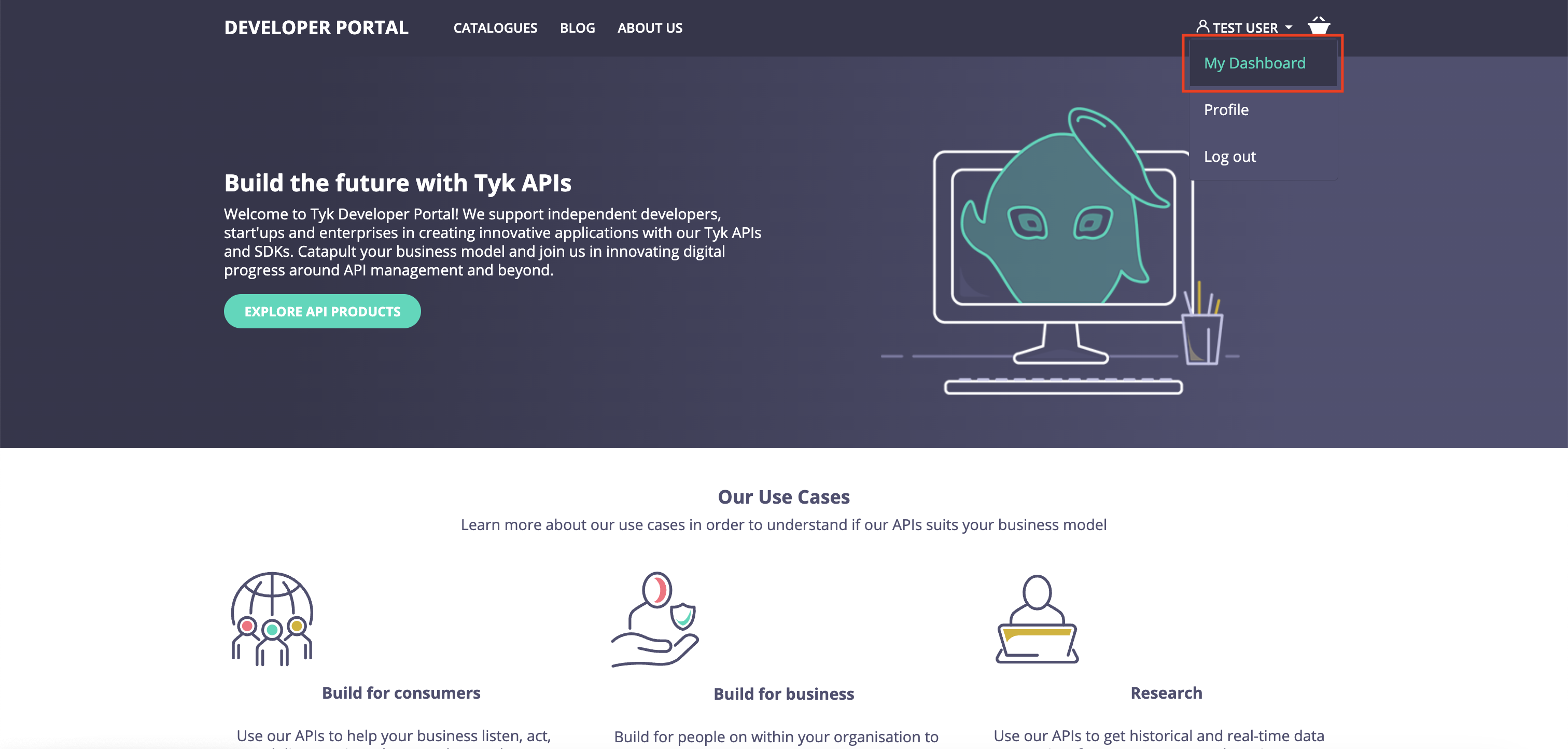
As an API Consumer, navigate to the Dashboard to invite new teammates.
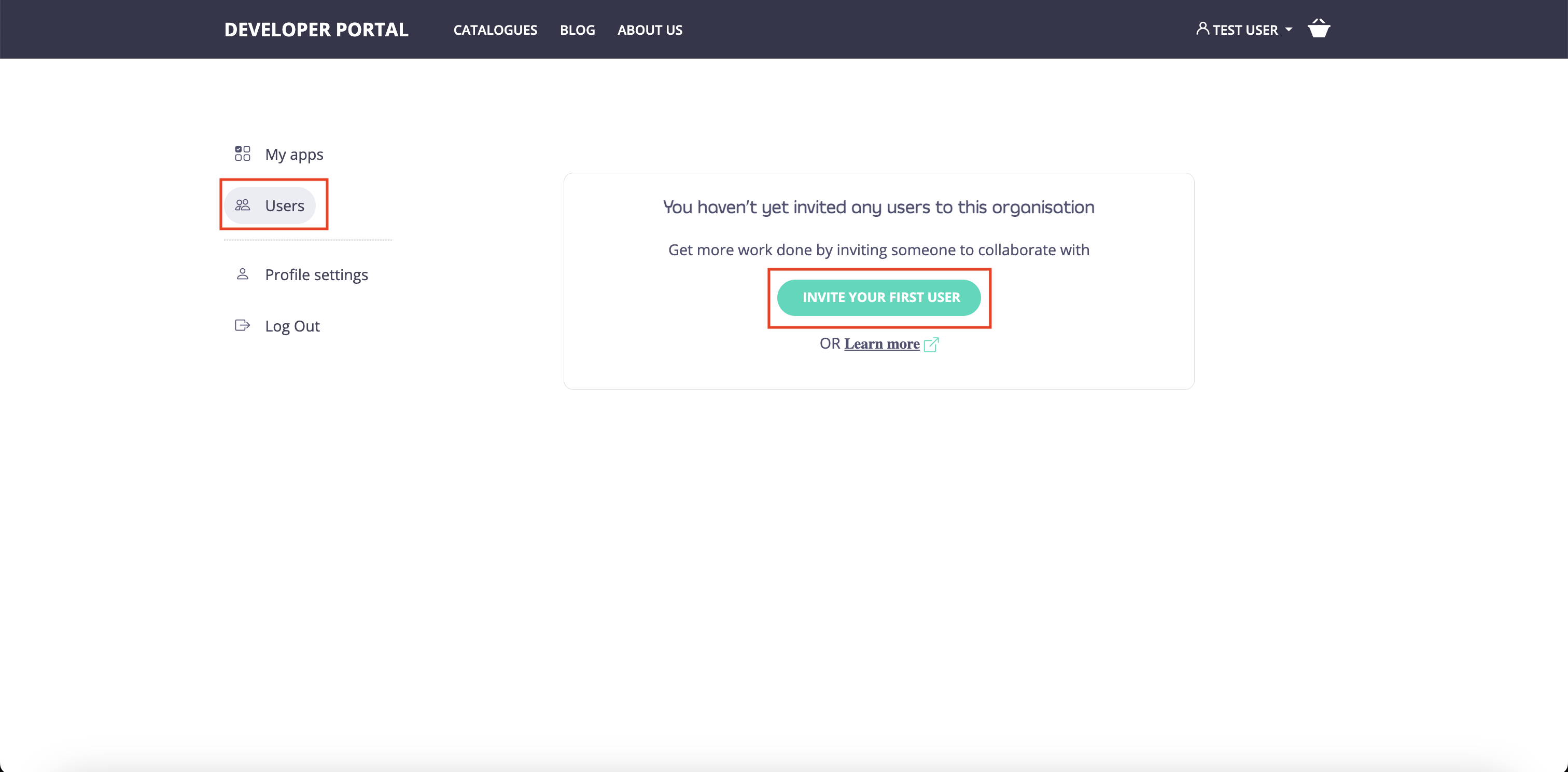
Then select the Users tab in the side menu.
You can add a new team member to your API Consumer organization in the Users tab. To invite a new team member, specify their first and last name, email address, and role.
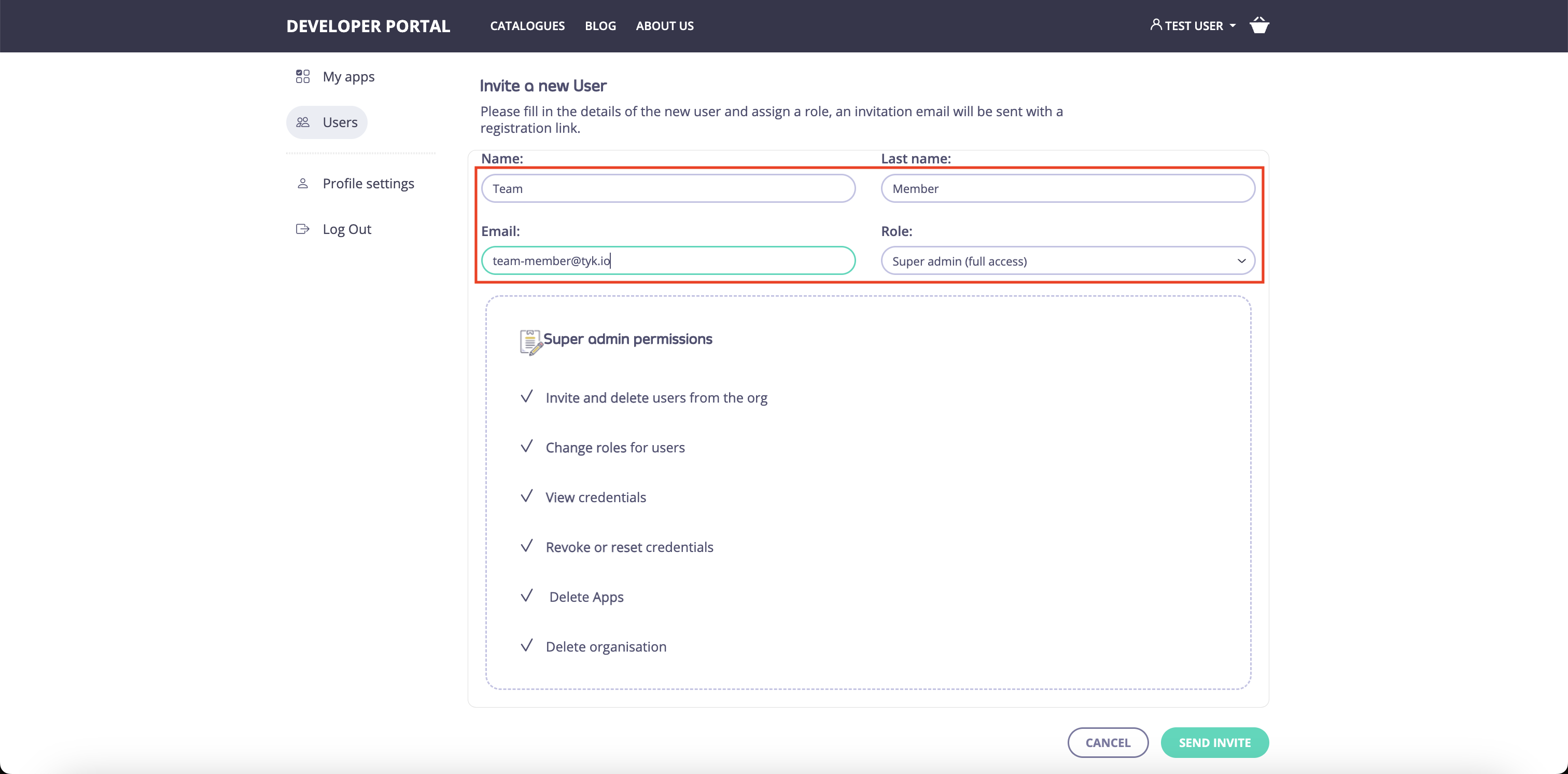
There are two possible roles for API Consumers:
* Super admin;
* Team member.
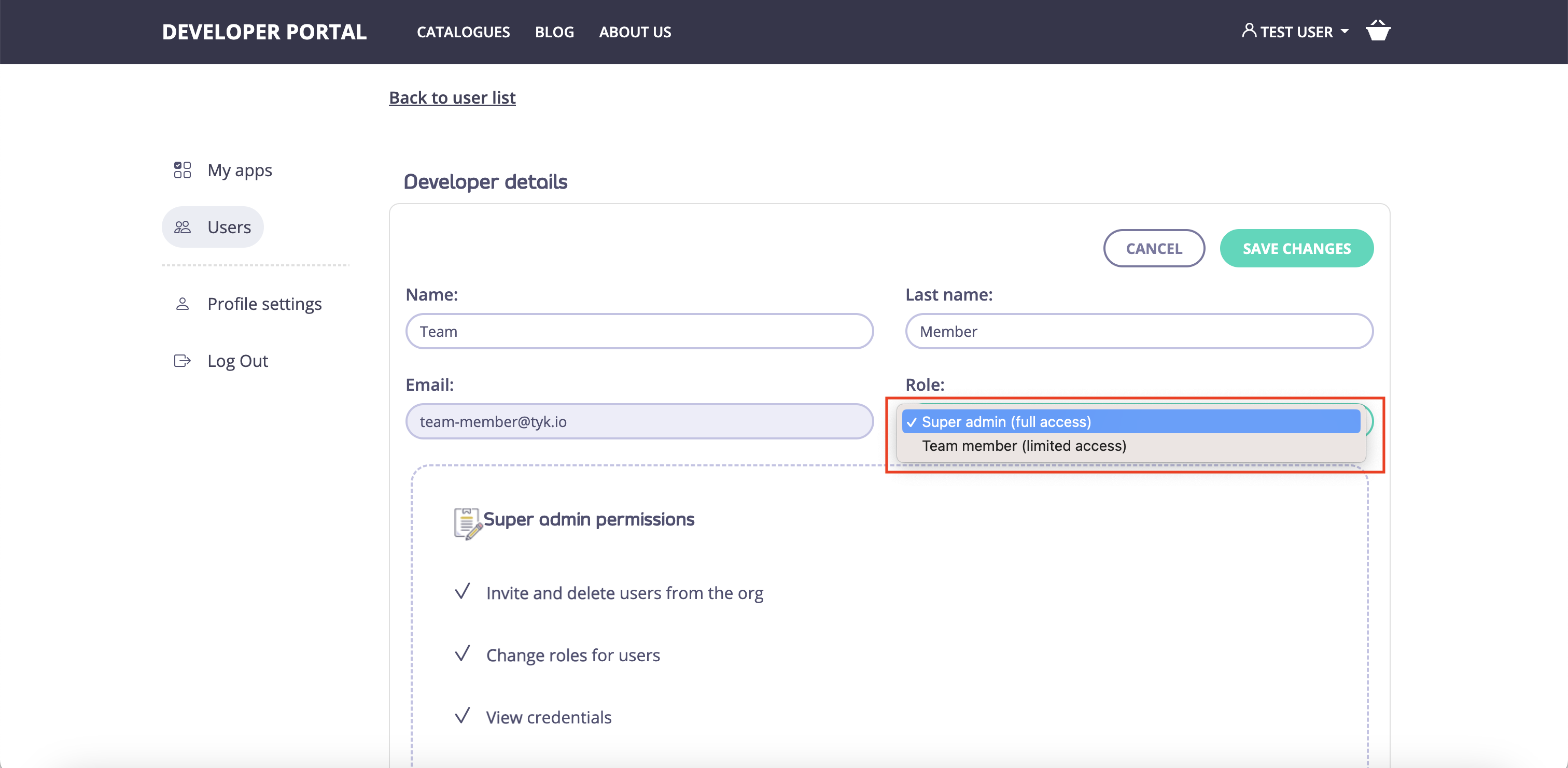
The difference between these two roles is that the Super admins can invite or remove users from their organization and manage applications, while the Team members can only manage applications.
Once the invitation is sent, the invited team member should receive the following email:
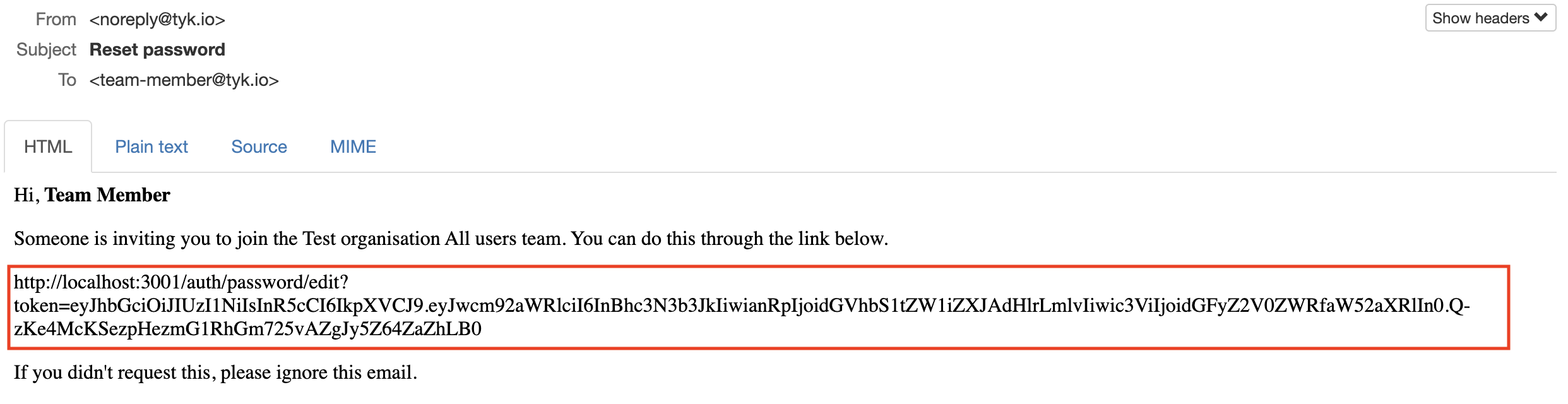
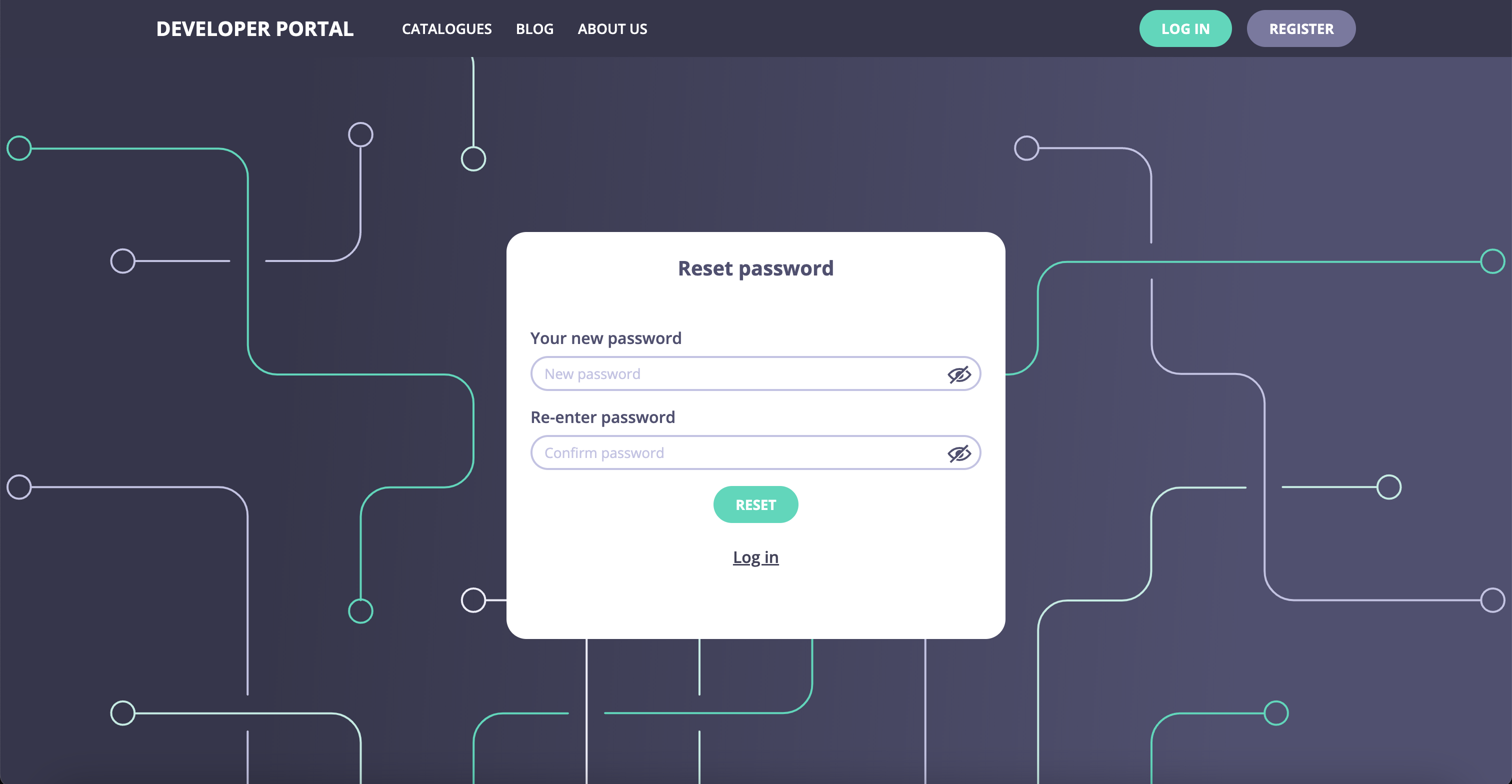
The invited team member can use the link from the email to register in the portal and join the organization.
 4. **Manage API Consumers' role**
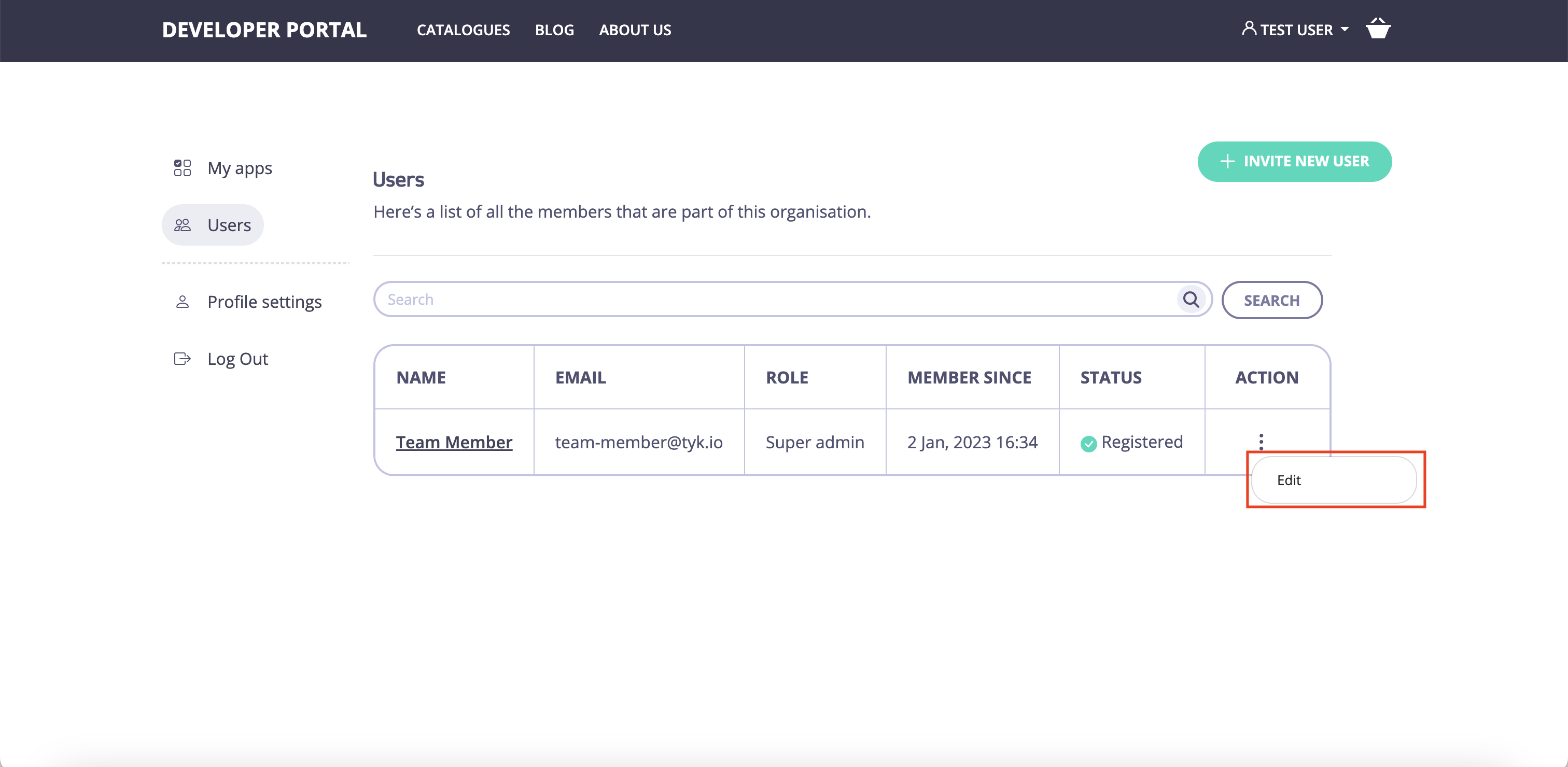
API Consumer Super admins can manage users in their organizations. To do so, navigate to the Users menu in the Dashboard and select a user to edit.
4. **Manage API Consumers' role**
API Consumer Super admins can manage users in their organizations. To do so, navigate to the Users menu in the Dashboard and select a user to edit.
As a Super admin, you can change users’ first and last names and roles. The changes will take effect immediately.
 5. **Sharing assets between teammates**
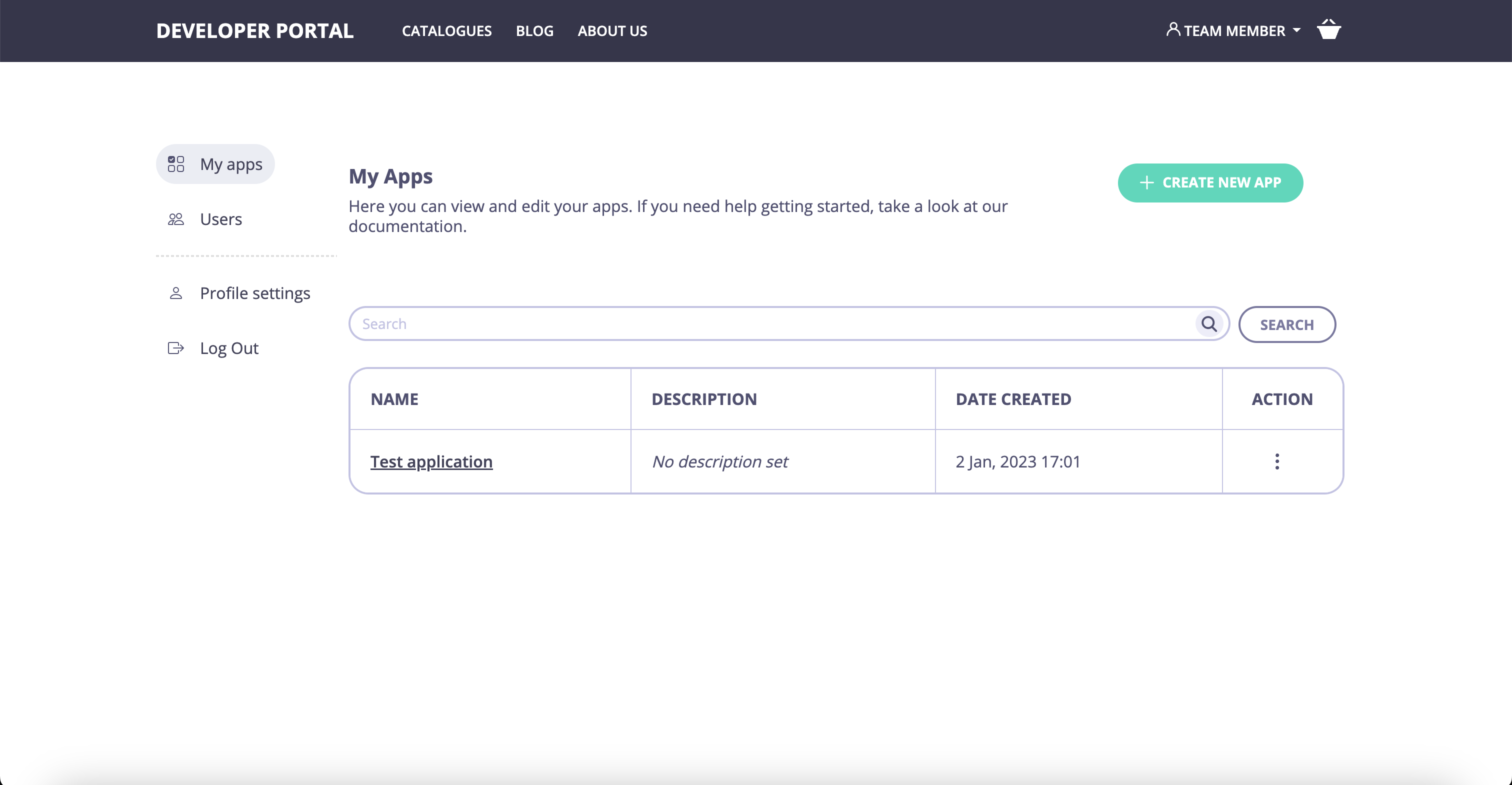
Now, when any team member creates an application, all other team members can access it and use the credentials.
5. **Sharing assets between teammates**
Now, when any team member creates an application, all other team members can access it and use the credentials.
 ## Manually Create Organizations
In this section, you’ll learn how to create a new organization for your external API Consumers.
**Prerequisites**
* A Tyk Enterprise portal installation
* A portal admin app login
**Step by step instructions**
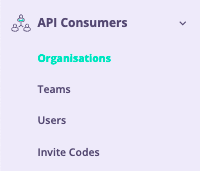
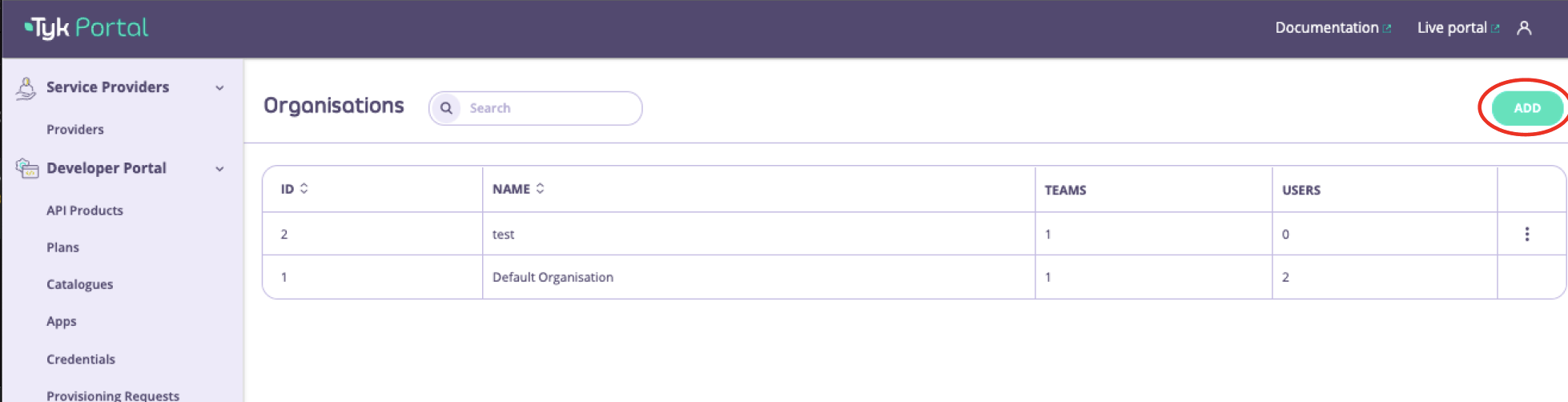
1. From the **API Consumers > Organizations** menu, click **Add**.
## Manually Create Organizations
In this section, you’ll learn how to create a new organization for your external API Consumers.
**Prerequisites**
* A Tyk Enterprise portal installation
* A portal admin app login
**Step by step instructions**
1. From the **API Consumers > Organizations** menu, click **Add**.
 2. Enter the name of your new organization
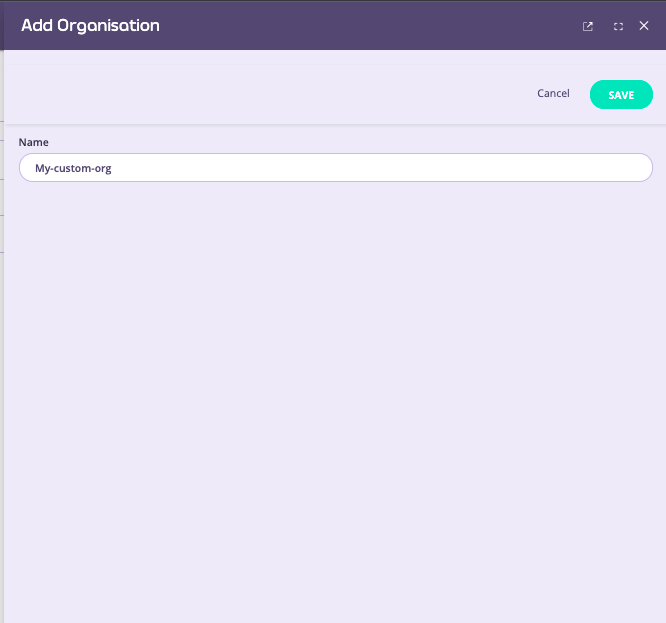 3. Click **Save** to create your new organization. A new default-team will also automatically created that is tied to your new organization.
If you want to edit the default team name you can do so by navigating to **Teams**, open up the team associated with the organization you created and edit the name as required.
3. Click **Save** to create your new organization. A new default-team will also automatically created that is tied to your new organization.
If you want to edit the default team name you can do so by navigating to **Teams**, open up the team associated with the organization you created and edit the name as required.