> ## Documentation Index
> Fetch the complete documentation index at: https://tyk.io/docs/llms.txt
> Use this file to discover all available pages before exploring further.
# Install and Configure Developer Portal
> Installation guide for the Tyk Enterprise Developer Portal
export const ResponsiveGrid = ({children}) => {
return
{children}
;
};
**Tyk Enterprise Developer Portal**
If you are interested in getting access contact us at [support@tyk.io]()
Tyk Enterprise Developer Portal is available as a Docker container. To install Tyk Enterprise Developer Portal, you need to launch the Docker image for the portal with a database to store the portal metadata.
Optionally, you may decide to use S3 to store the portal CMS assets (image and theme files)
This guide explains how to install and bootstrap the Tyk Enterprise Developer Portal. On average, it should take around 5-10 minutes to install it depending on your setup.
## Enterprise Developer Portal Components
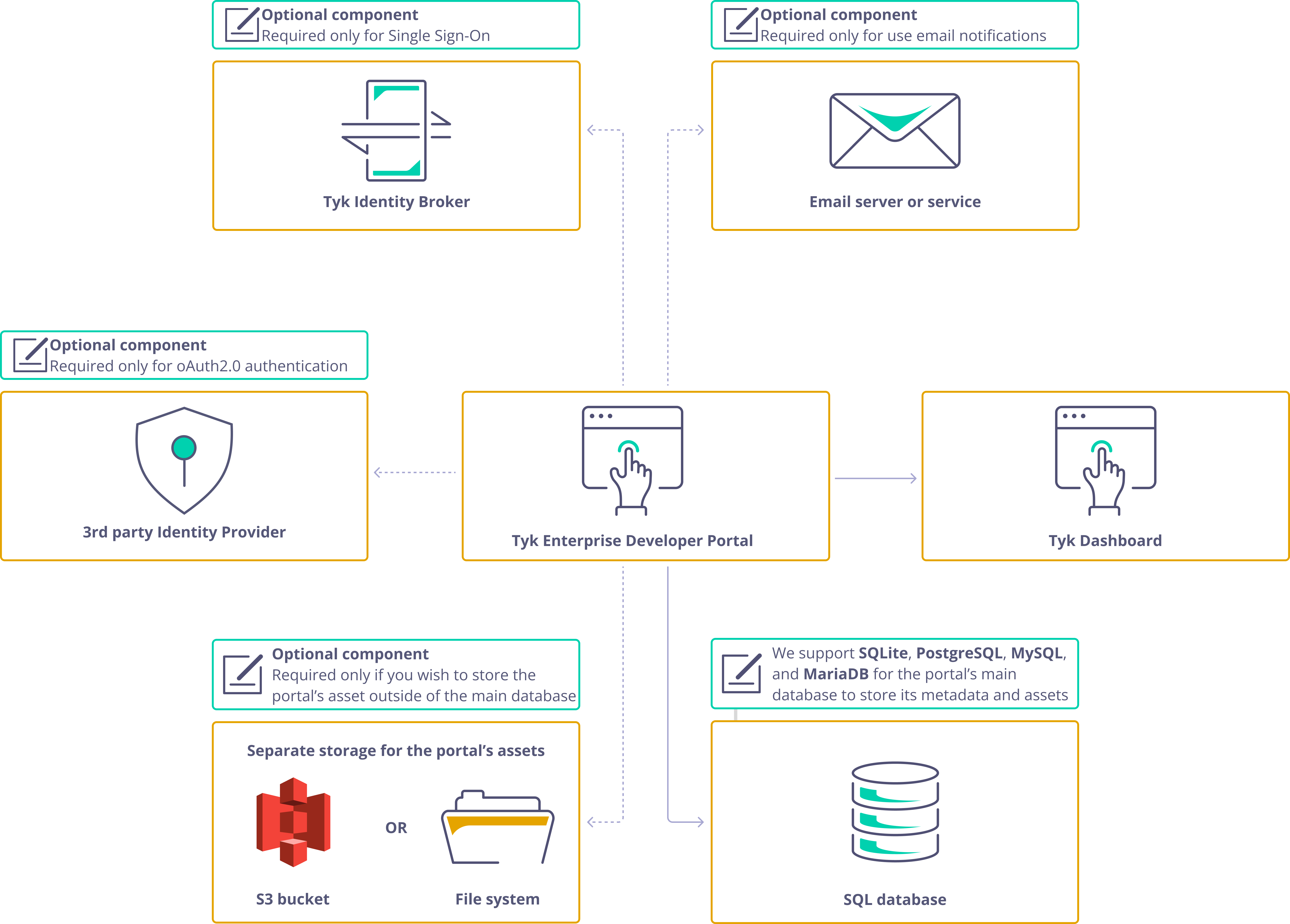
The portal deployment comprises of three main components:
* The portal application itself
* The portal's main database that stores metadata related to the portal, such as API products, plans, developers, applications, and more
* The asset storage, which stores CMS assets such as images, themes, and OpenAPI specification files. The assets could reside in the portal's main database or separately in an S3 bucket or filesystem volume.
Optionally, there could be three additional components:
* **3rd party identity provider.** To [enable oAuth2.0 for your API Products](/5.8/tyk-stack/tyk-developer-portal/enterprise-developer-portal/api-access/dynamic-client-registration), you'll need to utilize an OpenID-compliant third-party identity provider.
It's essential to note that the [Tyk Stack](/5.8/tyk-stack) doesn't include third-party identity providers, so you should refer to your Identity Provider's documentation for instructions on configuring and deploying it.
This component is optional and required only for enabling oAuth2.0
* **[Tyk Identity Broker](/5.8/api-management/external-service-integration)**. You only need this component if you want to configure Single Sign-On for the Tyk Enterprise Developer Portal.
For more guidance on this topic, please consult [the Single Sign-On section](/5.8/tyk-stack/tyk-developer-portal/enterprise-developer-portal/managing-access/enable-sso) of the documentation
* **Email server**. The portal is capable of sending notifications to both admin users and developers when specific events happen within the portal.
To enable this feature, you need to specify a connection configuration to an email server or service, and configure other email settings.
You can choose to use a server that is installed on your premises or an SMTP-compatible SaaS product.
For step-by-step instructions, please refer to [the Email Settings section](/5.8/portal/customization/email-notifications)
**Note: SQLite support**
Tyk Developer Portal no longer supports SQLite as of the release of version 1.14.0. To ensure a smooth experience, please migrate to [PostgreSQL](/5.8/planning-for-production/database-settings#postgresql) or another supported alternative.
## Portal Installation Process
The portal installation process comprises two steps:
1. **Install the portal application.** To install the portal and launch it in the bootstrap mode, you need to configure your portal instance by specifying settings such as TLS, log level, and database connection.
For further guidance on launching the portal, please refer to one of the installation options: [Docker container](/5.8/portal/install#docker), [Docker Compose](/5.8/portal/install#docker-compose), [Helm chart](/5.8/portal/install#using-legacy-helm-chart), or [RPM package](/5.8/portal/install#linux-redhat-centos).
2. **[Bootstrap the portal](/5.8/#bootstrapping-enterprise-developer-portal)** After you've launched the portal, it will wait for you to provide credentials for the super admin user before it starts accepting traffic.
Once you've created the super admin user, the portal will complete its installation process by creating the necessary database structure and initialising the required assets for its operations. You can [bootstrap](/5.8/#bootstrapping-enterprise-developer-portal) the portal either through the UI or using the bootstrap API.
Please refer to [the Bootstrapping section](/5.8/portal/install#bootstrapping-enterprise-developer-portal) for implementing this step.
## Installation Options for Enterprise Developer Portal
The Tyk Enterprise Developer Portal supports multiple installation flavors. Check out the guides below to deploy the portal on the platform that suits you best.
**Read time: 10 mins**
Install with Docker
**Read time: 10 mins**
Install with Docker Compose
**Read time: 10 mins**
Install on Kubernetes
**Read time: 10 mins**
Install on Red Hat
### Docker
This section explains how to install Tyk Enterprise Developer Portal in a container using Docker.
Depending on your preferences, you can use MariaDB, MySQL or PostgreSQL for the database.
In this recipe, the database and the portal container will run on the same network, with the database storing its data on a volume. The portal's CMS assets (images, files and themes) are stored in the database, although this guide provides links to the documentation to use a persistent volume or an S3 bucket as a storage medium for CMS assets.
Additionally, all settings for the Portal are configured using an env-file.
**Note**
This document is just an example. Customize all fields, including the username, password, root password, database name and more.
Be sure to update the connection DSN in the env-file accordingly.
**Prerequisites**
To successfully install the Tyk Enterprise Developer Portal with Docker, you should have installed [Docker](https://docs.docker.com/get-docker/) on the machine where you want to install the portal.
#### Using PostgreSQL
1. **Create a network for the portal deployment**
To start with, you need to create a Docker network for communication between the database and the portal. Execute the following command to create it:
```console theme={null}
docker network create tyk-portal
```
2. **Create an init script for PostgreSQL**
To initialize a PostgreSQL database, you need to create an init script that will later be used to launch the PostgreSQL instance.
Copy the content below to a file named `init.sql`, which you will need in the next step.
```sql theme={null}
-- init.sql
-- Creating user
CREATE USER admin WITH ENCRYPTED PASSWORD 'secr3t';
CREATE DATABASE portal;
GRANT ALL PRIVILEGES ON DATABASE portal TO admin;
```
3. **Create the database volume and launch the database**
The next step is to launch the PostgreSQL database for the portal. To achieve this, create a data volume for the database first:
```console theme={null}
docker volume create tyk-portal-postgres-data
```
Then launch the PostgreSQL instance by executing the following command:
```container theme={null}
docker run \
-d \
--name tyk-portal-postgres \
--restart on-failure:5 \
-e POSTGRES_PASSWORD=secr3t \
-e PGDATA=/var/lib/postgresql/data/pgdata \
--mount type=volume,source=tyk-portal-postgres-data,target=/var/lib/postgresql/data/pgdata \
--mount type=bind,src=$(pwd)/init.sql,dst=/docker-entrypoint-initdb.d/init.sql \
--network tyk-portal \
-p 5432:5432 \
postgres:10-alpine
```
**Note**
The above PostgreSQL configuration is an example. You can customize deployment of your PostgreSQL instance. Please refer to [the PostgreSQL documentation](https://www.postgresql.org/docs/current/installation.html) for further guidance.
4. **Create an environment variables file**
Creating an environment variables file to specify settings for the portal is the next step.
This is optional, as you can alternatively specify all the variables using the -e option when starting your deployment.
Here is an example of a sample environment file. For a comprehensive reference of environment variables, please refer to the [configuration section](/5.8/product-stack/tyk-enterprise-developer-portal/deploy/configuration) in the Tyk Enterprise Developer Portal documentation.
```ini theme={null}
PORTAL_HOSTPORT=3001
PORTAL_DATABASE_DIALECT=postgres
PORTAL_DATABASE_CONNECTIONSTRING=host=tyk-portal-postgres port=5432 dbname=portal user=admin password=secr3t sslmode=disable
PORTAL_DATABASE_ENABLELOGS=false
PORTAL_THEMING_THEME=default
PORTAL_STORAGE=db
PORTAL_LICENSEKEY=
```
Once you have completed this step, you are ready to launch the portal application with PostgreSQL in a Docker container.
5. **Pull and launch the portal container**
To pull and launch the portal using Docker, use the command provided below.
Ensure that you replace `` with the specific version of the portal you intend to launch before executing the command, e.g. `tykio/portal:v1.7` for the portal v1.7. You can browse all available versions on [Docker Hub](https://hub.docker.com/r/tykio/portal/tags) and in the [release notes section](/5.8/developer-support/release-notes/portal#170-release-notes).
```console theme={null}
docker run -d \
-p 3001:3001 \
--env-file .env \
--network tyk-portal \
--name tyk-portal \
tykio/portal:
```
This command will launch the portal on localhost at port 3001. Now, you can bootstrap the portal and start managing your API products.
6. **Bootstrap the portal**
Now the portal is running on port 3001, but it needs to be bootstrapped by providing credentials for the super admin user since it's the first time you are launching it.
Follow the [bootstrapping section](/5.8/#bootstrapping-enterprise-developer-portal) of the documentation to bootstrap the portal via the UI or the admin API.
7. **Clean up**
If you want to clean up your environment or start the installation process from scratch, execute the following commands to stop and remove the portal container:
```console theme={null}
docker stop tyk-portal
docker rm tyk-portal
docker stop tyk-portal-postgres
docker rm tyk-portal-postgres
docker volume rm tyk-portal-postgres-data
```
#### Using MySQL
1. **Create a network for the portal deployment**
To start with, you need to create a Docker network for communication between the database and the portal. Execute the following command to create it:
```console theme={null}
docker network create tyk-portal
```
2. **Create the database volume and launch the database**
The next step is to launch the MySQL database for the portal. To achieve this, create a data volume for the database first:
```console theme={null}
docker volume create tyk-portal-mysql-data
```
Then launch the MySQL instance by executing the following command:
```console theme={null}
docker run \
-d \
--name tyk-portal-mysql \
--restart on-failure:5 \
-e MYSQL_ROOT_PASSWORD=sup3rsecr3t \
-e MYSQL_DATABASE=portal \
-e MYSQL_USER=admin \
-e MYSQL_PASSWORD=secr3t \
--mount type=volume,source=tyk-portal-mysql-data,target=/var/lib/mysql \
--network tyk-portal \
-p 3306:3306 \
mysql:5.7 --character-set-server=utf8mb4 --collation-server=utf8mb4_unicode_ci --sql-mode=ALLOW_INVALID_DATES
```
**Note**
The above MySQL configuration is an example. You can customize deployment of your MySQL instance.
Please refer to the [MySQL documentation](https://dev.mysql.com/doc/refman/5.7/en/charset-applications.html) for further guidance.
3. **Create an environment variables file**
Creating an environment variables file to specify settings for the portal is the next step.
This is optional, as you can alternatively specify all the variables using the -e option when starting your deployment.
Here is an example of a sample environment file. For a comprehensive reference of environment variables, please refer to the [configuration](/5.8/product-stack/tyk-enterprise-developer-portal/deploy/configuration) section in the Tyk Enterprise Developer Portal documentation.
```ini theme={null}
MYSQL_ROOT_PASSWORD=sup3rsecr3t
MYSQL_DATABASE=portal
MYSQL_USER=admin
MYSQL_PASSWORD=secr3t
PORTAL_HOSTPORT=3001
PORTAL_DATABASE_DIALECT=mysql
PORTAL_DATABASE_CONNECTIONSTRING=admin:secr3t@tcp(tyk-portal-mysql:3306)/portal?charset=utf8mb4&parseTime=true
PORTAL_DATABASE_ENABLELOGS=false
PORTAL_THEMING_THEME=default
PORTAL_STORAGE=db
PORTAL_LICENSEKEY=
```
Once you have completed this step, you are ready to launch the portal application with MySQL in a Docker container or via Docker Compose.
4. **Pull and launch the portal container**
To pull and launch the portal using Docker, use the command provided below.
Ensure that you replace `` with the specific version of the portal you intend to launch before executing the command, e.g. `tykio/portal:v1.7` for the portal v1.7.
You can browse all available versions on [Docker Hub](https://hub.docker.com/r/tykio/portal/tags) and in the [release notes](/5.8/developer-support/release-notes/portal#170-release-notes) section.
```console theme={null}
docker run -d \
-p 3001:3001 \
--env-file .env \
--network tyk-portal \
--name tyk-portal \
--mount type=bind,src=/tmp/portal/themes,dst=/opt/portal/themes \
--mount type=bind,src=/tmp/portal/system,dst=/opt/portal/public/system \
tykio/portal:
```
This command will launch the portal on localhost at port 3001. Now, you can bootstrap the portal and start managing your API products.
5. **Bootstrap the portal**
Now the portal is running on port 3001, but it needs to be bootstrapped by providing credentials for the super admin user since it's the first time you are launching it. Follow the [bootstrapping](/5.8/#bootstrapping-enterprise-developer-portal) section of the documentation to bootstrap the portal via the UI or the admin API.
6. **Clean up**
If you want to clean up your environment or start the installation process from scratch, execute the following commands to stop and remove the portal container:
```console theme={null}
docker stop tyk-portal
docker rm tyk-portal
docker stop tyk-portal-mysql
docker rm tyk-portal-mysql
docker volume rm tyk-portal-mysql-data
```
### Docker Compose
This section provides a clear and concise, step-by-step recipe for launching the Tyk Enterprise Developer Portal in a container using Docker Compose.
Depending on your preferences, you can use MariaDB, MySQL or PostgreSQL for the database.
In this recipe, the database and the portal containers will run on the same network, with the database storing it's data on a volume. The portal's CMS assets (images, files and themes) are stored in the database, although this guide provides links to the documentation to use a persistent volume or an S3 bucket as a storage medium for CMS assets.
Additionally, all settings for the Portal are configured using an env-file.
**Note**
This document is just an example. Customize all fields, including the username, password, root password, database name and more.
**Prerequisites**
To successfully install the Tyk Enterprise Developer Portal with Docker Compose, you should have installed the following software:
* [Docker](https://docs.docker.com/get-docker/)
* [Docker Compose](https://docs.docker.com/compose/install/)
#### Using PostgreSQL
1. **Create an init script for PostgreSQL**
To initialize a PostgreSQL database, you need to create an init script that will later be used to launch the PostgreSQL instance.
Copy the content below to a file named `init.sql`, which you will need in the next step.
```sql theme={null}
-- init.sql
-- Creating user
CREATE USER admin WITH ENCRYPTED PASSWORD 'secr3t';
CREATE DATABASE portal;
GRANT ALL PRIVILEGES ON DATABASE portal TO admin;
```
2. **Create an environment variables file for configuring the portal and the database**
Creating an environment file to specify settings for the portal is the next step.
Here is an example of a sample environment file. For a comprehensive reference of environment variables, please refer to the [configuration section](/5.8/product-stack/tyk-enterprise-developer-portal/deploy/configuration) in the Tyk Enterprise Developer Portal documentation.
```ini theme={null}
PORTAL_HOSTPORT=3001
PORTAL_DATABASE_DIALECT=postgres
PORTAL_DATABASE_CONNECTIONSTRING=host=tyk-portal-postgres port=5432 dbname=portal user=admin password=secr3t sslmode=disable
PORTAL_DATABASE_ENABLELOGS=false
PORTAL_THEMING_THEME=default
PORTAL_LICENSEKEY=
PORTAL_STORAGE=db
```
Once you have completed this step, you are ready to launch the portal application with PostgreSQL via Docker Compose.
3. **Create a docker-compose file**
Before launching the portal using docker-compose, you will need to create a `docker-compose.yaml` file. An example of the portal's docker-compose file is provided below, which you can use as a starting point and further customize to meet your specific requirements.
Ensure that you replace `` with the specific version of the portal you intend to launch before executing the command, e.g. `tykio/portal:v1.7` for the portal v1.7. You can browse all available versions on [Docker Hub](https://hub.docker.com/r/tykio/portal/tags) and in the [release notes section](/5.8/developer-support/release-notes/portal#170-release-notes).
```yaml theme={null}
version: '3.6'
services:
tyk-portal:
depends_on:
- tyk-portal-postgres
image: tykio/portal:
networks:
- tyk-portal
ports:
- 3001:3001
environment:
- PORTAL_DATABASE_DIALECT=${PORTAL_DATABASE_DIALECT}
- PORTAL_DATABASE_CONNECTIONSTRING=${PORTAL_DATABASE_CONNECTIONSTRING}
- PORTAL_THEMING_THEME=${PORTAL_THEMING_THEME}
- PORTAL_THEMING_PATH=${PORTAL_THEMING_PATH}
- PORTAL_LICENSEKEY=${PORTAL_LICENSEKEY}
- PORTAL_STORAGE=${PORTAL_STORAGE}
tyk-portal-postgres:
image: postgres:10-alpine
volumes:
- tyk-portal-postgres-data:/var/lib/postgresql/data/pgdata
- ${PWD}/init.sql:/docker-entrypoint-initdb.d/init.sql
networks:
- tyk-portal
environment:
- POSTGRES_PASSWORD=secr3t
- PGDATA=/var/lib/postgresql/data/pgdata
volumes:
tyk-portal-postgres-data:
networks:
tyk-portal:
```
4. **Pull and launch the portal container using docker-compose**
To launch the portal using docker-compose, execute the command provided below.
```console theme={null}
docker-compose --env-file .env up -d
docker-compose --env-file .env up -d
```
This command will launch the portal on localhost at port 3001. Now, you can bootstrap the portal and start managing your API products.
5. **Bootstrap the portal**
Now the portal is running on port 3001, but it needs to be bootstrapped by providing credentials for the super admin user since it's the first time you are launching it. Follow the [bootstrapping section](/5.8/#bootstrapping-enterprise-developer-portal) of the documentation to bootstrap the portal via the UI or the admin API.
6. **Clean up**
If you want to clean up your environment or start the installation process from scratch, execute the following commands to stop and remove the portal container:
```console theme={null}
docker-compose down
docker-compose down
```
#### Using MySQL
1. **Create an environment variables file for configuring the portal and the database**
The first step is to create an environment file to specify settings for the portal.
Here is an example of a sample environment file. For a comprehensive reference of environment variables, please refer the [configuration section](/5.8/product-stack/tyk-enterprise-developer-portal/deploy/configuration) in the Tyk Enterprise Developer Portal documentation.
```ini theme={null}
MYSQL_ROOT_PASSWORD=sup3rsecr3t
MYSQL_DATABASE=portal
MYSQL_USER=admin
MYSQL_PASSWORD=secr3t
PORTAL_HOSTPORT=3001
PORTAL_DATABASE_DIALECT=mysql
PORTAL_DATABASE_CONNECTIONSTRING=admin:secr3t@tcp(tyk-portal-mysql:3306)/portal?charset=utf8mb4&parseTime=true
PORTAL_DATABASE_ENABLELOGS=false
PORTAL_THEMING_THEME=default
PORTAL_STORAGE=db
PORTAL_LICENSEKEY=
```
Once you have completed this step, you are ready to launch the portal application with MySQL via Docker Compose.
2. **Create a docker-compose file**
Before launching the portal using docker-compose, you will need to create a `docker-compose.yaml` file.
An example of the portal's docker-compose file is provided below, which you can use as a starting point and further customize to meet your specific requirements.
Ensure that you replace `` with the specific version of the portal you intend to launch before executing the command, e.g. `tykio/portal:v1.7` for the portal v1.7.
You can browse all available versions on [Docker Hub](https://hub.docker.com/r/tykio/portal/tags) and in the [release notes section](/5.8/developer-support/release-notes/portal#170-release-notes).
```yaml theme={null}
version: '3.6'
services:
tyk-portal:
depends_on:
- tyk-portal-mysql
image: tykio/portal:
networks:
- tyk-portal
ports:
- 3001:3001
environment:
- PORTAL_DATABASE_DIALECT=${PORTAL_DATABASE_DIALECT}
- PORTAL_DATABASE_CONNECTIONSTRING=${PORTAL_DATABASE_CONNECTIONSTRING}
- PORTAL_THEMING_THEME=${PORTAL_THEMING_THEME}
- PORTAL_THEMING_PATH=${PORTAL_THEMING_PATH}
- PORTAL_LICENSEKEY=${PORTAL_LICENSEKEY}
- PORTAL_STORAGE=${PORTAL_STORAGE}
tyk-portal-mysql:
image: mysql:5.7
command: --character-set-server=utf8mb4 --collation-server=utf8mb4_unicode_ci
volumes:
- tyk-portal-mysql-data:/var/lib/mysql
networks:
- tyk-portal
environment:
- MYSQL_ROOT_PASSWORD=${MYSQL_ROOT_PASSWORD}
- MYSQL_DATABASE=${MYSQL_DATABASE}
- MYSQL_USER=${MYSQL_USER}
- MYSQL_PASSWORD=${MYSQL_PASSWORD}
volumes:
tyk-portal-mysql-data:
networks:
tyk-portal:
```
3. **Pull and launch the portal container using docker-compose**
To launch the portal using docker-compose, execute the command provided below.
```console theme={null}
docker-compose --env-file .env up -d
docker-compose --env-file .env up -d
```
This command will launch the portal on localhost at port 3001. Now, you can bootstrap the portal and start managing your API products.
4. **Bootstrap the portal**
Now the portal is running on port 3001, but it needs to be bootstrapped by providing credentials for the super admin user since it's the first you are launching it. Follow the [bootstrapping section](/5.8/#bootstrapping-enterprise-developer-portal) of the documentation to bootstrap the portal via the UI or the admin API.
5. **Clean up**
If you want to clean up your environment or start the installation process from scratch, execute the following commands to stop and remove the portal container:
```console theme={null}
docker-compose down
docker-compose down
```
### Kubernetes
#### Using New Helm Chart
There are two ways to install Tyk Enterprise Developer Portal. You can enable `global.components.devPortal` during Tyk Self-Managed deployment by following the [Tyk Self-Managed installation instruction](/5.8/product-stack/tyk-charts/tyk-stack-chart) using our `tyk-stack` umbrella chart. It will install Tyk Enterprise Developer Portal together with Tyk Gateway and Dashboard in the same namespace.
Alternatively, you can install Tyk Enterprise Developer Portal as standalone component using our `tyk-dev-portal` chart. This page provides a clear and concise, step-by-step guide for installing the Tyk Enterprise Developer Portal as standalone component using the new helm chart.
To install the portal using helm charts, you need to take the following steps:
* Create the `tyk-dev-portal-conf` secret
* Specify config settings for the portal in `values.yaml`
* Launch the portal using the helm chart
1. **Create the `tyk-dev-portal-conf` secret**
Make sure the `tyk-dev-portal-conf` secret exists in your namespace.
This secret will automatically be generated if Tyk Dashboard instance was bootstrapped with [tyk-boostrap](https://artifacthub.io/packages/helm/tyk-helm/tyk-bootstrap) component chart
and `bootstrap.devPortal` was set to `true` in the `values.yaml`.
If the secret does not exist, you can create it by running the following command.
```bash theme={null}
kubectl create secret generic tyk-dev-portal-conf -n ${NAMESPACE} \
--from-literal=TYK_ORG=${TYK_ORG} \
--from-literal=TYK_AUTH=${TYK_AUTH}
```
The fields `TYK_ORG` and `TYK_AUTH` are the Tyk Dashboard *Organization ID* and the Tyk Dashboard API *Access Credentials* respectively. These can be obtained under your profile in the Tyk Dashboard.
2. **Config settings**
You must set the following values in the `values.yaml` or with `--set {field-name}={field-value}` using the helm upgrade command:
| Field Name | Description |
| -------------------------------------------------------- | --------------------------------------------------------------------------------------------------------------------------------------------------------- |
| `global.adminUser.email` and `global.adminUser.password` | Set portal admin username and email for bootstrapping |
| `global.secrets.devPortal` | Enable portal bootstrapping by providing secret name |
| `license` | Tyk license key for your portal installation |
| `storage.type` | Portal storage type, e.g. *fs*, *s3* and *db* |
| `image.tag` | Enterprise Portal version. You can get the latest version image tag from [Docker Hub](https://hub.docker.com/r/tykio/portal/tags) |
| `database.dialect` | Portal database dialect, e.g. *mysql*, *postgres* |
| `database.connectionString` | Connection string to the Portal's database, e.g. for the *mysql* dialect: `admin:secr3t@tcp(tyk-portal-mysql:3306)/portal?charset=utf8mb4&parseTime=true` |
In addition to `values.yaml`, you can also define the environment variables described in the [configuration section](/5.8/product-stack/tyk-enterprise-developer-portal/deploy/configuration) to further customize your portal deployment. These environment variables can also be listed as a name value list under the `extraEnvs` section of the helm chart.
3. **Launch the portal using the helm chart**
Run the following command to update your infrastructure and install the developer portal:
```bash theme={null}
helm install tyk-dev-portal tyk-helm/tyk-dev-portal -f values.yaml -n tyk
```
###### Configuration
Please refer to this [guide](/5.8/product-stack/tyk-charts/tyk-stack-chart) for an explanation of all configuration options.
> **Note**: Helm chart supports Enterprise Portal v1.2.0+.
#### Using Legacy Helm Chart
**Note**
It is recommended to use new helm charts instead of legacy charts. Guide for new charts can be found [here](/5.8/portal/install#using-new-helm-chart)
To install the portal using helm charts, you need to take the following steps:
* Create the `tyk-enterprise-portal-conf` secret
* Specify config settings for the portal in `values.yaml`
* Launch the portal using the helm chart
This guide provides a clear and concise, step-by-step recipe for installing the Tyk Enterprise Developer Portal using helm charts.
1. **Create the `tyk-enterprise-portal-conf` secret**
Make sure the `tyk-enterprise-portal-conf` secret exists in your namespace. This secret will automatically be generated during the Tyk Dashboard bootstrap if the `dash.enterprisePortalSecret` value is set to `true` in the `values.yaml`.
If the secret does not exist, you can create it by running the following command.
```bash theme={null}
kubectl create secret generic tyk-enterprise-portal-conf -n ${NAMESPACE} \
--from-literal=TYK_ORG=${TYK_ORG} \
--from-literal=TYK_AUTH=${TYK_AUTH}
```
Where `TYK_ORG` and `TYK_AUTH` are the Tyk Dashboard Organization ID and the Tyk Dashboard API Access Credentials respectively. Which can be obtained under your profile in the Tyk Dashboard.
2. **Config settings**
You must set the following values in the `values.yaml` or with `--set {field-name}={field-value}` with the helm upgrade command:
| Field Name | Description |
| ------------------------------------------- | ------------------------------------------------------------------------------------------------------------------------------------------------------ |
| `enterprisePortal.enabled` | Enable Portal installation |
| `enterprisePortal.bootstrap` | Enable Portal bootstrapping |
| `enterprisePortal.license` | Tyk license key for your portal installation |
| `enterprisePortal.storage.type` | Portal database dialect, e.g *mysql*, *postgres* |
| `enterprisePortal.storage.connectionString` | Connection string to the Portal's database, e.g for the mysql dialect: `admin:secr3t@tcp(tyk-portal-mysql:3306)/portal?charset=utf8mb4&parseTime=true` |
In addition to values.yaml, you can also define the environment variables described in the [configuration section](/5.8/product-stack/tyk-enterprise-developer-portal/deploy/configuration) to further customize your portal deployment. These environment variables can also be listed as a name value list under the `extraEnvs` section of the helm chart.
3. **Launch the portal using the helm chart**
Run the following command to update your infrastructure and install the developer portal:
```bash theme={null}
helm upgrade tyk-pro tyk-helm/tyk-pro -f values.yaml -n tyk
```
In case this is the first time you are launching the portal, it will be necessary to bootstrap it before you can use it. For detailed instructions, please refer to the [bootstrapping documentation](/5.8/#bootstrapping-enterprise-developer-portal).
> **Note**: Helm chart supports Enterprise Portal v1.2.0+.
### Red Hat (RHEL / CentOS)
This guide provides a step-by-step recipe for launching the Tyk Enterprise Developer Portal using an RPM package in Red Hat environment (RHEL / CentOS).
**Note**
This document is just an example. Customize all fields, including the username, password, root password, database name and more.
Be sure to update the connection DSN in the env-file accordingly.
**Prerequisites**
To successfully install the Tyk Enterprise Developer Portal using RPM, your environment should satisfy the following requirements:
* Connectivity to [packagecloud.io](https://packagecloud.io). If your environment doesn't have connectivity to packagecloud, you will need to download the portal package and copy it to the target host.
* RPM Package Manager should be installed on the host machine.
**Steps for Installation**
1. **Download the portal package**
To start with, you need to download the portal package from [packagecloud.io](https://packagecloud.io). To keep things organized, first create a directory where all installation assets (packages and config files) will be stored:
```console theme={null}
mkdir ~/portal-install
cd ~/portal-install
```
Next, download the portal package from [packagecloud.io](https://packagecloud.io/tyk/portal-unstable) by executing the command below.
Ensure to replace package-version with actual package version e.g. [https://packagecloud.io/tyk/portal-unstable/packages/el/8/portal-1.7.0-1.x86\_64.rpm/download.rpm?distro\_version\_id=205](https://packagecloud.io/tyk/portal-unstable/packages/el/8/portal-1.7.0-1.x86_64.rpm/download.rpm?distro_version_id=205) for the portal v1.7.0 for x86\_64.
```console theme={null}
wget --content-disposition "https://packagecloud.io/tyk/portal-unstable/packages/"
```
2. **Install the portal package**
Once the package is downloaded, you need to install using RPM. Execute the below command to so. Once again, ensure to replace `portal-1.7.0-1.x86_64.rpm` with an actual filename of the package you have downloaded on the previous step.
```console theme={null}
sudo rpm -i portal-1.7.0-1.x86_64.rpm
```
3. **Update the configuration file with your license**
Before starting the portal service, you need to configure the portal. Once the rpm package has been installed, the portal configuration file will be located in `/opt/portal/portal.conf`.
Initially, the config file is filled with the default values. The minimal configuration change to start the portal is to add the `LicenseKey` property to the config file.
The below sample configuration will start the portal on portal 3001 with PostgreSQL as a database, no TLS enabled, and all CMS assets (images, theme files, etc.) are stored in the filesystem.
You can, however, customize the provided example and make more suitable for your need using the [configuration](/5.8/product-stack/tyk-enterprise-developer-portal/deploy/configuration) reference.
```json theme={null}
{
"HostPort": 3001,
"LicenseKey": "",
"Database": {
"Dialect": "postgres",
"ConnectionString": "host=tyk-portal-postgres port=5432 dbname=portal user=admin password=secr3t sslmode=disable",
"EnableLogs": false
},
"Blog": {
"Enable": true
},
"Site": {
"Enable": true
},
"Forms": {
"Enable": false
},
"StoreSessionName": "portal-store-session-name",
"PortalAPISecret": "123456",
"Storage": "fs",
"S3": {
"AccessKey": "your-access-key-here",
"SecretKey": "your-secret-key-here",
"Region": "s3-region",
"Endpoint": "if-any",
"Bucket": "your-bucket-here",
"ACL": "",
"PresignURLs": true
},
"TLSConfig": {
"Enable": false,
"InsecureSkipVerify": false,
"Certificates":[
{
"Name": "localhost",
"CertFile": "portal.crt",
"KeyFile": "portal.key"
}
]
}
}
```
4. **Start the portal service**
Now when the portal package is installed and the configuration is updated, it is time to start the portal by executing the following command:
```console theme={null}
sudo systemctl start portal.service
```
To check status and log of the portal execute the following command:
```console theme={null}
systemctl status portal.service
```
5. **Bootstrap the portal**
Now the portal is running on port 3001, but it needs to be bootstrapped by providing credentials for the super admin user since it's the first you are launching it. Follow the [bootstrapping](/5.8/#bootstrapping-enterprise-developer-portal) section of the documentation to bootstrap the portal via the UI or the admin API.
## Bootstrapping Enterprise Developer Portal
When launching the Tyk Enterprise Developer portal for the first time, it starts in a special bootstrap mode, which is required to create the first admin user who will act as the super admin.
After launching the portal, you can bootstrap it using either the portal UI or the bootstrap API.
This section explains how to bootstrap the portal using both the portal UI and the bootstrap API.
### Bootstrapping the Portal via the UI
After launching the portal for the first time, you can use its UI to bootstrap it. The portal will display a form that allows you to create a super admin user and set their password.
Navigate to the portal UI in your browser to start bootstrapping the portal. You should see the following:
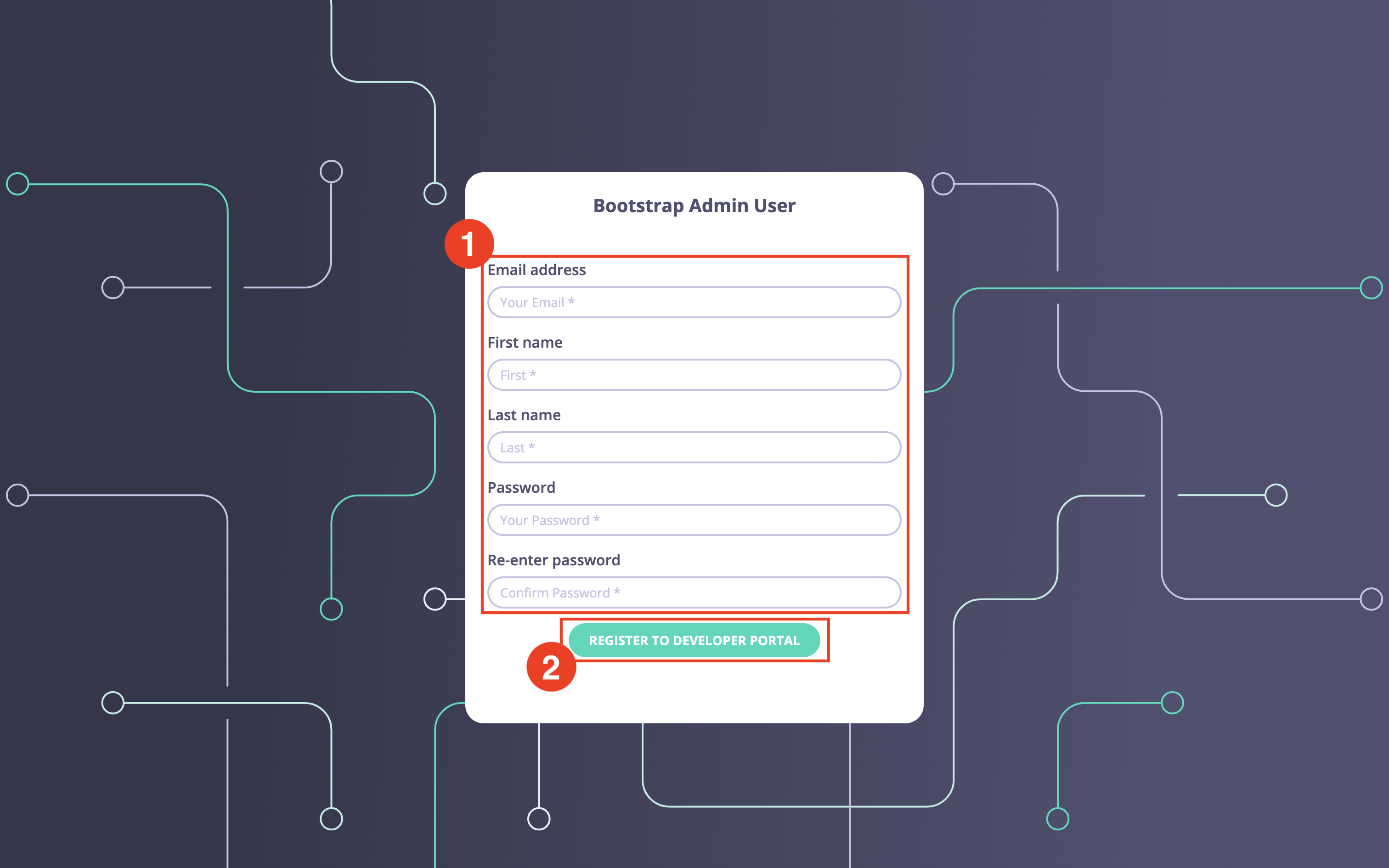 Enter the admin email, password, first name, and last name. Then click on the `Register to Developer portal` button to complete the bootstrapping process.
The bootstrap process should take no longer than a couple of seconds, so almost instantly the portal will display the following page, which confirms the successful bootstrap.
Enter the admin email, password, first name, and last name. Then click on the `Register to Developer portal` button to complete the bootstrapping process.
The bootstrap process should take no longer than a couple of seconds, so almost instantly the portal will display the following page, which confirms the successful bootstrap.
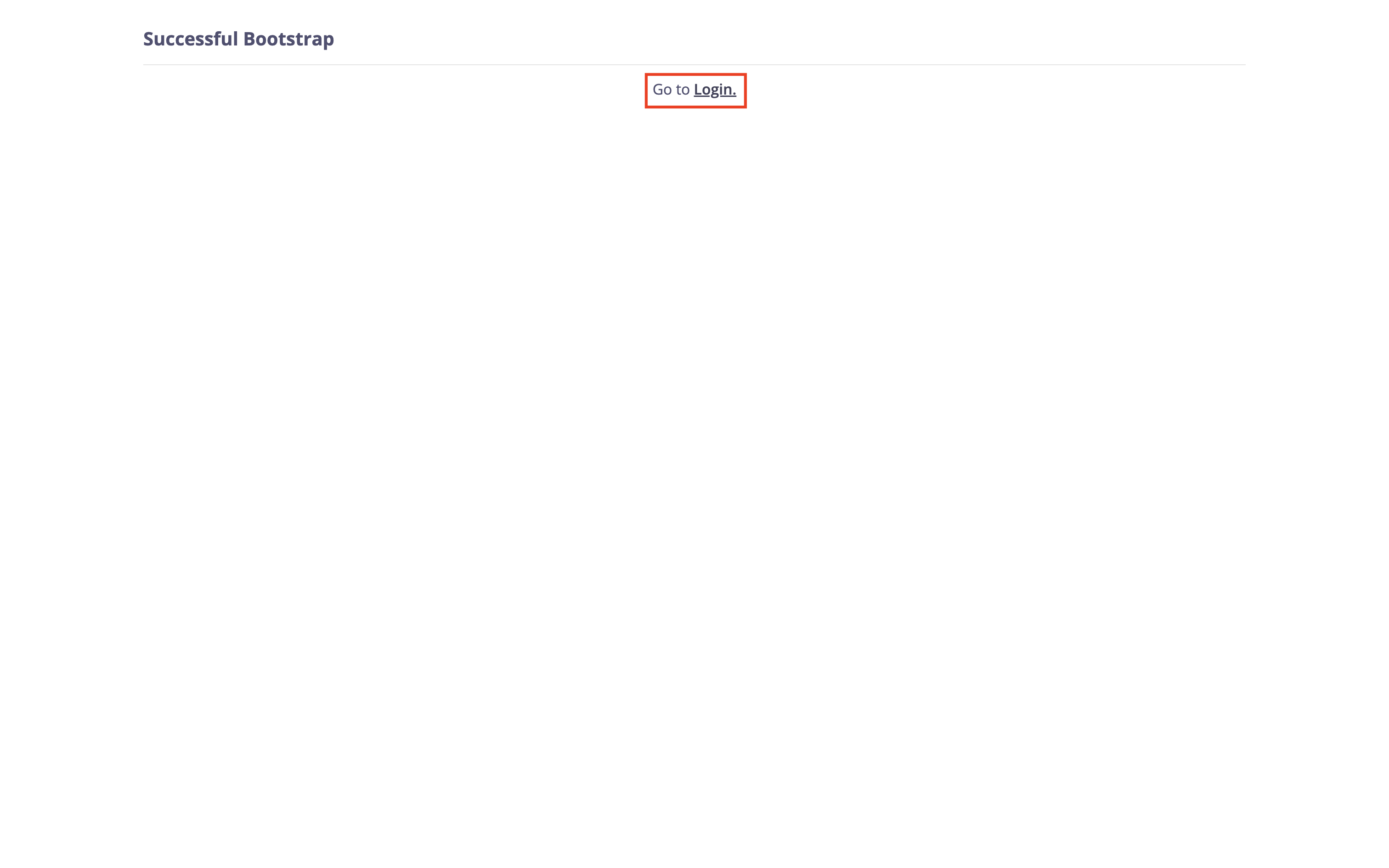 Click on the `Login` button to proceed to the login page, where you can use the newly created super admin credentials to log in to the portal.
### Bootstrapping the Portal via the API
The second approach to bootstrap the portal is through the bootstrap API, which allows you to programmatically bootstrap the portal.
To bootstrap the portal via an API call, call the bootstrap API:
```shell theme={null}
curl --location 'http://:/portal-api/bootstrap' \
--header 'Content-Type: application/json' \
--data-raw '{
"username":"super-admin@tyk.io",
"password": "tyk123",
"first_name":"John",
"last_name":"Doe"
}'
```
The bootstrap API accepts the following parameters:
* **username** - email of the super admin, it is also used as their login
* **password** - the super admin login password
* **first\_name** - first name of the super admin
* **last\_name** - first name of the super admin
The bootstrap process should take no longer than a couple of seconds. You will receive the following response as a confirmation of the successful bootstrapping:
```json theme={null}
{
"code": "OK",
"message": "Bootstrapped user successfully",
"data": {
"api_token": "eyJhbGciOiJIUzI1NiIsInR5cCI6IkpXVCJ9.eyJQcm92aWRlciI6Im5vbmUiLCJVc2VySUQiOiIkMmEkMTAkREF0czZhZTY0ZEZXSkFTbnR2OS8yLmMxcS91VTFhbTRGYk53RVJhTE1Ed2c0NHFsSXJnMkMifQ.ExTNl6UvjQA6WqrPE-7OkSNCBBixc2NGMnh3dnlk5Nw"
}
}
```
**Take a note of the api\_token field**
You will need this to call other Portal APIs.
### Login as the super admin
After you have bootstrapped the portal, either via the UI or the bootstrap API, you can use the super admin's login credentials to log in to the portal.
Open the portal UI in your browser and click on the 'Login' button to open the login page.
Click on the `Login` button to proceed to the login page, where you can use the newly created super admin credentials to log in to the portal.
### Bootstrapping the Portal via the API
The second approach to bootstrap the portal is through the bootstrap API, which allows you to programmatically bootstrap the portal.
To bootstrap the portal via an API call, call the bootstrap API:
```shell theme={null}
curl --location 'http://:/portal-api/bootstrap' \
--header 'Content-Type: application/json' \
--data-raw '{
"username":"super-admin@tyk.io",
"password": "tyk123",
"first_name":"John",
"last_name":"Doe"
}'
```
The bootstrap API accepts the following parameters:
* **username** - email of the super admin, it is also used as their login
* **password** - the super admin login password
* **first\_name** - first name of the super admin
* **last\_name** - first name of the super admin
The bootstrap process should take no longer than a couple of seconds. You will receive the following response as a confirmation of the successful bootstrapping:
```json theme={null}
{
"code": "OK",
"message": "Bootstrapped user successfully",
"data": {
"api_token": "eyJhbGciOiJIUzI1NiIsInR5cCI6IkpXVCJ9.eyJQcm92aWRlciI6Im5vbmUiLCJVc2VySUQiOiIkMmEkMTAkREF0czZhZTY0ZEZXSkFTbnR2OS8yLmMxcS91VTFhbTRGYk53RVJhTE1Ed2c0NHFsSXJnMkMifQ.ExTNl6UvjQA6WqrPE-7OkSNCBBixc2NGMnh3dnlk5Nw"
}
}
```
**Take a note of the api\_token field**
You will need this to call other Portal APIs.
### Login as the super admin
After you have bootstrapped the portal, either via the UI or the bootstrap API, you can use the super admin's login credentials to log in to the portal.
Open the portal UI in your browser and click on the 'Login' button to open the login page.
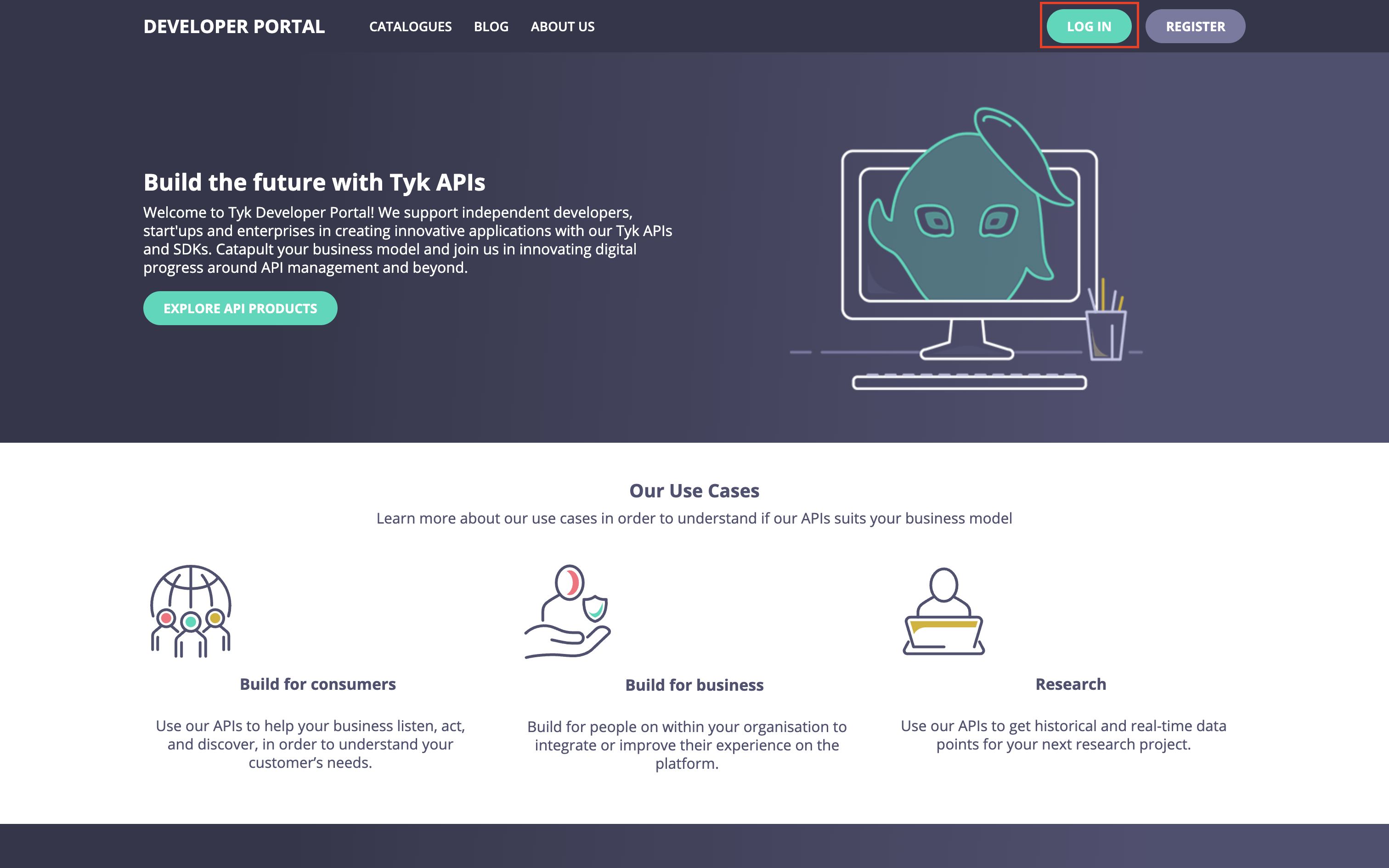
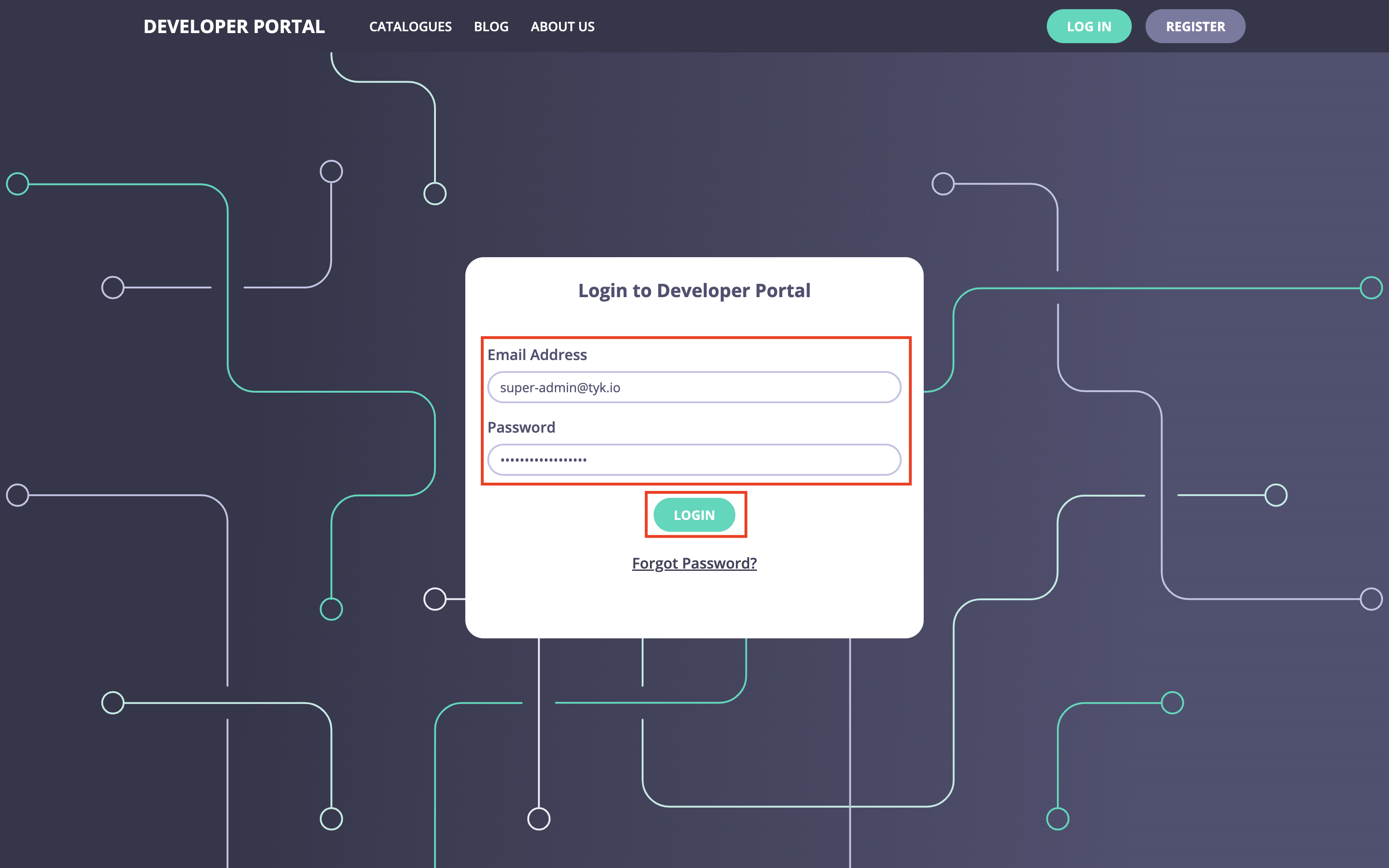
On the login page, enter the super admin credentials for logging into the portal:
**Congratulations!**
Now you have a fully functional portal.
You can continue configuring and customizing it either via the UI or the portal admin API. Please refer to [the Tyk Enterprise Developer Portal Concepts section](/5.8/portal/overview/concepts) for further guidance.
## Environment Variable Reference
For global configurations of the Developer Portal deployment refer this [config file](/5.8/product-stack/tyk-enterprise-developer-portal/deploy/configuration).
## API Documentation
The Dashboard exposes two APIs:
1. [Enterprise Developer Portal API](/5.8/product-stack/tyk-enterprise-developer-portal/api-documentation/tyk-edp-api)
2. [Enterprise Developer Portal Admin API](/5.8/product-stack/tyk-enterprise-developer-portal/api-documentation/list-of-endpoints/portal-1.13.0-list-of-endpoints)