> ## Documentation Index
> Fetch the complete documentation index at: https://tyk.io/docs/llms.txt
> Use this file to discover all available pages before exploring further.
# Install Tyk Self-Managed on Docker
> Installation guide for the Tyk Self-Managed on Docker
| Edition | Deployment Type |
| :--------- | :------------------- |
| Enterprise | Self-Managed, Hybrid |
## Prerequisites
* [Docker](https://docs.docker.com/get-docker/)
* [Enterprise Edition License](/5.12/apim#licensing)
This guide spins up a full Tyk Self Managed stack; however, if you are interested in learning Tyk Stack, there's an option for [Tyk Demo](/5.12/deployment-and-operations/tyk-self-managed/tyk-demos-and-pocs/overview), which is a project that spins up a full Tyk stack that includes pre-populated API definitions of all kinds, with various middleware options, and can also spin up supporting tools such as Prometheus, Keycloak (IDP), etc.
Running on Podman, containerd, or another container runtime? See [Container Runtimes](/5.12/deployment-and-operations/container-runtimes).
## What's included?
This installation will run Tyk Self-Managed on your machine, which contains 5 containers: Tyk Gateway, Tyk Dashboard, Tyk Pump, Redis and MongoDB.
Please visit the [Planning for Production](/5.12/planning-for-production) page to learn how to configure settings for optimal performance.
From v5.5.0 onwards, Docker images are based on [distroless](https://github.com/GoogleContainerTools/distroless). This means that you will not be able to obtain a shell with `docker run --rm -it tykio/tyk-gateway:v5.5.0 sh`. The image can be inspected with tools like [dive](https://github.com/wagoodman/dive) or [Docker Desktop](https://www.docker.com/products/docker-desktop/).
## Instructions
1. **Clone the GitHub repo**
```
git clone https://github.com/TykTechnologies/tyk-pro-docker-demo
```
2. **Edit your hosts file**
You need to add the following to your hosts file:
```bash theme={null}
127.0.0.1 www.tyk-portal-test.com
127.0.0.1 www.tyk-test.com
```
3. **Add your developer license**
From your installation folder:
Create an `.env` file - `cp .env.example .env.` Then add your license string to `TYK_DB_LICENSEKEY`.
4. **Initialise the Docker containers**
**With MongoDB**
Run the following command from your installation folder:
```docker theme={null}
docker-compose up
```
**With PostgreSQL**
Run the following command from your installation folder:
```docker theme={null}
docker-compose -f ./docker-compose.yml -f ./docker-compose.postgres.yml up
```
This will will download and setup the five Docker containers. This may take some time and will run in non-daemonised mode so you can see all the output.
5. **Bootstrap the Tyk installation**
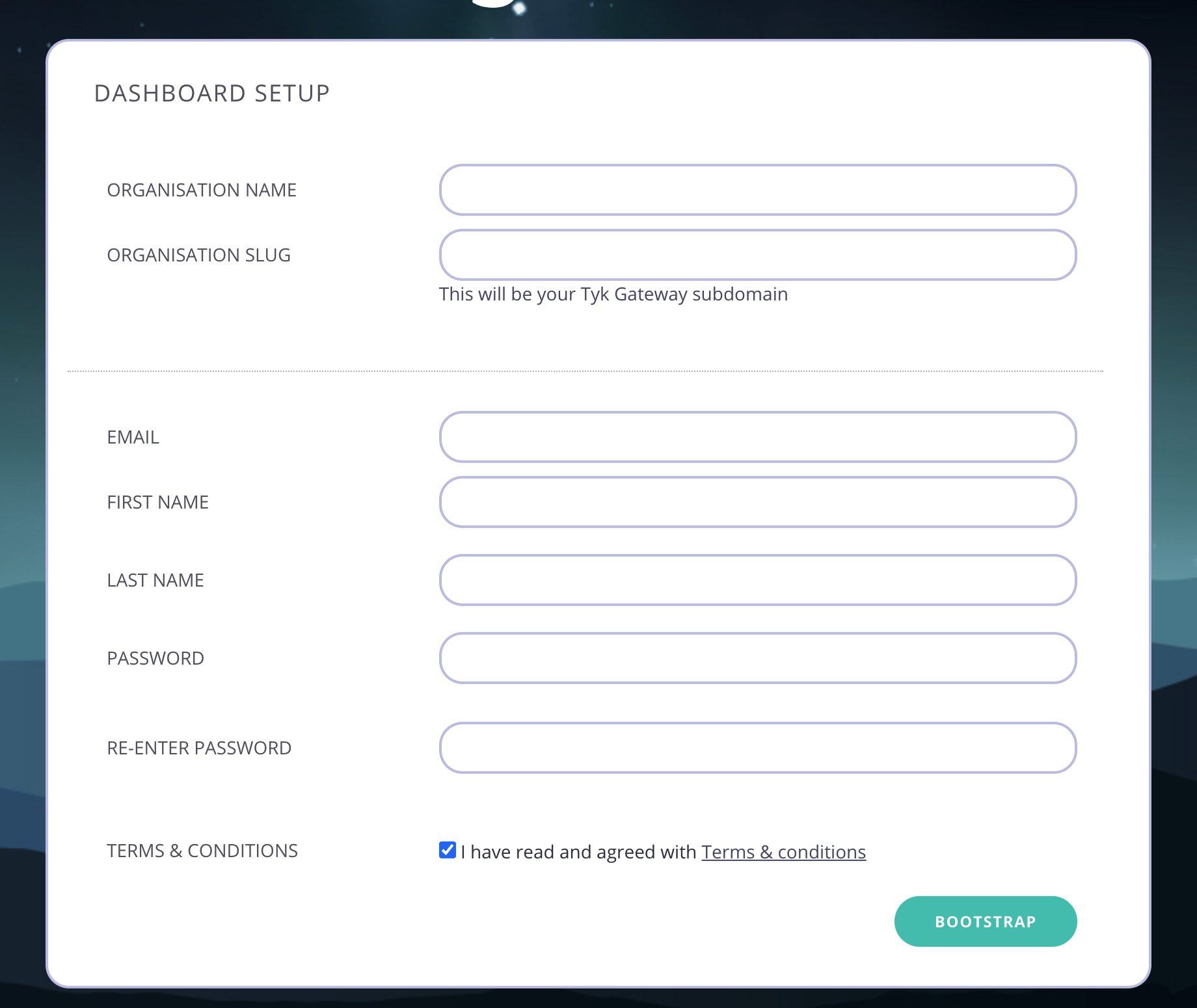
Go to [http://localhost:3000](http://localhost:3000) in your browser. You will be presented with the Bootstrap UI to create your first organization and admin user.
 6. **Create your organization and default user**
You need to enter the following:
* Your **Organization Name**
* Your **Organization Slug**
* Your User **Email Address**
* Your User **First and Last Name**
* A **Password** for your User
* **Re-enter** your user **Password**
For a password, we recommend a combination of alphanumeric characters, with both upper and lower case
letters.
Click **Bootstrap** to save the details.
7. **Log in to the Tyk Dashboard**
You can now log in to the Tyk Dashboard from `127.0.0.1:3000`, using the username and password created in the Dashboard
Setup screen.
## Uninstall
To delete all containers as well as remove all volumes from your host:
**With MongoDB**
```bash theme={null}
docker-compose down -v
```
**With PostgreSQL:**
```bash theme={null}
docker-compose -f ./docker-compose.yml -f ./docker-compose.postgres.yml down -v
```
6. **Create your organization and default user**
You need to enter the following:
* Your **Organization Name**
* Your **Organization Slug**
* Your User **Email Address**
* Your User **First and Last Name**
* A **Password** for your User
* **Re-enter** your user **Password**
For a password, we recommend a combination of alphanumeric characters, with both upper and lower case
letters.
Click **Bootstrap** to save the details.
7. **Log in to the Tyk Dashboard**
You can now log in to the Tyk Dashboard from `127.0.0.1:3000`, using the username and password created in the Dashboard
Setup screen.
## Uninstall
To delete all containers as well as remove all volumes from your host:
**With MongoDB**
```bash theme={null}
docker-compose down -v
```
**With PostgreSQL:**
```bash theme={null}
docker-compose -f ./docker-compose.yml -f ./docker-compose.postgres.yml down -v
```