> ## Documentation Index
> Fetch the complete documentation index at: https://tyk.io/docs/llms.txt
> Use this file to discover all available pages before exploring further.
# Step by step guide using Keycloak
**Legacy: Tyk Classic Portal**
You're viewing documentation for the **Tyk Classic Portal**, which is no longer actively maintained.
If you're looking for the latest API documentation for the **new Tyk Developer Portal**, please refer to the
[Postman collection](/5.12/product-stack/tyk-enterprise-developer-portal/api-documentation/tyk-edp-api) or visit the
[Tyk Developer Portal](/5.12/portal/overview/intro) section.
The Classic Portal is in maintenance mode and will be deprecated soon. For questions or support, contact us at
[support@tyk.io]().
We are going walk you through a basic integration of Tyk with Keycloak using the [OpenID Connect Dynamic Client Registration protocol](https://tools.ietf.org/html/rfc7591). Our current implementation provides support for the client credentials flow with support for JWT. To the developer it works like this:
1. An API with its corresponding security policy is created in Tyk. It is then added to the Developer Portal Catalog.
2. A developer signs up and creates a Dynamic Client Registration provider using the Developer Portal.
Tyk sends the Dynamic Client Registration call to your IDP. The IDP replies with the client ID and secret.
3. Using the previous information, the developer (or your application) triggers a call to the token endpoint of the IDP.
The developer (or your application) then triggers a call to Tyk, using the token that was generated by the IDP. Tyk validates this token using the JWKS provided by the IDP.
### Requirements
* A [Keycloak](https://www.keycloak.org/) instance.
* A [Tyk Self Managed installation](/5.12/tyk-self-managed/install) (Gateway + Dashboard).
### Getting started with Keycloak
To get started with Dynamic Client Registration in Keycloak you'll need to generate an [initial access token](https://openid.net/specs/openid-connect-registration-1_0.html#Terminology) using the Keycloak Administration Console. After logging in, click **Realm settings** under **Configure** and select the **Client Registration** tab:
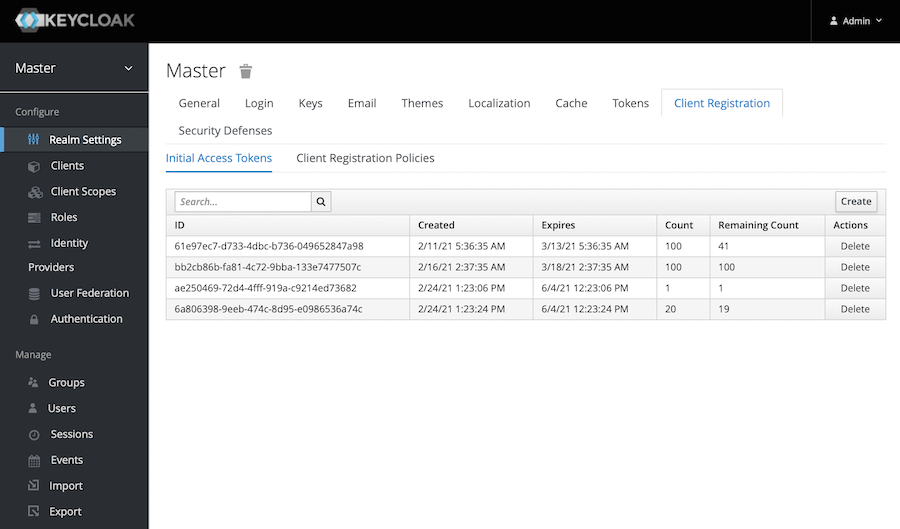 To generate an initial access token, click **Create** and set the expiration time and maximum number of clients to be created using this token:
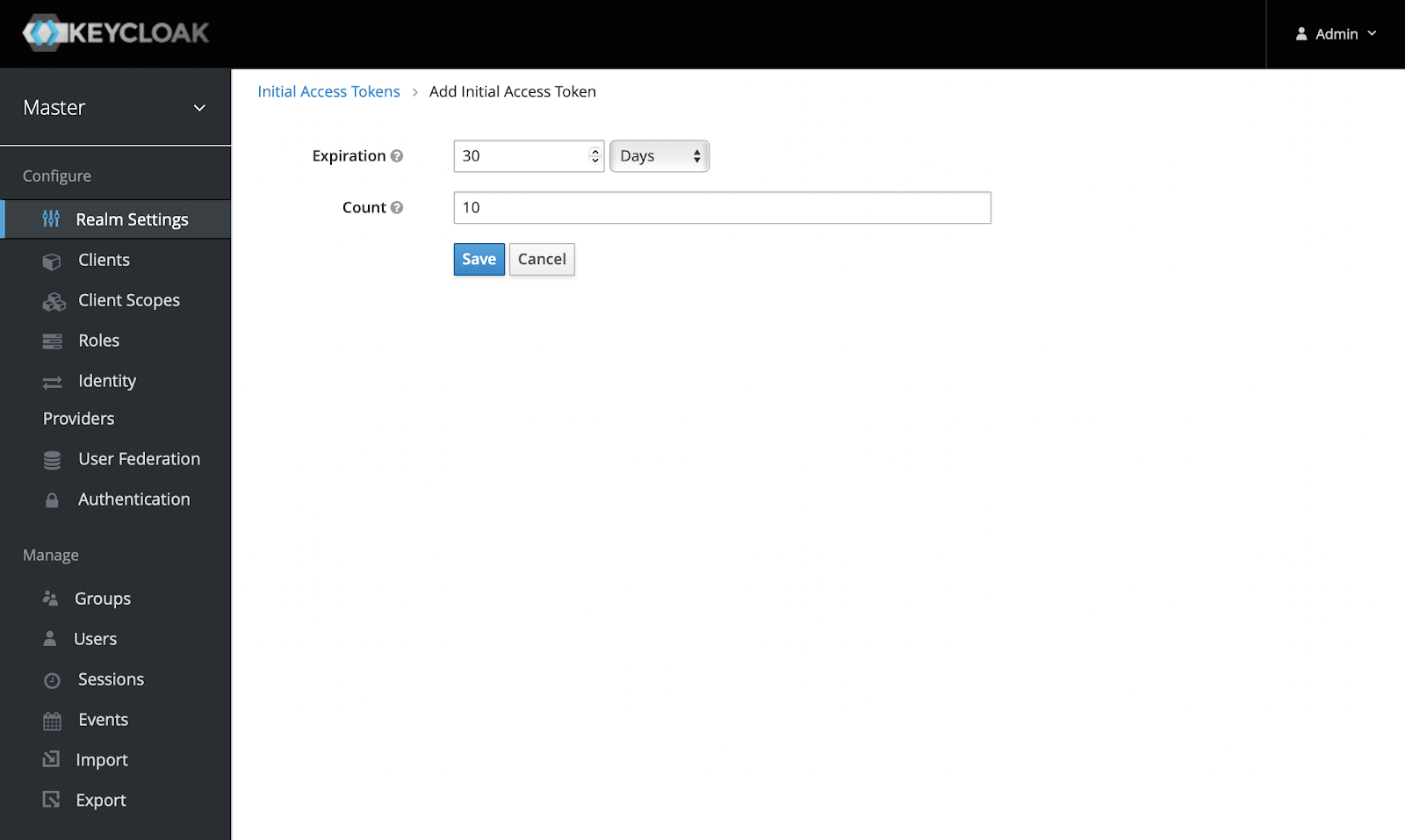 Click **Save** and the token will be created. Keep it safe as you'll use this token to configure Tyk.
### Setting up Tyk
Now you're ready to set up Tyk. For compatibility reasons, check your `tyk_analytics.conf` and make sure that a proper `oauth_redirect_uri_separator` parameter is set. You may use the following value:
```json theme={null}
"oauth_redirect_uri_separator": ";",
```
**Note:** If you're using a self-signed certificate on your Keycloak instance, you will need to set additional flags on both gateway and dashboard. For skipping DCR endpoint SSL verification, add the following flag to `tyk_analytics.conf`:
```json theme={null}
"dcr_ssl_insecure_skip_verify": true
```
Also add the following flag to `tyk.conf`, this will instruct the gateway to skip SSL verification when the JWT middleware is in use, particularly when JWKS are retrieved from your IDP:
```json theme={null}
"jwt_ssl_insecure_skip_verify": true
```
Remember to restart the services after applying the above changes.
Open the Tyk Dashboard and click **APIs** under **System Management**. Create a new API called "Keycloak API":
Click **Save** and the token will be created. Keep it safe as you'll use this token to configure Tyk.
### Setting up Tyk
Now you're ready to set up Tyk. For compatibility reasons, check your `tyk_analytics.conf` and make sure that a proper `oauth_redirect_uri_separator` parameter is set. You may use the following value:
```json theme={null}
"oauth_redirect_uri_separator": ";",
```
**Note:** If you're using a self-signed certificate on your Keycloak instance, you will need to set additional flags on both gateway and dashboard. For skipping DCR endpoint SSL verification, add the following flag to `tyk_analytics.conf`:
```json theme={null}
"dcr_ssl_insecure_skip_verify": true
```
Also add the following flag to `tyk.conf`, this will instruct the gateway to skip SSL verification when the JWT middleware is in use, particularly when JWKS are retrieved from your IDP:
```json theme={null}
"jwt_ssl_insecure_skip_verify": true
```
Remember to restart the services after applying the above changes.
Open the Tyk Dashboard and click **APIs** under **System Management**. Create a new API called "Keycloak API":
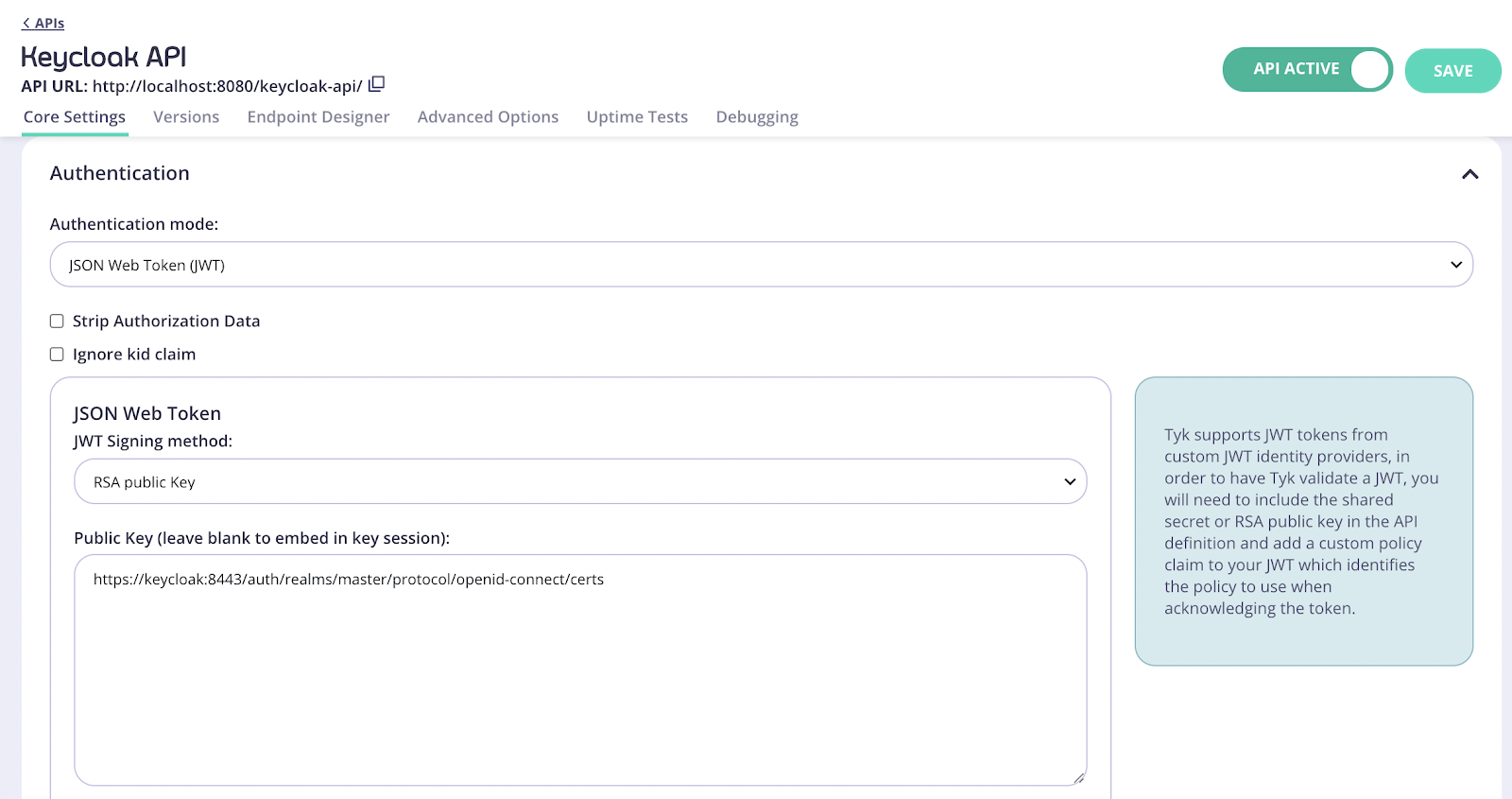
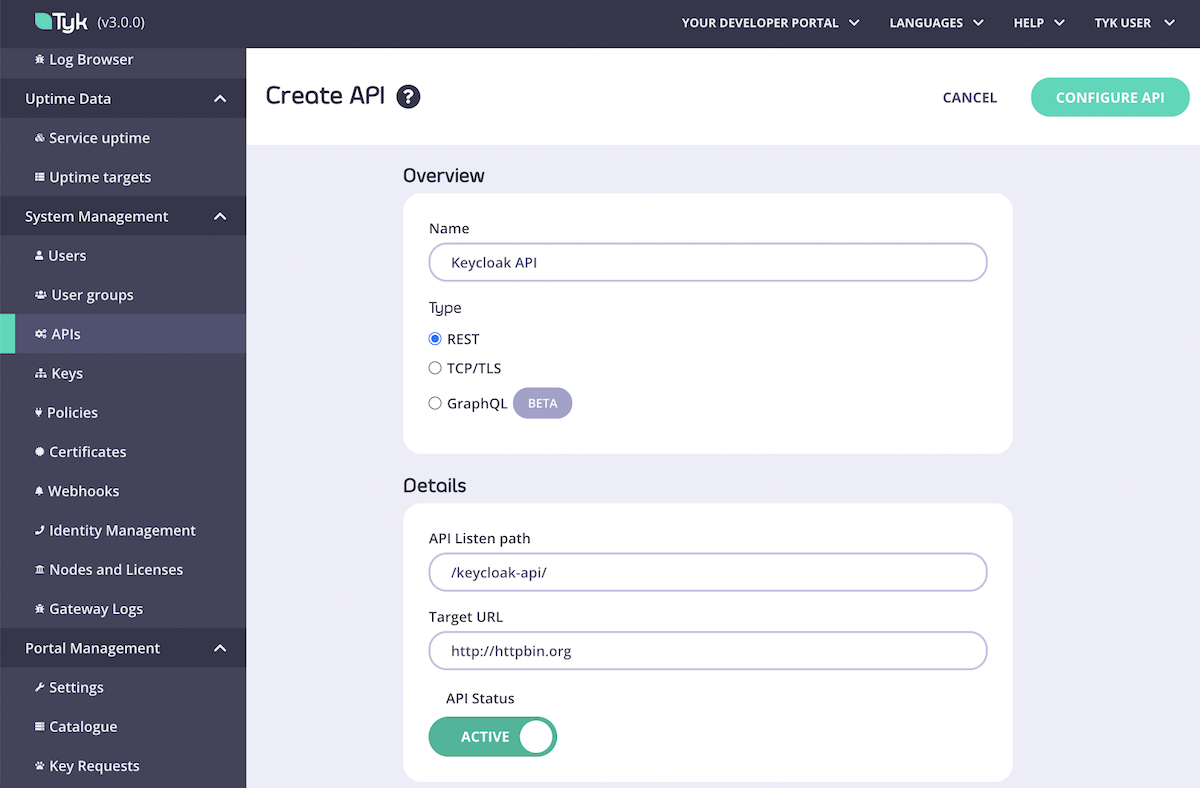 Complete first part of the API creation form, then click **Configure API** and set the Authentication mode as in the image below:
 Where do I get the proper JWKS URI for my Keycloak environment?
The JWKS URI is a required field in the `.well-known/openid-configuration` endpoint of your OpenID Connect Provider metadata. Please see the [OpenID spec](https://openid.net/specs/openid-connect-discovery-1_0.html#ProviderConfigurationResponse) for further information.
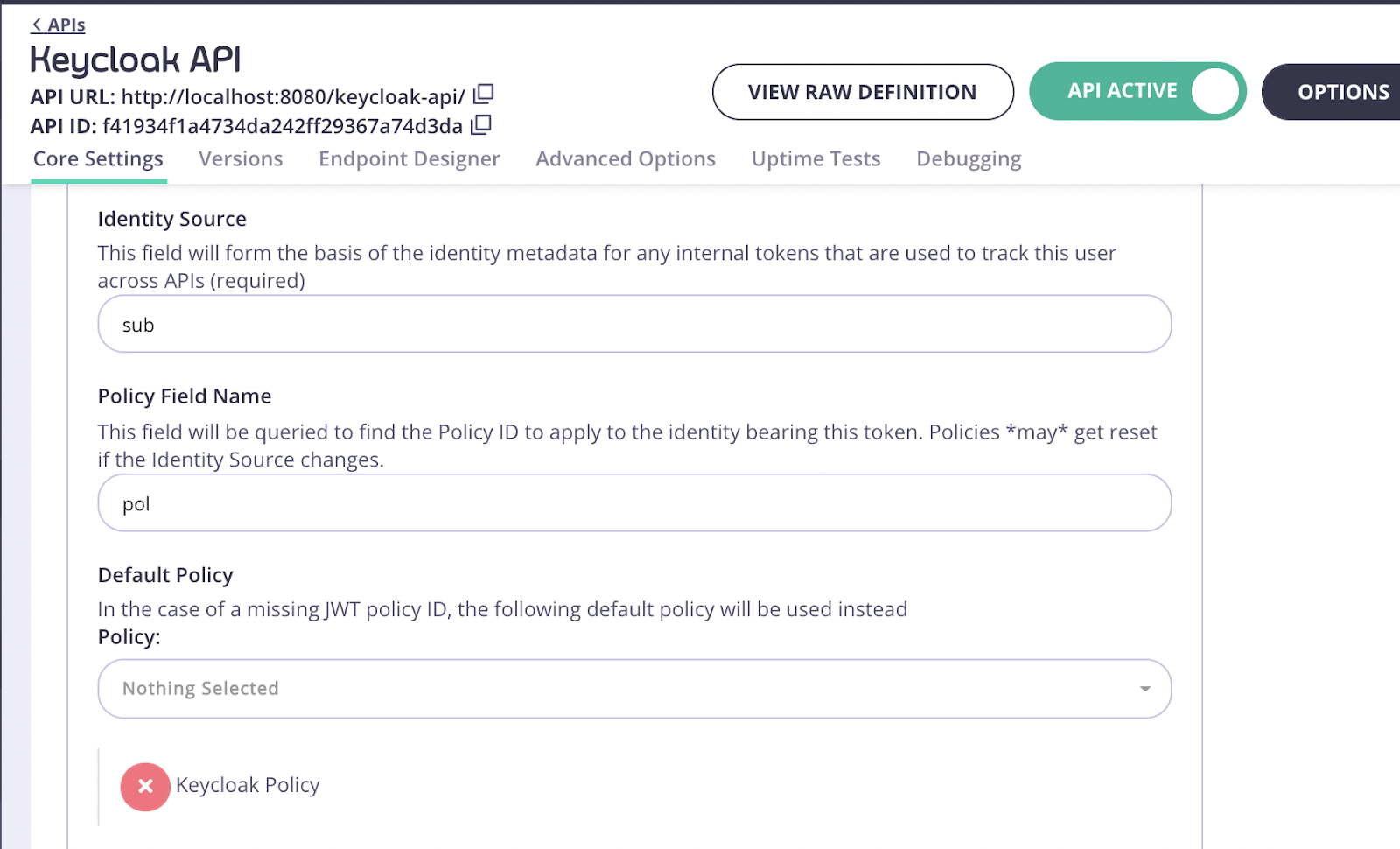
For the **Identity Source** field use `"sub"` and for **Policy Field Name** use `"pol"`.
1. Click **Save**
2. Select **Policies** under **System Management**
3. Click **Create a Policy** and call it **Keycloak Policy**. Use the default values for this policy.
4. In the **Access rights** section, select your previously created **Keycloak API**. You will also need to enter an expiration setting for your keys.
After the policy is created, switch back to the API settings and make sure that the API is using your **Keycloak API** policy:
Where do I get the proper JWKS URI for my Keycloak environment?
The JWKS URI is a required field in the `.well-known/openid-configuration` endpoint of your OpenID Connect Provider metadata. Please see the [OpenID spec](https://openid.net/specs/openid-connect-discovery-1_0.html#ProviderConfigurationResponse) for further information.
For the **Identity Source** field use `"sub"` and for **Policy Field Name** use `"pol"`.
1. Click **Save**
2. Select **Policies** under **System Management**
3. Click **Create a Policy** and call it **Keycloak Policy**. Use the default values for this policy.
4. In the **Access rights** section, select your previously created **Keycloak API**. You will also need to enter an expiration setting for your keys.
After the policy is created, switch back to the API settings and make sure that the API is using your **Keycloak API** policy:
 Now you're ready to add this API to the Developer Portal.
1. Click **Catalog** under **Portal Management** on the navigation menu.
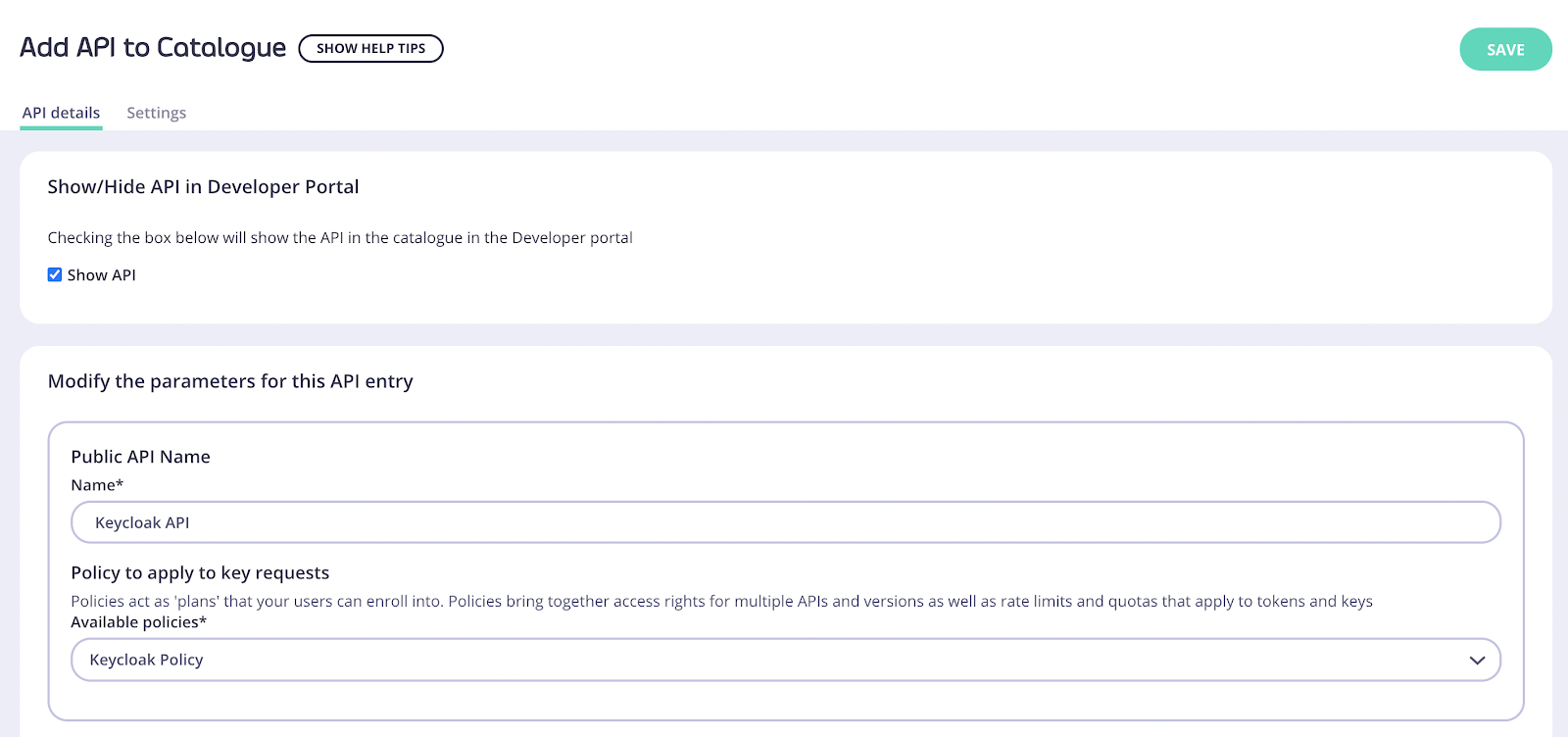
2. Click **Add New API**, enter a name for it and select the newly created policy. Again, you will use **Keycloak Policy**:
Now you're ready to add this API to the Developer Portal.
1. Click **Catalog** under **Portal Management** on the navigation menu.
2. Click **Add New API**, enter a name for it and select the newly created policy. Again, you will use **Keycloak Policy**:
 1. Click **Save** then open the API added again
2. Open the **Settings** tab.
3. In **API Details** select the **Override global settings** option.
Tyk lets you set global portal settings that apply to **all portal-listed APIs**, in this guide we assume you’re enabling and setting up DCR for a single API. In case you want to enable DCR for all the APIs, you should go to the **Settings** section under **Portal Management**, and in the **API Access** tab you can enter your DCR settings there.
4. Scroll down to the DCR section and enter the following settings:
1. Click **Save** then open the API added again
2. Open the **Settings** tab.
3. In **API Details** select the **Override global settings** option.
Tyk lets you set global portal settings that apply to **all portal-listed APIs**, in this guide we assume you’re enabling and setting up DCR for a single API. In case you want to enable DCR for all the APIs, you should go to the **Settings** section under **Portal Management**, and in the **API Access** tab you can enter your DCR settings there.
4. Scroll down to the DCR section and enter the following settings:
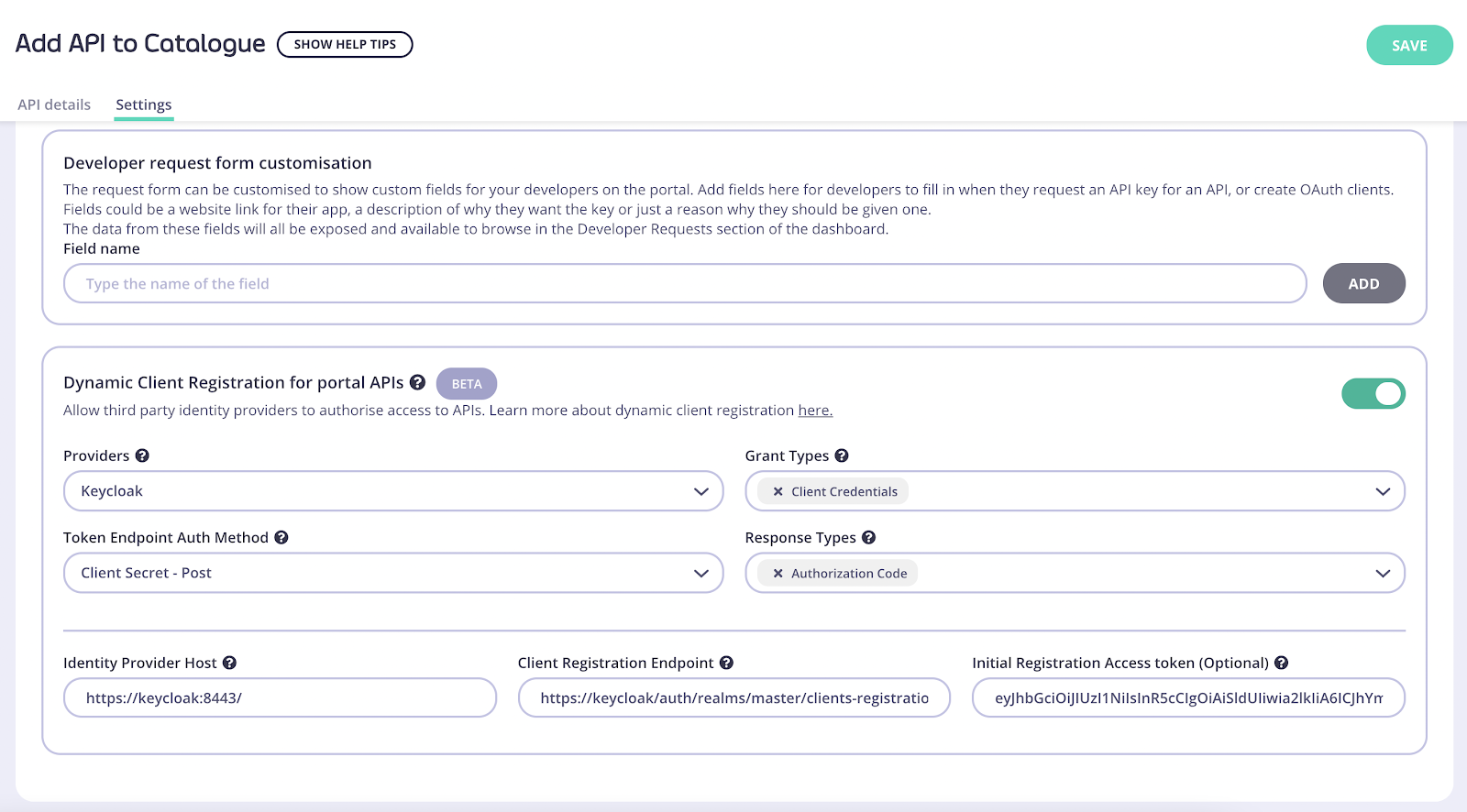 **Providers:** Different providers might implement the standard in slightly different ways, Tyk provides a specific driver for each one. For IDPs that aren’t on the list use the **Other** option.
**Grant Types:** The [OAuth 2.0 grant types](/5.12/api-management/authentication/oauth-2) that will be used by the client, see the [specification](https://openid.net/specs/openid-connect-registration-1_0.html#rfc.section.2) for more details.
**Token Endpoint Auth Method:** defines the way the client will authenticate against the token endpoint.
**Response Types:** OAuth 2.0 response types that will be used by the client.
**Identity Provider Host:** Base IDP URL, e.g. `https://keycloak:8443/`
**Client Registration Endpoint:** OpenID Connect client registration endpoint. This value is found in your well-known discovery document as `registration_endpoint`. The well-known location URL is typically `https://keycloak:8443/.well-known/openid-configuration`
**Initial Registration Access Token:** the token that’s used to register new clients, this was generated in the early steps of the guide.
### Testing the flow
Now that both Tyk and Keycloak are ready we can test the complete flow.
1. Click **Developers** under **Portal Management**
2. Click on **Add developer** and create a developer user.
After the developer is created, open your Developer Portal, click on the **OAuth Clients** navigation bar button and follow the wizard:
**Providers:** Different providers might implement the standard in slightly different ways, Tyk provides a specific driver for each one. For IDPs that aren’t on the list use the **Other** option.
**Grant Types:** The [OAuth 2.0 grant types](/5.12/api-management/authentication/oauth-2) that will be used by the client, see the [specification](https://openid.net/specs/openid-connect-registration-1_0.html#rfc.section.2) for more details.
**Token Endpoint Auth Method:** defines the way the client will authenticate against the token endpoint.
**Response Types:** OAuth 2.0 response types that will be used by the client.
**Identity Provider Host:** Base IDP URL, e.g. `https://keycloak:8443/`
**Client Registration Endpoint:** OpenID Connect client registration endpoint. This value is found in your well-known discovery document as `registration_endpoint`. The well-known location URL is typically `https://keycloak:8443/.well-known/openid-configuration`
**Initial Registration Access Token:** the token that’s used to register new clients, this was generated in the early steps of the guide.
### Testing the flow
Now that both Tyk and Keycloak are ready we can test the complete flow.
1. Click **Developers** under **Portal Management**
2. Click on **Add developer** and create a developer user.
After the developer is created, open your Developer Portal, click on the **OAuth Clients** navigation bar button and follow the wizard:
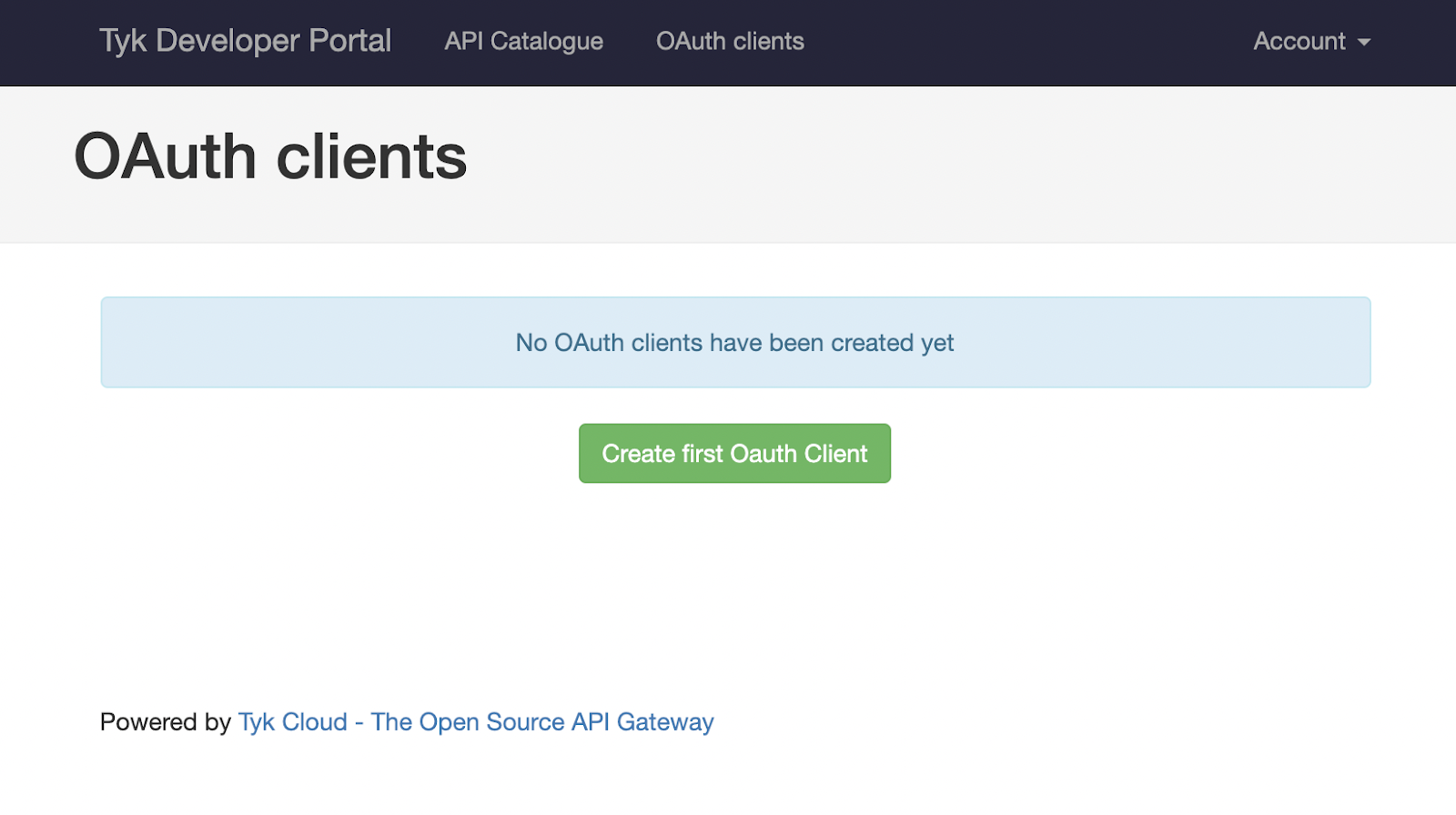 Click **Create first OAuth Client**. You’ll see your previously created **Keycloak API**, select it and click **Save and continue**. The following screen will require you to enter a client name. It’s also possible to set redirect URLs if you also plan to use this client for other flow types. This setting can be left blank for the purposes of this guide.
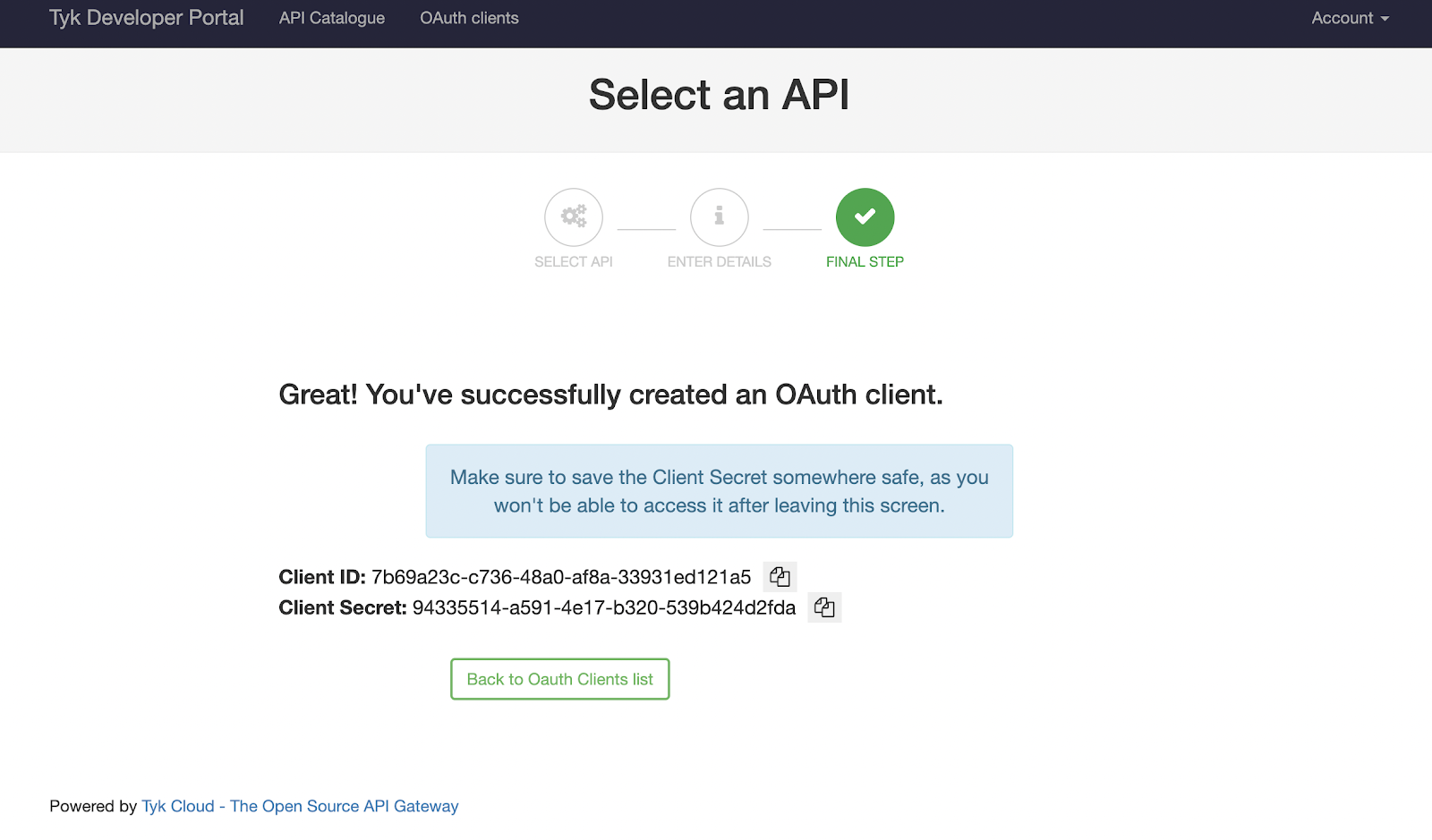
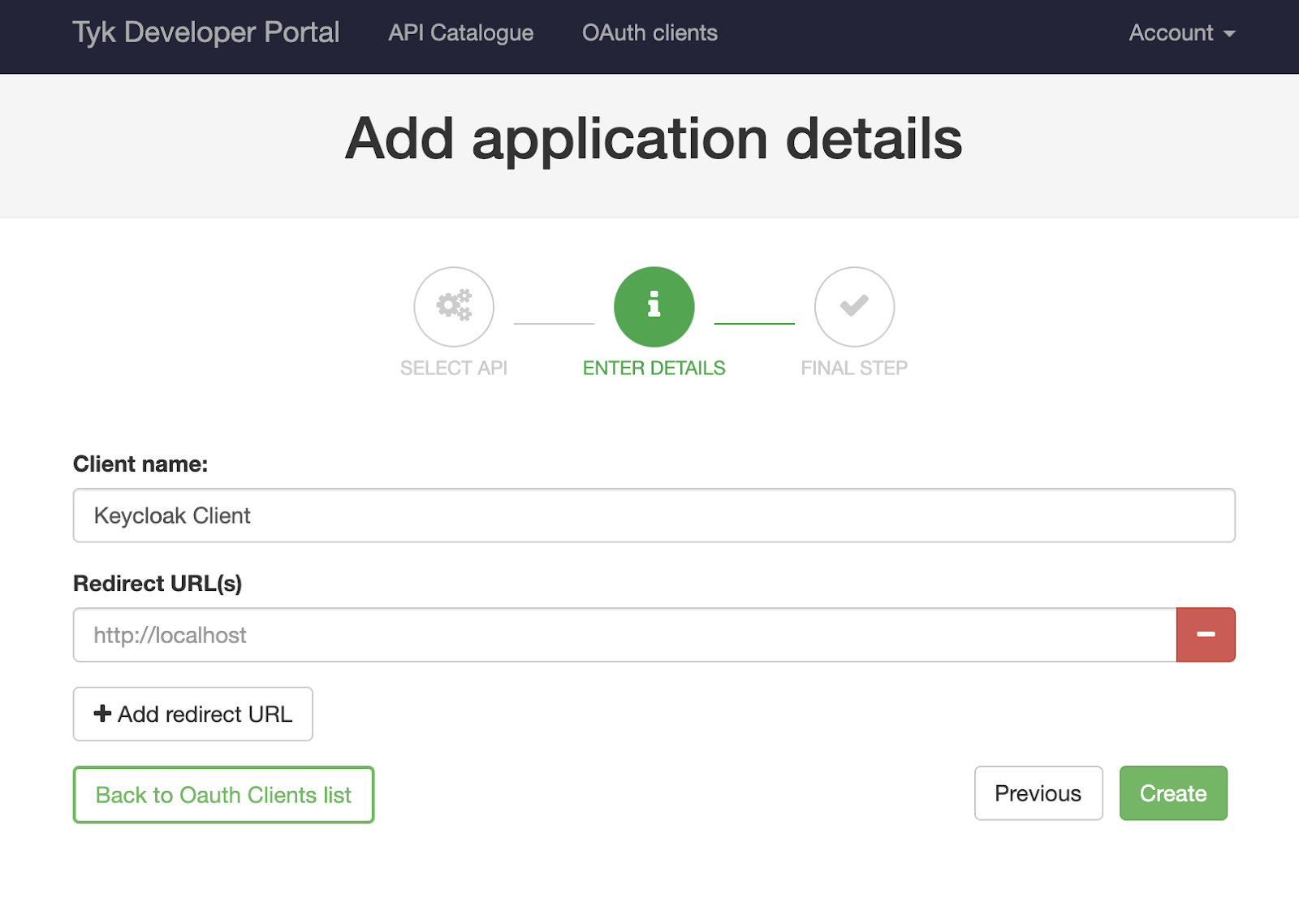 Once you click **Create**, Tyk will trigger a registration on your IDP and the details of your client will be displayed:
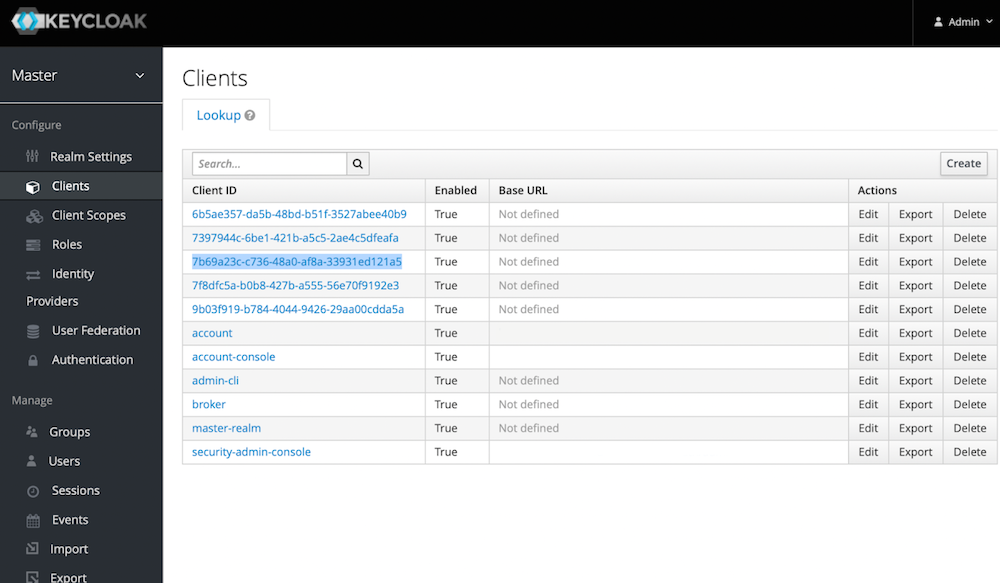
 If you check the Keycloak dashboard you will see this client too:
 The next step is to generate a token and use it for accessing your **Keycloak API**. We'll use Postman for this. You will need your token URL which is also the well-known URL for your organization.
For this guide we use `https://keycloak:8443/auth/realms/master/protocol/openid-connect/token`
Your Postman request should contain the following body, where `"client_id"` and `"client_secret"` are the credentials you got from the developer portal:
The next step is to generate a token and use it for accessing your **Keycloak API**. We'll use Postman for this. You will need your token URL which is also the well-known URL for your organization.
For this guide we use `https://keycloak:8443/auth/realms/master/protocol/openid-connect/token`
Your Postman request should contain the following body, where `"client_id"` and `"client_secret"` are the credentials you got from the developer portal:
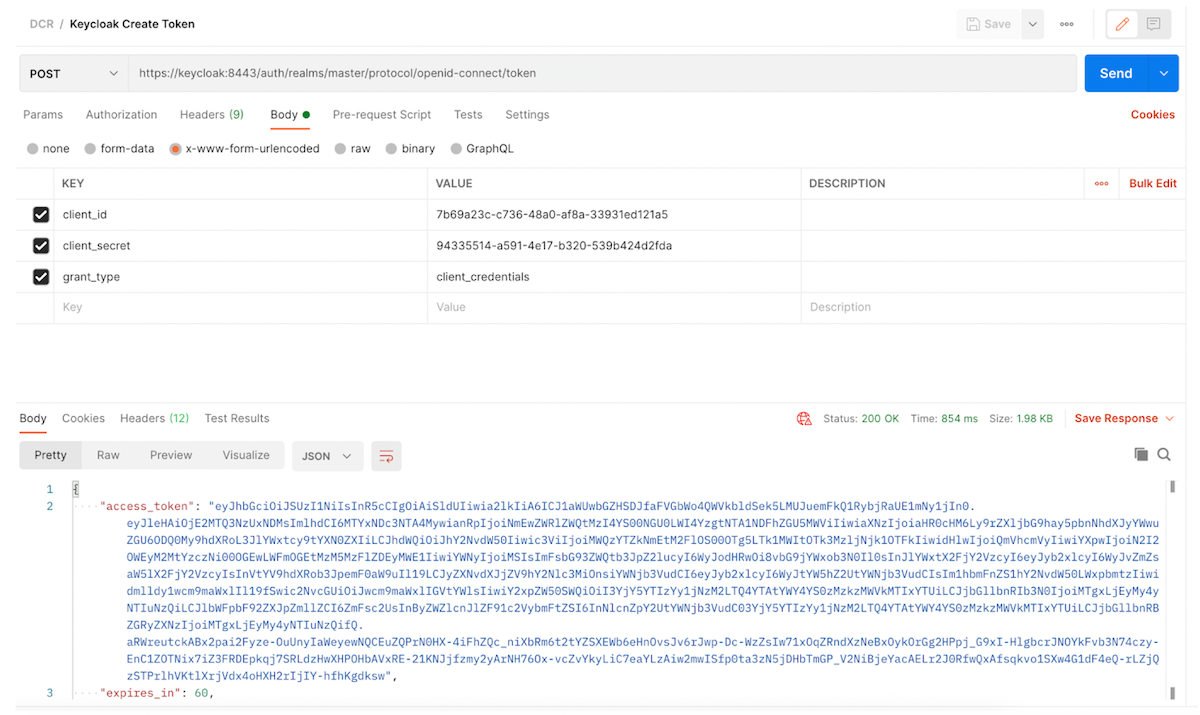 Note that we aren’t using any additional headers for this request, the client credentials are enough.
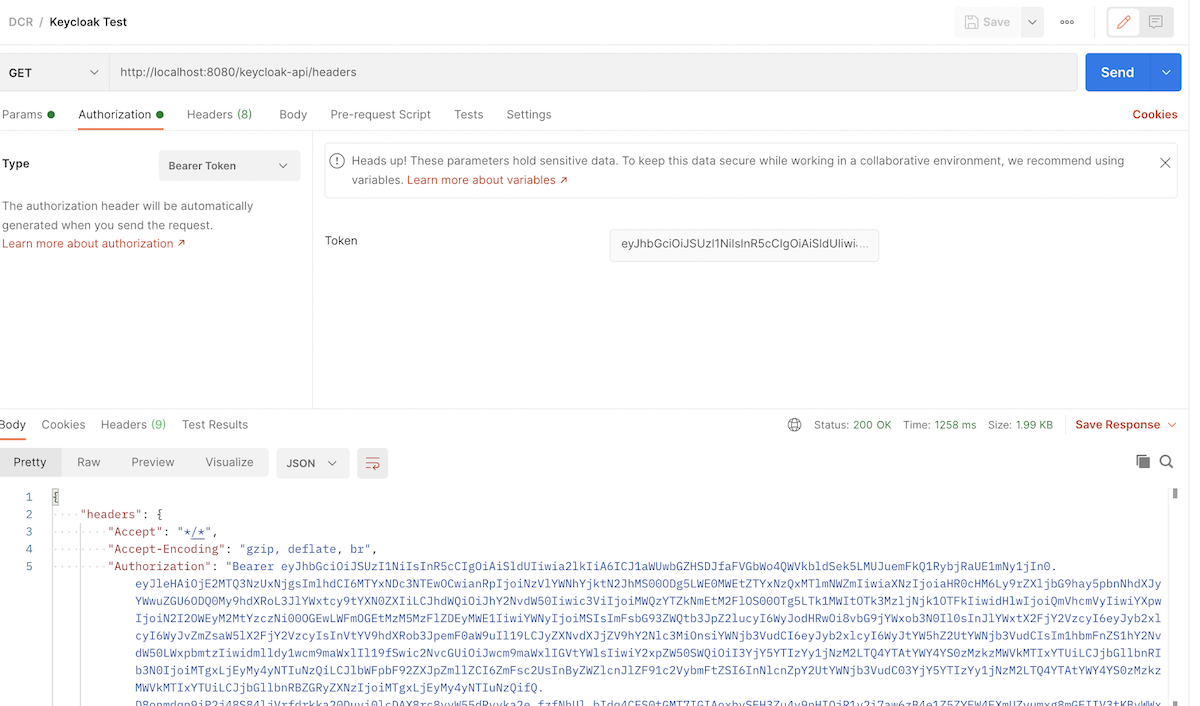
Once we get a response from the IDP, we can copy the `"access_token"` and use it to access our **Keycloak API**, this request will be proxied by Tyk:
Note that we aren’t using any additional headers for this request, the client credentials are enough.
Once we get a response from the IDP, we can copy the `"access_token"` and use it to access our **Keycloak API**, this request will be proxied by Tyk: