> ## Documentation Index
> Fetch the complete documentation index at: https://tyk.io/docs/llms.txt
> Use this file to discover all available pages before exploring further.
# Developer Profiles
**Legacy: Tyk Classic Portal**
You're viewing documentation for the **Tyk Classic Portal**, which is no longer actively maintained.
If you're looking for the latest API documentation for the **new Tyk Developer Portal**, please refer to the
[Postman collection](/5.12/product-stack/tyk-enterprise-developer-portal/api-documentation/tyk-edp-api) or visit the
[Tyk Developer Portal](/5.12/portal/overview/intro) section.
The Classic Portal is in maintenance mode and will be deprecated soon. For questions or support, contact us at
[support@tyk.io]().
Users that are signed up to your portal are called "Developers", these users have access to a Dashboard page which show them their API usage over the past 7 days as well as the policy and quota limits on their relevant keys.
Developers can sign up to multiple APIs using the API catalog.
Developer accounts belong to an organization ID, so accounts cannot be shared across organizations in a Tyk Dashboard setup.
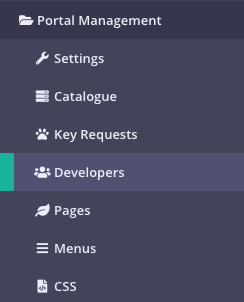
### Navigate to the Portal Developers Section
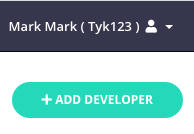
 #### Select Add Developer
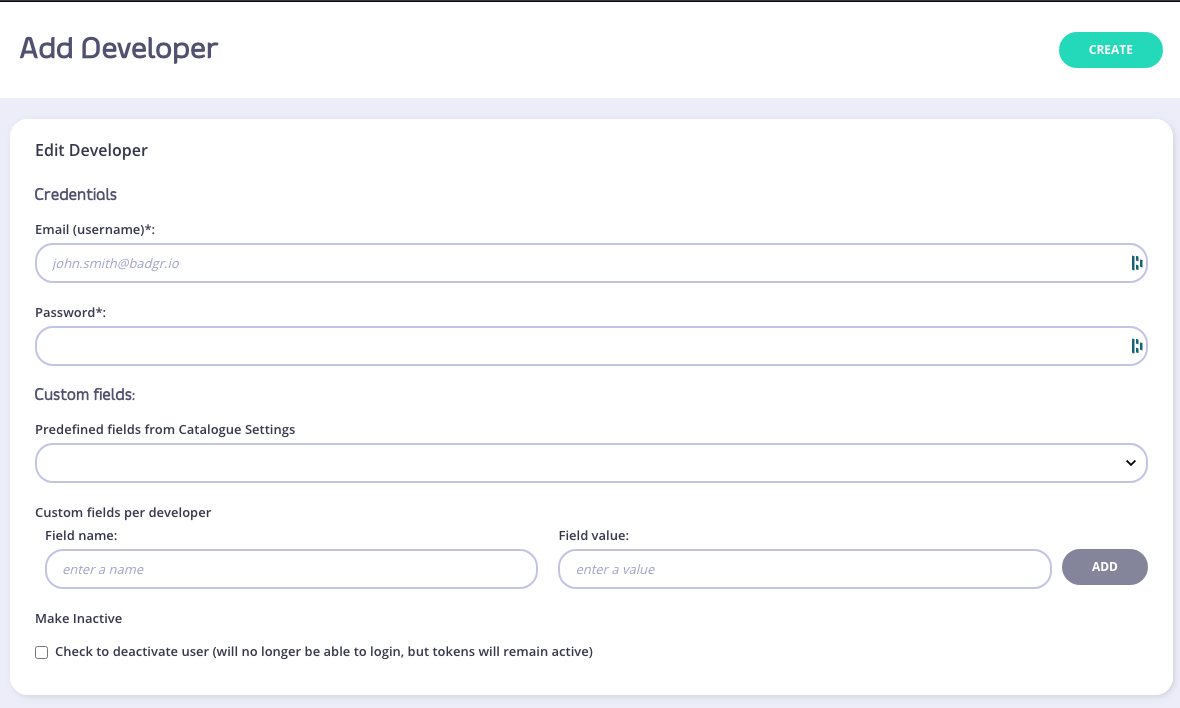
 ### Add Basic Details
 ### Developer Profile Overview
The first panel in a developer profile will show you an avatar (if they have a Gravatar-enabled email address), as well as the basic fields of their signup:
### Developer Profile Overview
The first panel in a developer profile will show you an avatar (if they have a Gravatar-enabled email address), as well as the basic fields of their signup:
 ### Developer Usage
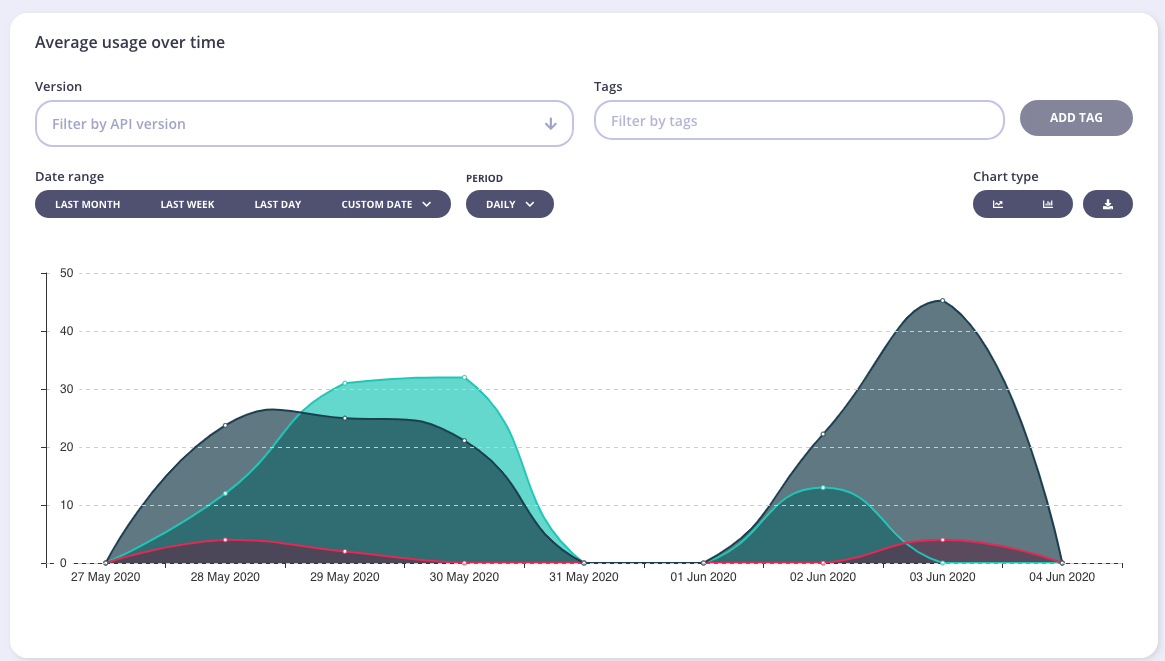
The next panel will show you their apI usage as an aggregate for all the tokens that they have generated with their developer access:
### Developer Usage
The next panel will show you their apI usage as an aggregate for all the tokens that they have generated with their developer access:
 ### Developer Keys
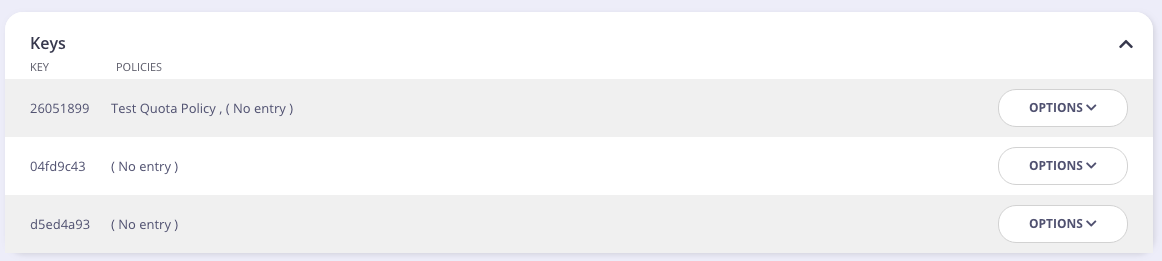
In this panel, you will be able to see the various Keys the developer has access to, and the policies that are connected to the individual Key.
From version 1.9, you can now apply multiple policies to an individual Key.
To drill down into the specific usage patterns for each Key, click **ANALYTICS** for the Key.
### Developer Keys
In this panel, you will be able to see the various Keys the developer has access to, and the policies that are connected to the individual Key.
From version 1.9, you can now apply multiple policies to an individual Key.
To drill down into the specific usage patterns for each Key, click **ANALYTICS** for the Key.
 ### Add a New Key
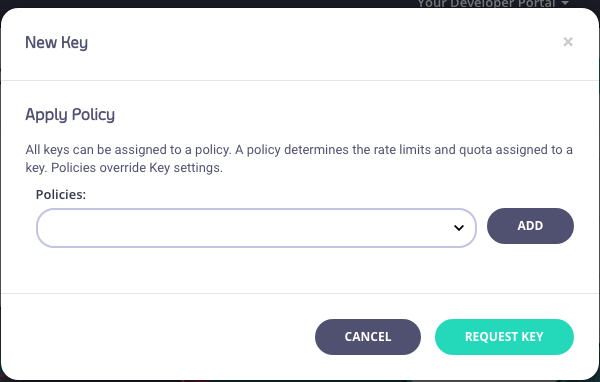
To subscribe a developer to a new Key, from the Edit Developer screen, click **New Key**. From the pop-up screen, select one or more policies from the drop-down list and click **Request Key**.
### Add a New Key
To subscribe a developer to a new Key, from the Edit Developer screen, click **New Key**. From the pop-up screen, select one or more policies from the drop-down list and click **Request Key**.
 ### Changing Developer Policy Keys
#### Step 1: View the Developer Profile
Browse to the developers list view and select the developer that you wish to manage.
#### Step 2: View Keys List
This sections shows you the Keys and the policies connected to them. This view will always try to match the access level to a catalog entry, if the policy assigned to a developer is not in the catalog, the entry will read "(No Catalog Entry)". We recommend that all policy levels are in your catalog, even if they are not all live.
#### Step 3: Click Options
From the Options drop-down for the Key, select **Change Policy**.
#### Step 4: Select the New Policy
Select a new policy to add to your Key from the **Policies** drop-down list. You can also remove existing policies connected to the Key.
#### Step 5: Save the Change
Click **CHANGE KEY POLICY** to save the changes.
### Developer OAuth Clients
### Edit the Developer Profile
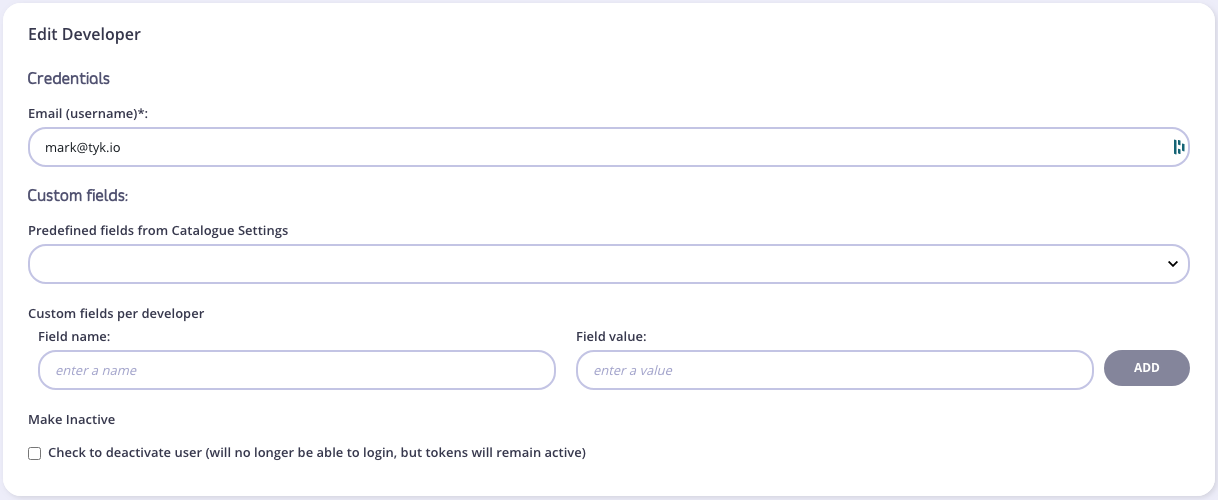
All fields in the profile are editable. In this section you can select a field and modify that data for the developer. This will not affect any tokens they may have, but it will affect how it appears in their Developer Dashboard in your Portal.
### Changing Developer Policy Keys
#### Step 1: View the Developer Profile
Browse to the developers list view and select the developer that you wish to manage.
#### Step 2: View Keys List
This sections shows you the Keys and the policies connected to them. This view will always try to match the access level to a catalog entry, if the policy assigned to a developer is not in the catalog, the entry will read "(No Catalog Entry)". We recommend that all policy levels are in your catalog, even if they are not all live.
#### Step 3: Click Options
From the Options drop-down for the Key, select **Change Policy**.
#### Step 4: Select the New Policy
Select a new policy to add to your Key from the **Policies** drop-down list. You can also remove existing policies connected to the Key.
#### Step 5: Save the Change
Click **CHANGE KEY POLICY** to save the changes.
### Developer OAuth Clients
### Edit the Developer Profile
All fields in the profile are editable. In this section you can select a field and modify that data for the developer. This will not affect any tokens they may have, but it will affect how it appears in their Developer Dashboard in your Portal.
 Developers can edit this data themselves in their accounts section.
### Search for a Developer
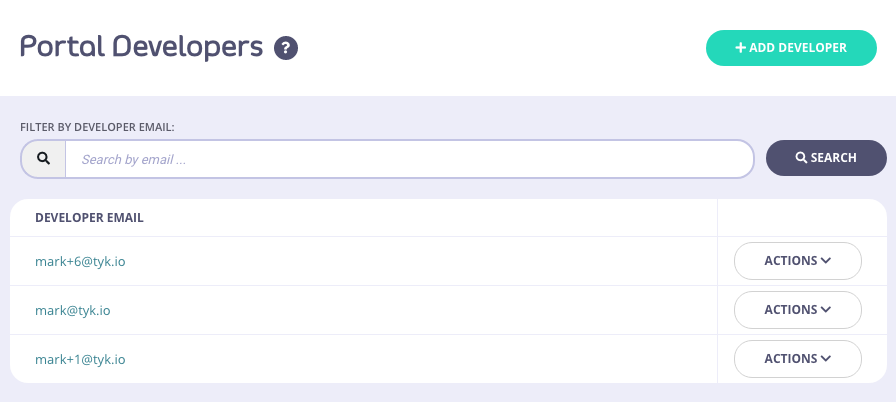
You can search for a developer (by email address) by entering their address in the Search field.
This option is only available from Dashboard v1.3.1.2 and onwards.
Developers can edit this data themselves in their accounts section.
### Search for a Developer
You can search for a developer (by email address) by entering their address in the Search field.
This option is only available from Dashboard v1.3.1.2 and onwards.
 ### Developer Edit Profile
Once logged in, a developer can edit their profile. Select **Edit profile** from the **Account** menu drop-down list.
### Developer Edit Profile
Once logged in, a developer can edit their profile. Select **Edit profile** from the **Account** menu drop-down list.
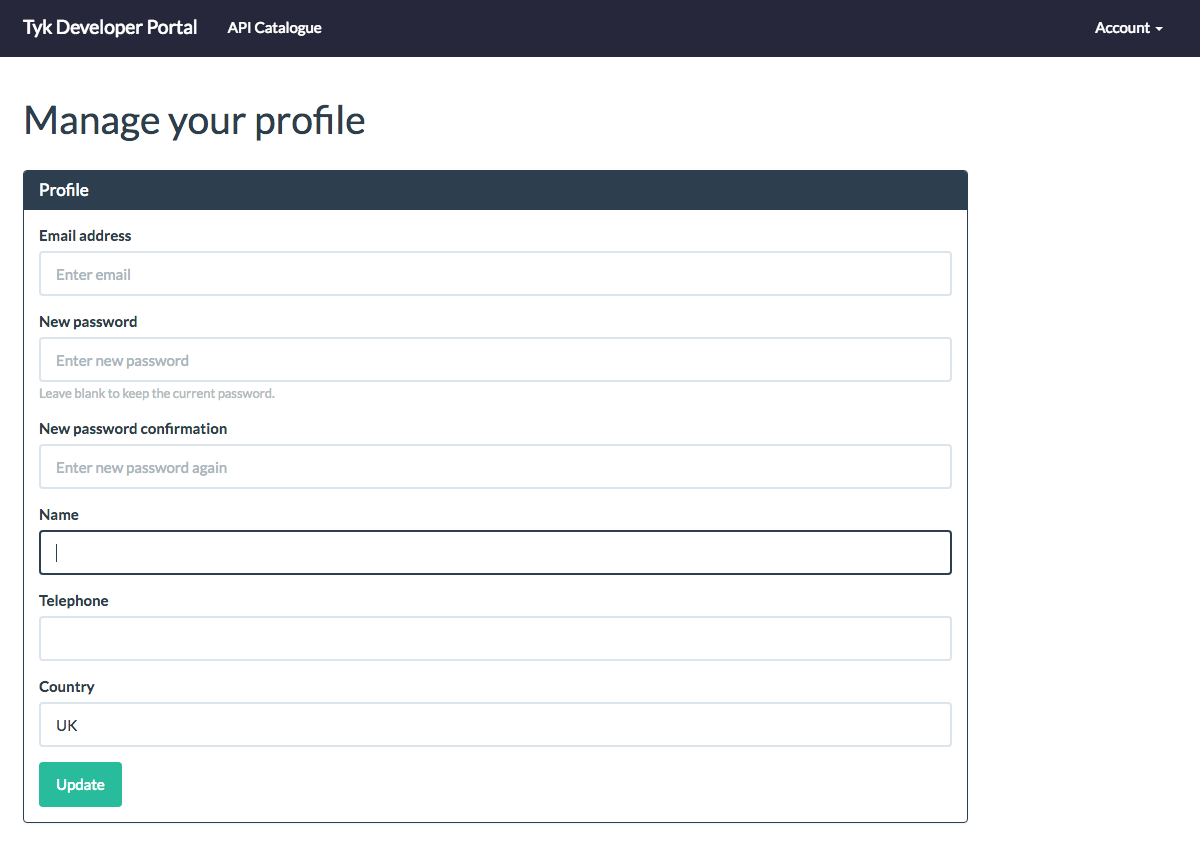 A developer can change the following:
* Email
* Change Password
* Name
* Telephone
* Country Location
### Reset Developer Password
If a developer has forgotten their password, they can request a password reset email from the Login screen.
A developer can change the following:
* Email
* Change Password
* Name
* Telephone
* Country Location
### Reset Developer Password
If a developer has forgotten their password, they can request a password reset email from the Login screen.
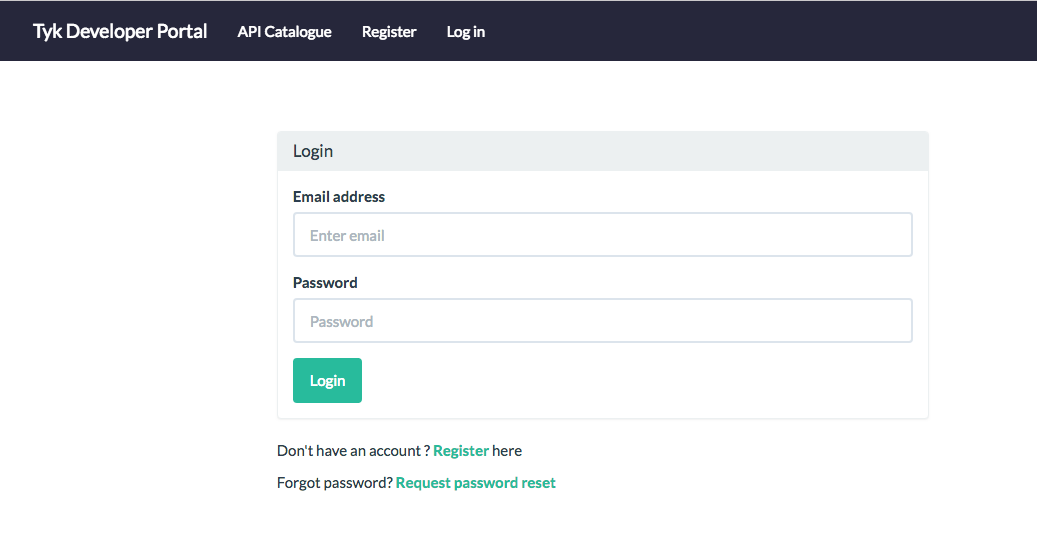 1. Click **Request password reset**
2. Enter your email address and click **Send Password reset email**
1. Click **Request password reset**
2. Enter your email address and click **Send Password reset email**
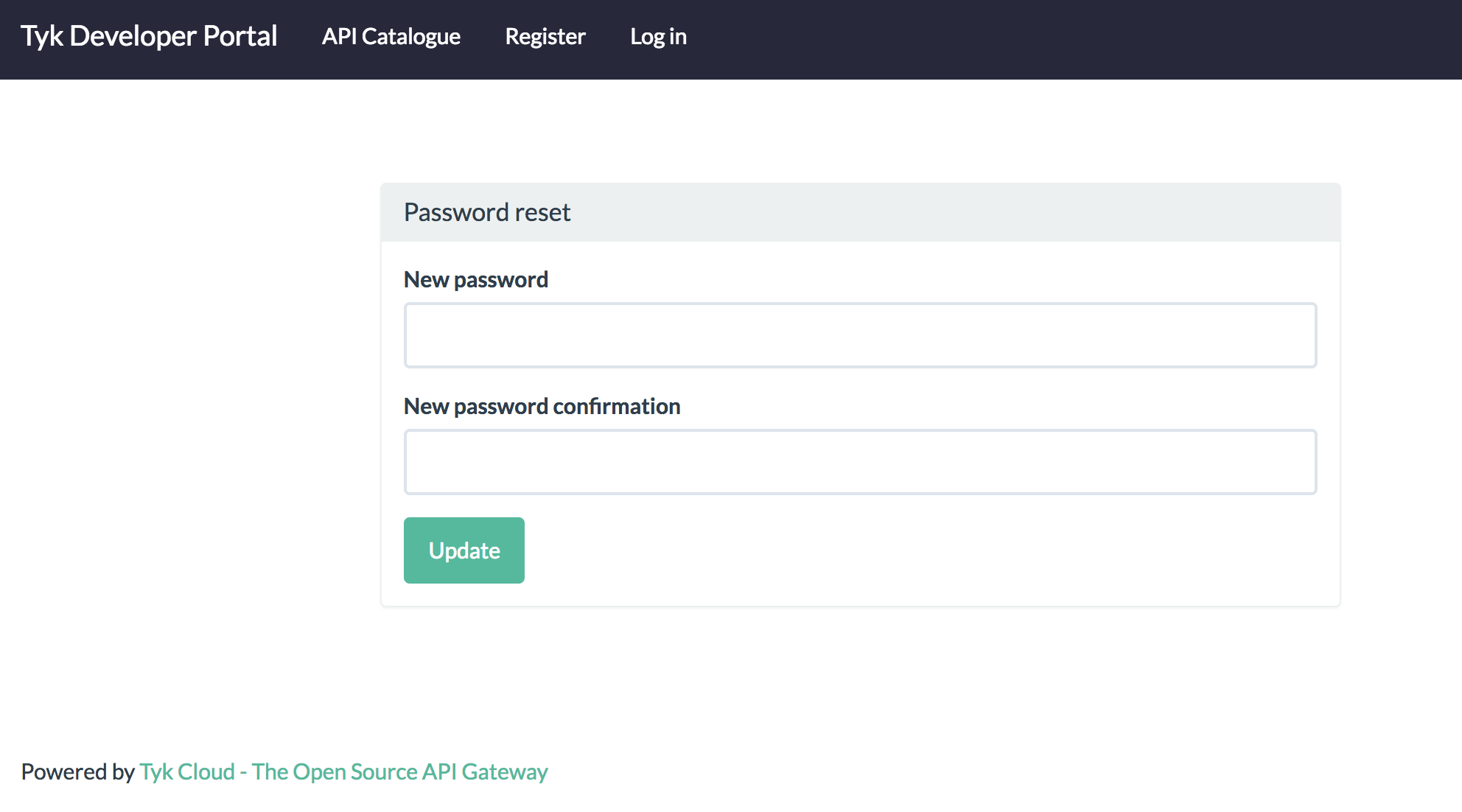
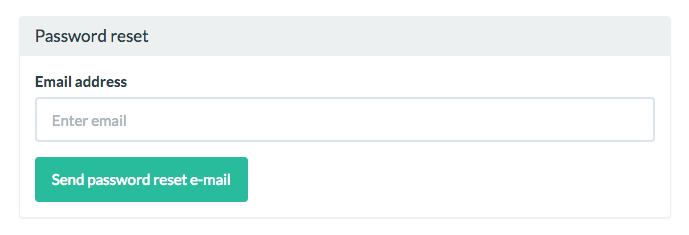 You will be sent an email with a link to reset your Developer password. Enter your new password and click **Update**. You can then login with your new details.
Your password must be a minimum of 6 characters.
You will be sent an email with a link to reset your Developer password. Enter your new password and click **Update**. You can then login with your new details.
Your password must be a minimum of 6 characters.
 [1]: /img/dashboard/portal-management/developer_menu_2.5.png
[2]: /img/dashboard/portal-management/add_developer_2.5.png
[3]: /img/dashboard/portal-management/developer_details_2.5.png
[4]: /img/dashboard/portal-management/developer_overview_2.5.png
[5]: /img/dashboard/portal-management/developer_usage_2.5.png
[6]: /img/dashboard/portal-management/developer_subs_2.5.png
[7]: /img/dashboard/portal-management/developer_edit_2.5.png
[8]: /img/dashboard/portal-management/developer_search_2.5.png
[13]: /img/dashboard/portal-management/developer_edit_2.5.png
[14]: /img/dashboard/portal-management/keys_dev_profile.png
[15]: /img/dashboard/portal-management/change_key_policy.png
[16]: /img/dashboard/portal-management/new_key_request.png
[1]: /img/dashboard/portal-management/developer_menu_2.5.png
[2]: /img/dashboard/portal-management/add_developer_2.5.png
[3]: /img/dashboard/portal-management/developer_details_2.5.png
[4]: /img/dashboard/portal-management/developer_overview_2.5.png
[5]: /img/dashboard/portal-management/developer_usage_2.5.png
[6]: /img/dashboard/portal-management/developer_subs_2.5.png
[7]: /img/dashboard/portal-management/developer_edit_2.5.png
[8]: /img/dashboard/portal-management/developer_search_2.5.png
[13]: /img/dashboard/portal-management/developer_edit_2.5.png
[14]: /img/dashboard/portal-management/keys_dev_profile.png
[15]: /img/dashboard/portal-management/change_key_policy.png
[16]: /img/dashboard/portal-management/new_key_request.png