> ## Documentation Index
> Fetch the complete documentation index at: https://tyk.io/docs/llms.txt
> Use this file to discover all available pages before exploring further.
# Enable and View Audit Logs in Tyk Developer Portal
> Learn how to enable audit logging in Tyk Developer Portal and access the audit log file to track admin actions.
## Availability
| Component | Version | Edition |
| :------------------------------ | :----------------------------------------------------------------------------------------- | :--------- |
| Tyk Enterprise Developer Portal | Available since [v1.7.0](/5.12/developer-support/release-notes/portal#1-7-0-release-notes) | Enterprise |
## Prerequisites
1. **License**: [Contact our team](https://tyk.io/contact/) to obtain a license or get a self-managed trial license by completing the registration on our [website](https://tyk.io/self-managed-trial/).
2. **Working Tyk Environment**: You need access to a running Tyk instance. For quick setup instructions using Docker, please refer to the [Tyk Getting Started Guide](/5.12/getting-started/quick-start).
3. **Admin Access**: You need admin permissions to configure audit logging in the Portal.
## What We Will Do
In this guide, we will:
1. Enable audit logs in the Tyk Developer Portal using the file storage option
2. Configure the log file path and format
3. View the audit logs from the log file
The Developer Portal uses file-based audit logging. Unlike the Tyk Dashboard, the Portal does not currently support database storage for audit logs or viewing them through the Portal UI.
## Instructions
### 1. Configure Audit Logging
To enable audit logging in the Developer Portal, you need to configure the audit log settings.
Set the following environment variables:
```bash theme={null}
PORTAL_AUDIT_LOG_ENABLE=true
PORTAL_AUDIT_LOG_PATH=/var/log/portal
```
Add the following to your Portal configuration file:
```json theme={null}
{
"AuditLog": {
"Enable": true,
"Path": "/var/log/portal"
}
}
```
Ensure the directory specified in `PORTAL_AUDIT_LOG_PATH` exists and is writable by the Portal process. If using containers, mount a volume to persist logs.
For more information on configuration options, refer to the [Portal Configuration Reference](/5.12/product-stack/tyk-enterprise-developer-portal/deploy/configuration#audit-log-settings).
### 2. Restart the Developer Portal
After updating the configuration, restart your Developer Portal for the changes to take effect:
```bash theme={null}
# For Docker
docker restart tyk-portal
# For Docker Compose
docker compose restart tyk-portal
# For Kubernetes
kubectl rollout restart deployment tyk-portal -n tyk
```
### 3. View Audit Logs
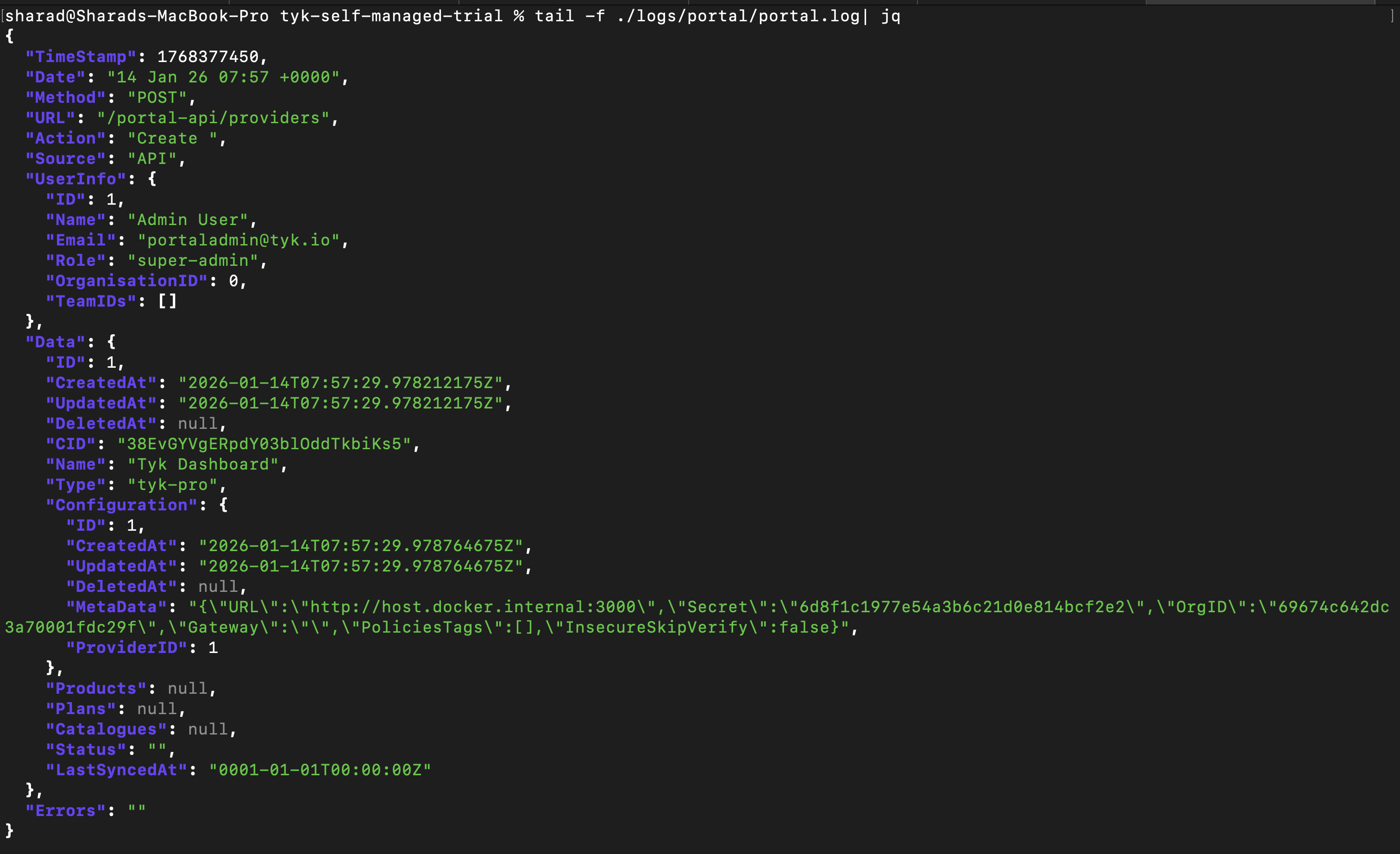
Once audit logging is enabled, admin actions are recorded in the `portal.log` file located in the directory specified by `PORTAL_AUDIT_LOG_PATH`.
#### Access the Log File
```bash theme={null}
# View the audit log file
cat /var/log/portal/portal.log
# Follow the log file in real-time
tail -f /var/log/portal/portal.log
# Search for specific actions
grep "admin@example.com" /var/log/portal/portal.log
```
 #### For Docker Containers
```bash theme={null}
# Access logs from a running container
docker exec -it tyk-portal cat /var/log/portal/portal.log
```
#### For Kubernetes
```bash theme={null}
# Access logs from a running pod
kubectl exec -it deployment/tyk-portal -n tyk -- cat /var/log/portal/portal.log
```
## Troubleshooting
1. **Check if audit logging is enabled**: Verify `PORTAL_AUDIT_LOG_ENABLE` is set to `true`
2. **Verify directory exists**: Ensure the directory specified in `PORTAL_AUDIT_LOG_PATH` exists
3. **Check permissions**: Confirm the Portal process has write permissions to the log directory
4. **Check Portal logs**: Review Portal startup logs for any configuration errors
```bash theme={null}
# Check if the directory exists
ls -la /var/log/portal/
# Check Portal container logs
docker logs tyk-portal 2>&1 | grep -i audit
```
#### For Docker Containers
```bash theme={null}
# Access logs from a running container
docker exec -it tyk-portal cat /var/log/portal/portal.log
```
#### For Kubernetes
```bash theme={null}
# Access logs from a running pod
kubectl exec -it deployment/tyk-portal -n tyk -- cat /var/log/portal/portal.log
```
## Troubleshooting
1. **Check if audit logging is enabled**: Verify `PORTAL_AUDIT_LOG_ENABLE` is set to `true`
2. **Verify directory exists**: Ensure the directory specified in `PORTAL_AUDIT_LOG_PATH` exists
3. **Check permissions**: Confirm the Portal process has write permissions to the log directory
4. **Check Portal logs**: Review Portal startup logs for any configuration errors
```bash theme={null}
# Check if the directory exists
ls -la /var/log/portal/
# Check Portal container logs
docker logs tyk-portal 2>&1 | grep -i audit
```