> ## Documentation Index
> Fetch the complete documentation index at: https://tyk.io/docs/llms.txt
> Use this file to discover all available pages before exploring further.
# Configure Single Sign-On (SSO) in Tyk Cloud
> Learn how to set up and manage Single Sign-On (SSO) in Tyk Cloud Control Plane deployments.
## What is SSO?
Single Sign-On (SSO) is an authentication process that empowers users to access various services and applications using a single set of credentials. This streamlines the login experience by eliminating the need to remember multiple usernames and passwords for different platforms.
These credentials are securely stored with an Identity Provider(IdP). An Identity Provider (IdP) is a service that stores and manages digital identities. Companies can use these services to allow their employees or users to connect with the resources they need.
## Pre-requisites
To be able to configure Single Sign-On authentication, an SSO entitlement needs to be enabled in the subscription plan.
If you are interested in getting access, contact your account manager or reach out to our [support@tyk.io]()
## Add new SSO profile
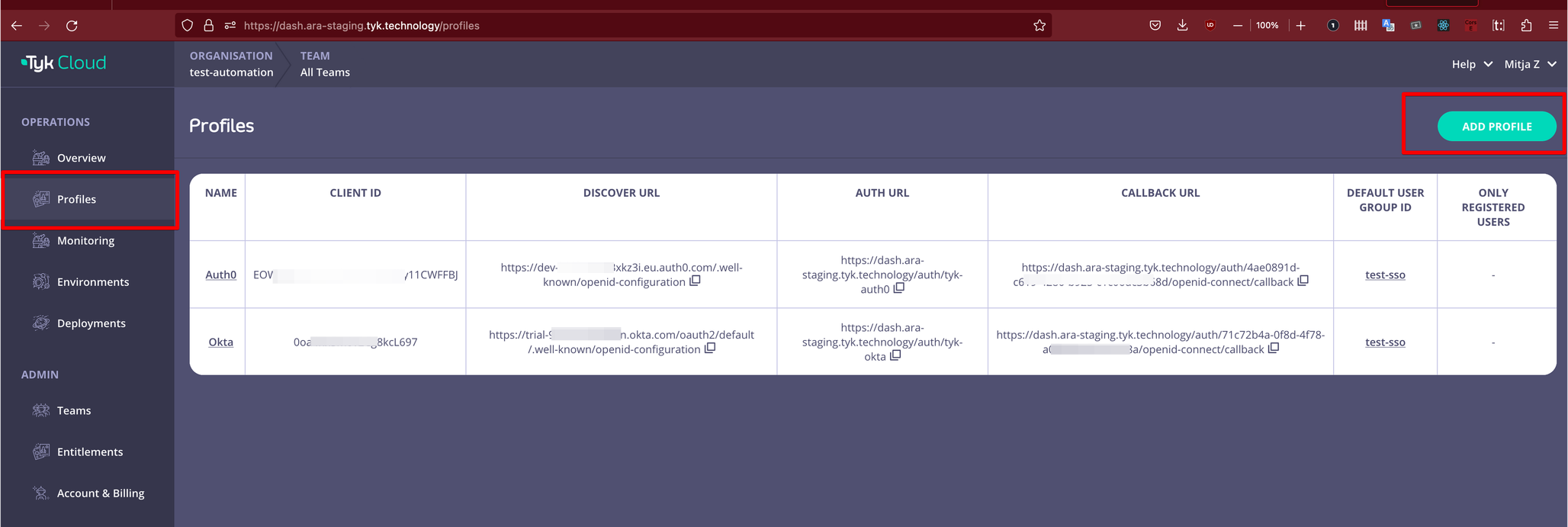
To add a new SSO profile, login to Tyk Cloud, navigate to the *Profile* list and click on the *ADD PROFILE* button.
 Populate the form with all the mandatory fields and click the *ADD PROFILE* button.
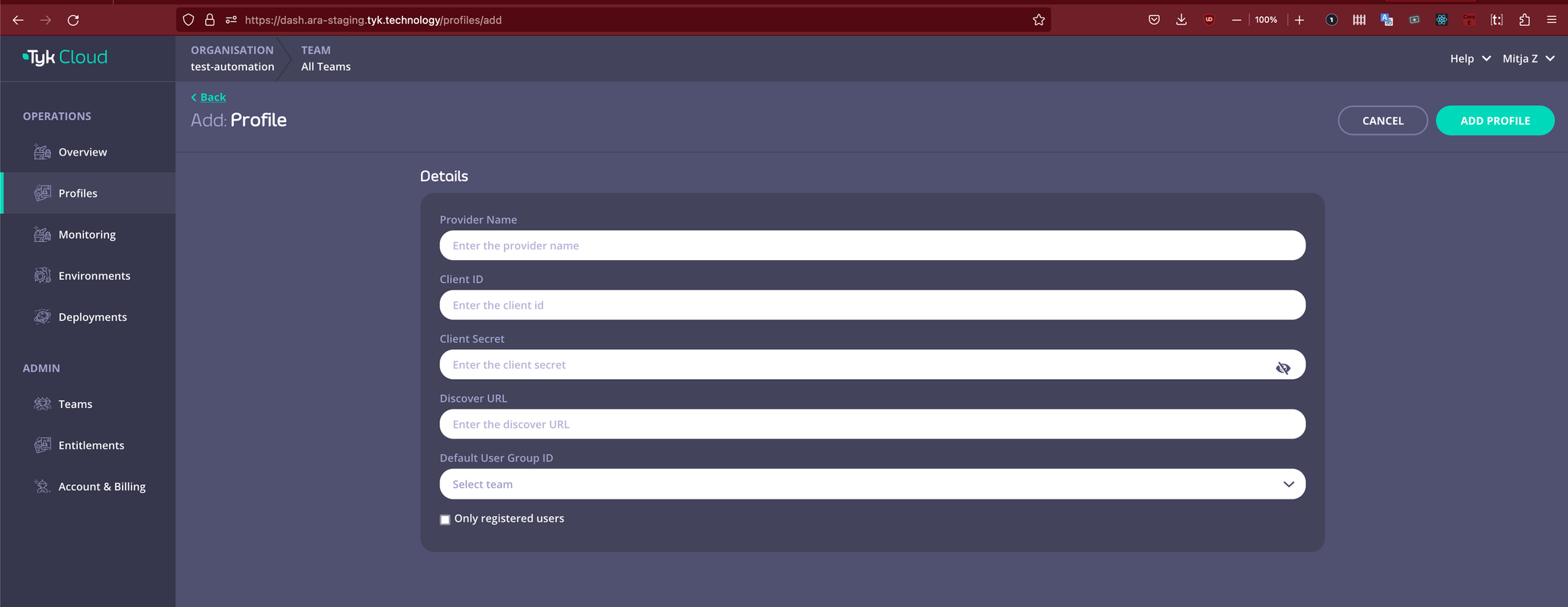 The table below explains the fields that should be completed:
| Field name | Explanation |
| :-------------------- | :----------------------------------------------------------------------------------------------------------------------------------------------------------------------------------------------------------------------------------------------------------------------- |
| Provider name | Used to distinguish between different SSO providers. |
| Client ID | Used for client authentication with the IdP provider. The value can be found in your chosen IdP provider's configuration. |
| Client Secret | Used for client authentication with the IdP provider. The value can be found in your chosen IdP provider's configuration. |
| Discovery URL | Used to read your IdP's openid configuration. This URL can be found in your chosen IdP provider's configuration. |
| Default User Group ID | The ID of the user group that new users are allocated to by default upon registration. |
| Only registered users | A check-box that defines which users are allowed to use SSO. If checked, only users who are already registered in Tyk Cloud are allowed to login with SSO. If un-checked, new users will be added to Tyk Cloud in the *Default* user group upon successful registration. |
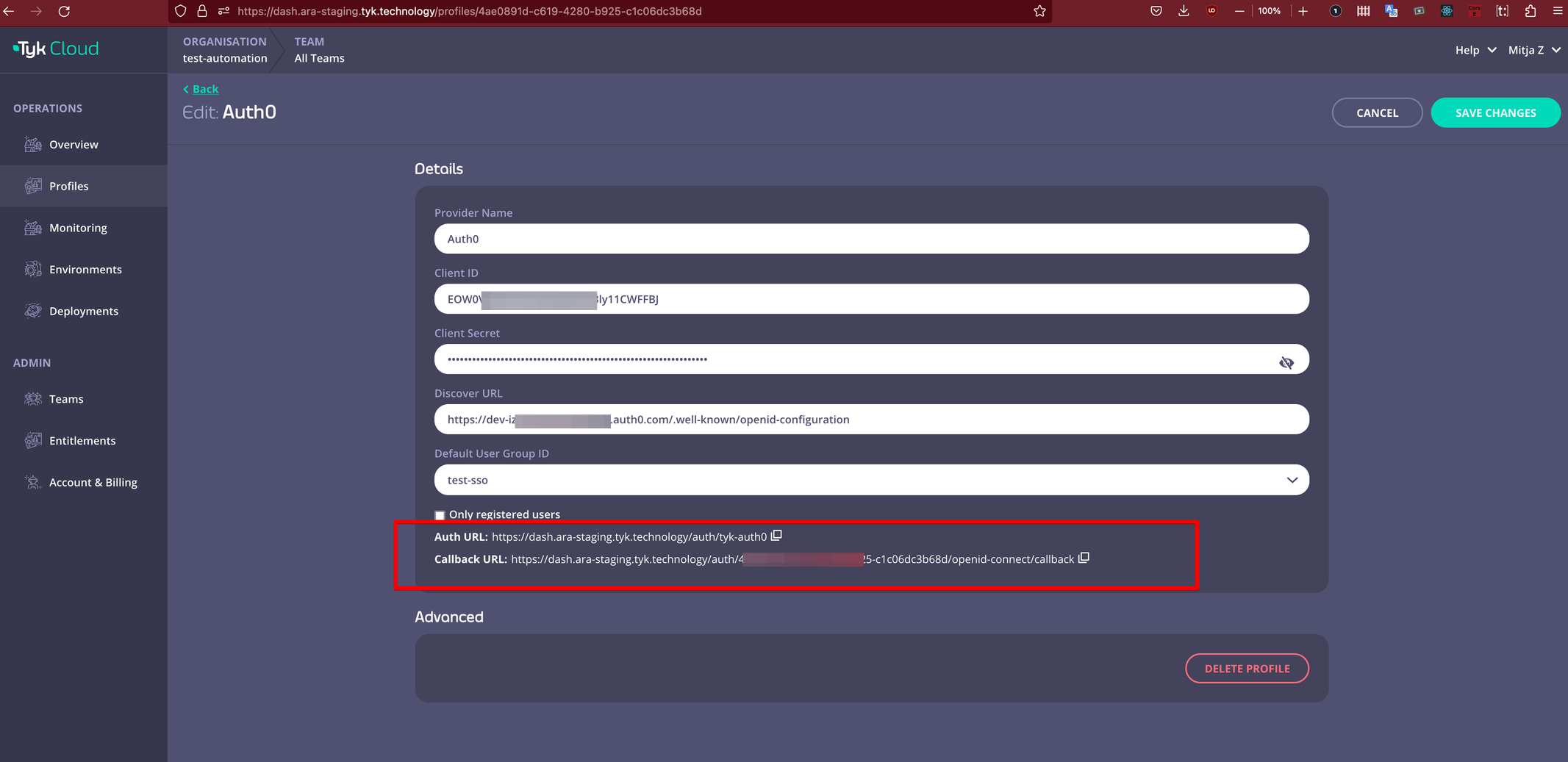
As illustrated below an authentication and callback URL will be generated, once the new profile has been added. You need to add these URLs to the configuration of your chosen IdP provider.
The Auth URL is your custom URL that can be used to start the SSO login flow whereas Callback URL is the URL that the SSO provider will callback to confirm successful authentication.
The table below explains the fields that should be completed:
| Field name | Explanation |
| :-------------------- | :----------------------------------------------------------------------------------------------------------------------------------------------------------------------------------------------------------------------------------------------------------------------- |
| Provider name | Used to distinguish between different SSO providers. |
| Client ID | Used for client authentication with the IdP provider. The value can be found in your chosen IdP provider's configuration. |
| Client Secret | Used for client authentication with the IdP provider. The value can be found in your chosen IdP provider's configuration. |
| Discovery URL | Used to read your IdP's openid configuration. This URL can be found in your chosen IdP provider's configuration. |
| Default User Group ID | The ID of the user group that new users are allocated to by default upon registration. |
| Only registered users | A check-box that defines which users are allowed to use SSO. If checked, only users who are already registered in Tyk Cloud are allowed to login with SSO. If un-checked, new users will be added to Tyk Cloud in the *Default* user group upon successful registration. |
As illustrated below an authentication and callback URL will be generated, once the new profile has been added. You need to add these URLs to the configuration of your chosen IdP provider.
The Auth URL is your custom URL that can be used to start the SSO login flow whereas Callback URL is the URL that the SSO provider will callback to confirm successful authentication.
 ## Edit SSO profile
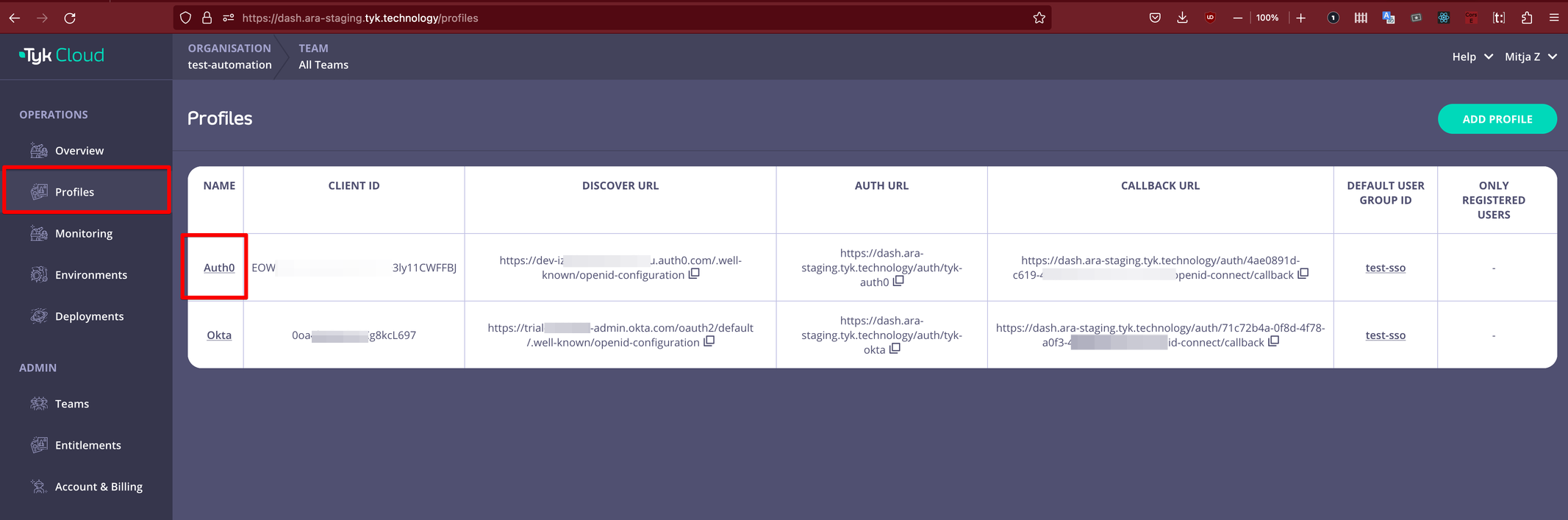
To update/re-configure SSO profile, login to Tyk Cloud, navigate to *Profile* list and click on the profile that you would like to update.
## Edit SSO profile
To update/re-configure SSO profile, login to Tyk Cloud, navigate to *Profile* list and click on the profile that you would like to update.
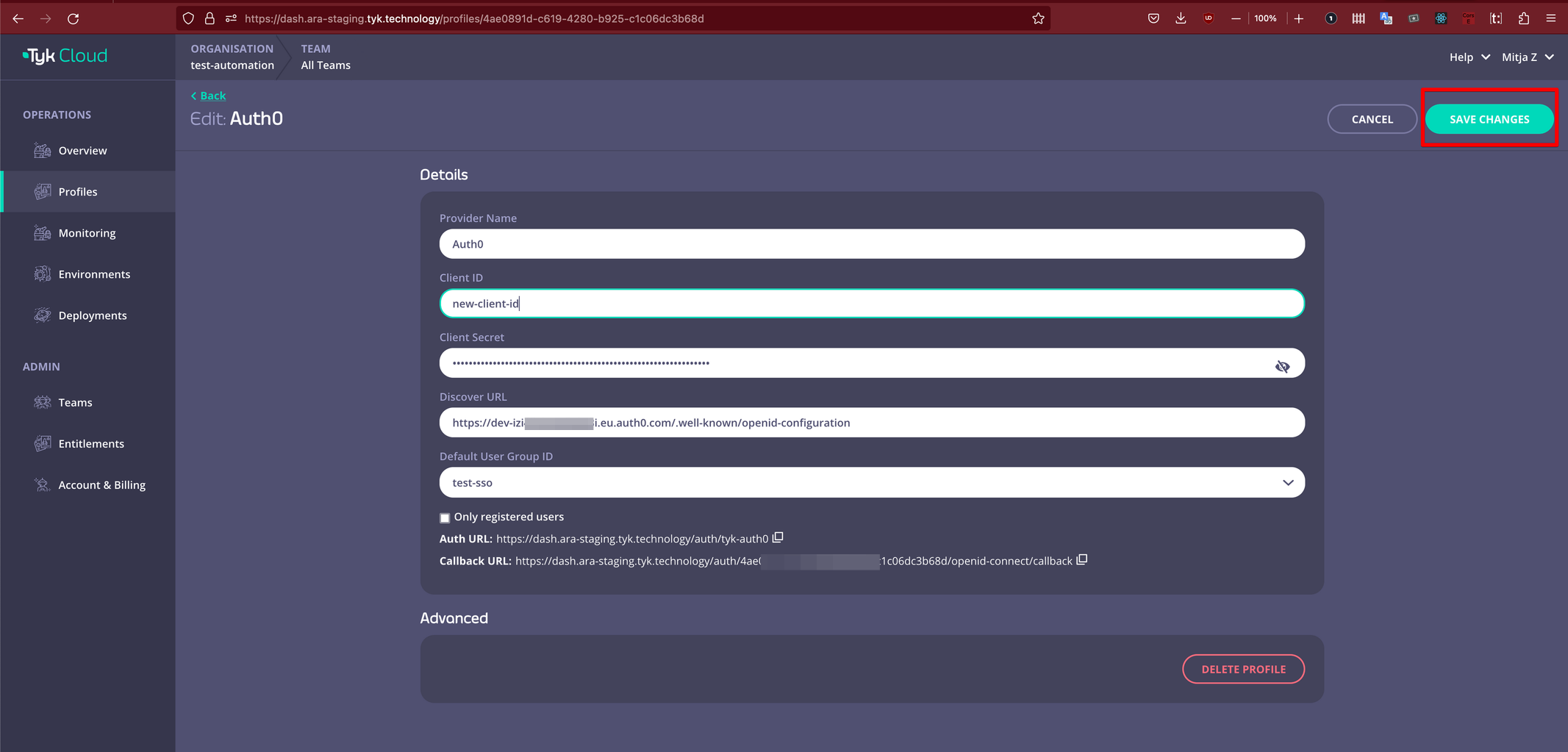
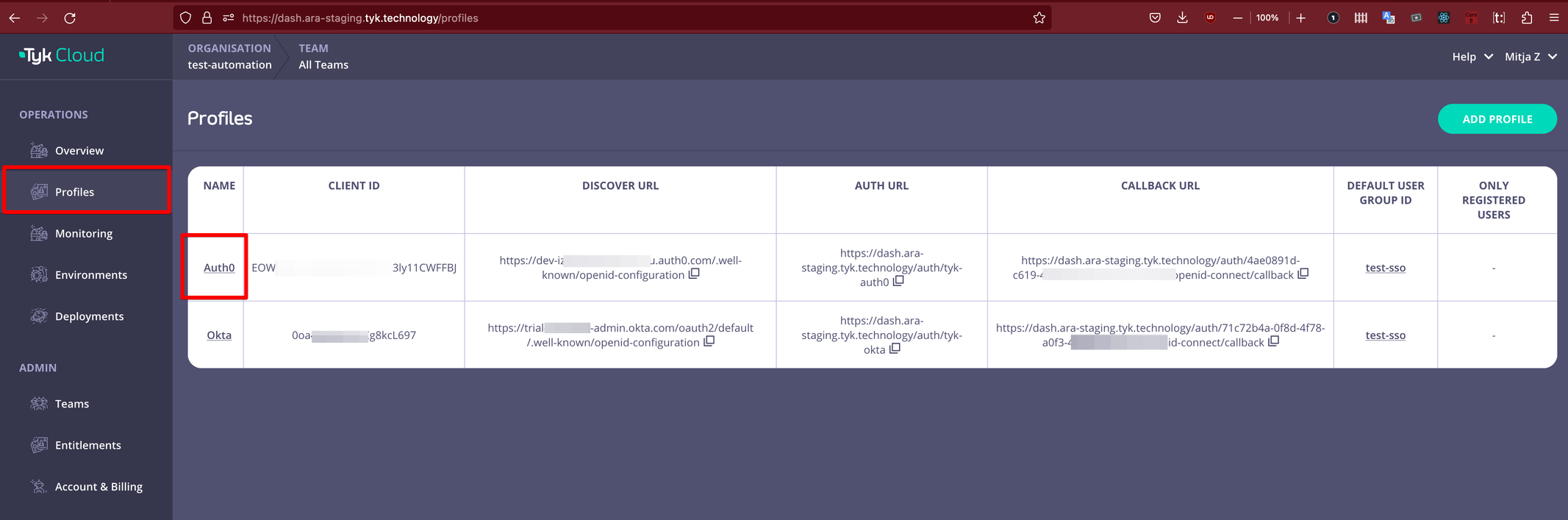 Edit the fields you would like to change and then click on the *SAVE PROFILE* button.
 ## Delete SSO profile
Please note the action of deleting an SSO profile cannot be undone.
To delete an SSO profile, login to Tyk Cloud, navigate to *Profile* list and click on the profile you would like to remove.
## Delete SSO profile
Please note the action of deleting an SSO profile cannot be undone.
To delete an SSO profile, login to Tyk Cloud, navigate to *Profile* list and click on the profile you would like to remove.
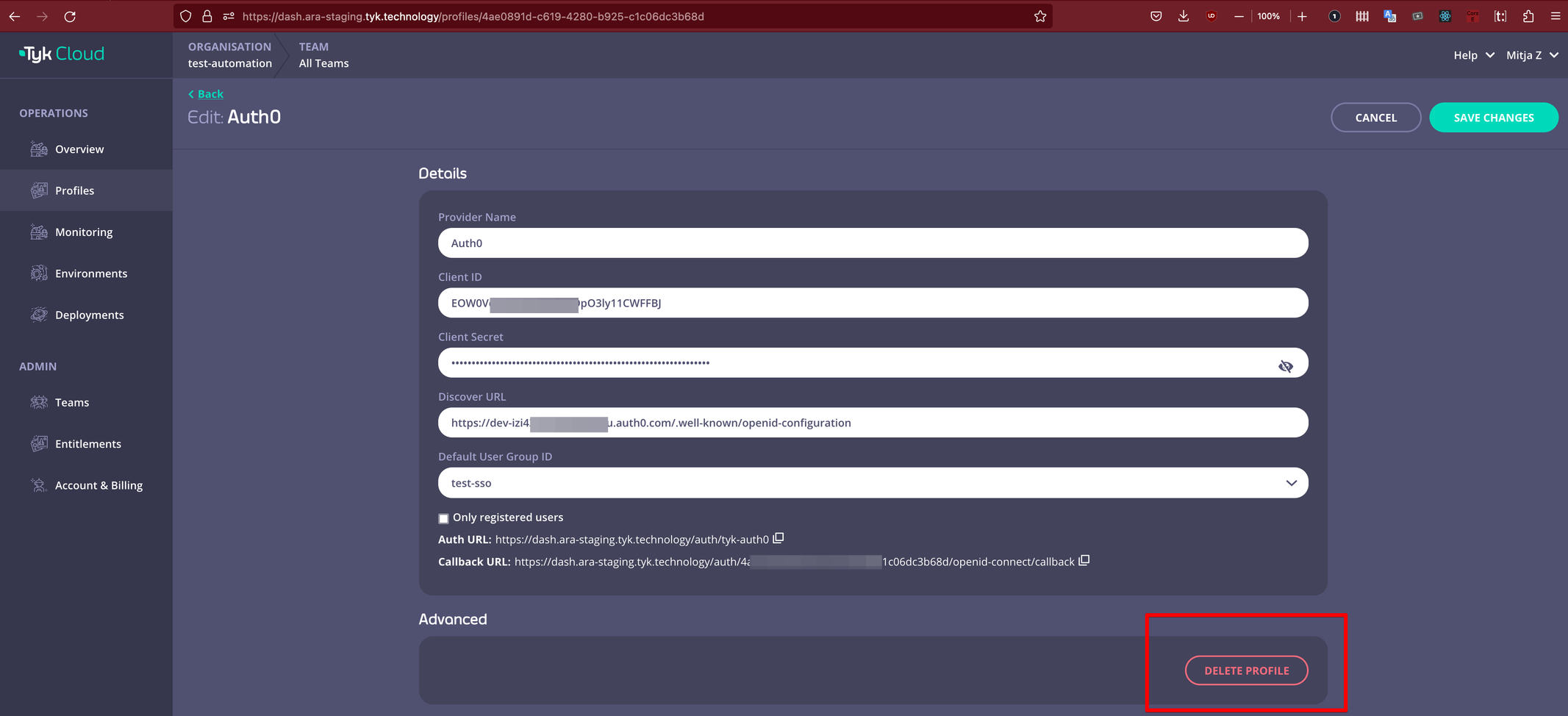
 On the profile page, click on the *DELETE PROFILE* button.
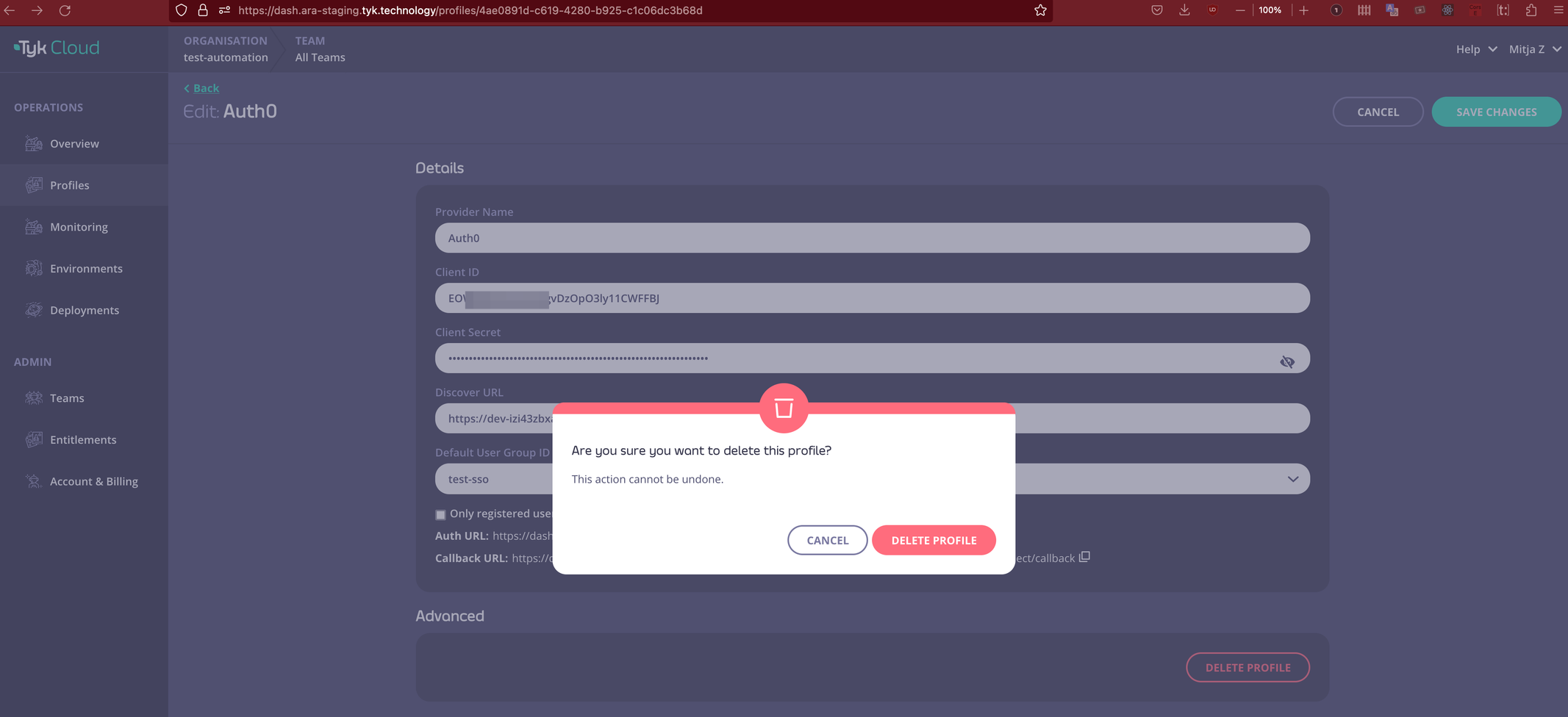
 On the confirmation window, confirm by clicking the *DELETE PROFILE* button.
 After profile deletion, the authentication URL will not be available anymore.