> ## Documentation Index
> Fetch the complete documentation index at: https://tyk.io/docs/llms.txt
> Use this file to discover all available pages before exploring further.
# Explore Demos and Proof of Concepts
> Explore Tyk demos and proof of concepts to quickly set up Tyk Self-Managed, including the Tyk Gateway, Dashboard, and analytics processing pipeline.
export const ButtonLeft = ({href, color, content}) => {
const buttonStyle = {
display: 'inline-block',
padding: '5px 16px',
fontSize: '14px',
fontWeight: '500',
textDecoration: 'none',
borderRadius: '25px',
transition: 'all 0.2s ease',
cursor: 'pointer',
border: '1.2px solid black'
};
const colorStyles = {
green: {
backgroundColor: '#20EDBA',
color: 'black'
},
red: {
backgroundColor: '#dc2626',
color: 'white'
},
black: {
backgroundColor: '#1f2937',
color: 'white'
}
};
const hoverStyle = {
transform: 'translateY(-1px)',
boxShadow: '0 4px 8px rgba(0,0,0,0.15)'
};
const finalStyle = {
...buttonStyle,
...colorStyles[color] || colorStyles.black
};
return {
Object.assign(e.target.style, hoverStyle);
}} onMouseLeave={e => {
e.target.style.transform = 'translateY(0)';
e.target.style.boxShadow = 'none';
}}>
{content}
;
};
## Kubernetes Demo
The [tyk-k8s-demo](https://github.com/TykTechnologies/tyk-k8s-demo) repository allows you to start up an entire Tyk Stack
with all its dependencies as well as other tools that can integrate with Tyk.
The repository will spin up everything in Kubernetes using `helm` and bash magic
to get you started.
**Purpose**
Minimize the amount of effort needed to start up the Tyk infrastructure and
show examples of how Tyk can be set up in k8s using different deployment
architectures as well as different integrations.
### Prerequisites
#### Required Packages
You will need the following tools to be able to run this project.
* [Kubectl](https://kubernetes.io/docs/tasks/tools/) - CLI tool for controlling Kubernetes clusters
* [Helm](https://helm.sh/docs/intro/install/) - Helps manage Kubernetes applications through Helm charts
* [jq](https://stedolan.github.io/jq/download/) - CLI for working with JSON output and manipulating it
* [git](https://git-scm.com/downloads) - CLI used to obtain the project from GitHub
* [Terraform](https://www.terraform.io/) (only when using `--cloud` flag)
Tested on Linux/Unix based systems on AMD64 and ARM architectures
#### License Requirements
* **Tyk OSS**: No license required as it is open-source.
* **Licensed Products**: Sign up [here](https://tyk.io/sign-up) using the button below, and choose "Get in touch" to receive a guided evaluation of the Tyk Dashboard and your temporary license.
**How to use the license key**
Once you obtained the license key, create a `.env` file using the [example provided](https://github.com/TykTechnologies/tyk-k8s-demo/blob/main/.env.example) and update it with your licenses as follows:
```bash theme={null}
git clone https://github.com/TykTechnologies/tyk-k8s-demo.git
cd tyk-k8s-demo
cp .env.example .env
```
Depending on the deployments you would like to install set values of the `LICENSE`, `MDCB_LICENSE`, and `PORTAL_LICENSE`
inside the `.env` file.
#### Minikube
If you are deploying this demo on [Minikube](https://minikube.sigs.k8s.io/docs/start),
you will need to enable the [ingress addon](https://minikube.sigs.k8s.io/docs/handbook/addons/ingress-dns/).
You can do so by running the following commands:
```bash theme={null}
minikube start
minikube addons enable ingress
```
### Quick Start
```bash theme={null}
./up.sh --deployments portal,operator-httpbin tyk-stack
```
This quick start command will start up the entire Tyk stack along with the
Tyk Enterprise Portal, Tyk Operator, and httpbin CRD example.
### Possible deployments
* `tyk-stack`: A comprehensive Tyk Self Managed setup for a single region
* `tyk-cp`: Tyk control plane in a multi-region Tyk deployment
* `tyk-dp`: Data plane of hybrid gateways that connect to either Tyk Cloud or a Tyk Control Plane, facilitating scalable deployments
* `tyk-gateway`: Open Source Software (OSS) version of Tyk, self-managed and suitable for single-region deployments
### Dependencies Options
**Redis Options**
* `redis`: Bitnami Redis deployment
* `redis-cluster`: Bitnami Redis Cluster deployment
* `redis-sentinel`: Bitnami Redis Sentinel deployment
**Storage Options**
* `mongo`: [Bitnami Mongo](https://artifacthub.io/packages/helm/bitnami/mongodb) database deployment as a Tyk backend
* `postgres`: [Bitnami Postgres](https://artifacthub.io/packages/helm/bitnami/postgresql) database deployment as a Tyk backend
**Supplementary Deployments**
Please see this [page](https://github.com/TykTechnologies/tyk-k8s-demo/tree/main/docs/FEATURES_MATRIX.md) for Tyk deployments compatibility charts.
* [cert-manager](https://github.com/TykTechnologies/tyk-k8s-demo/tree/main/src/deployments/cert-manager): deploys cert-manager.
* [datadog](https://github.com/TykTechnologies/tyk-k8s-demo/tree/main/src/deployments/datadog): deploys Datadog agent
and starts up Tyk Pump to push analytics data from the Tyk platform to Datadog. It will also create a Datadog dashboard
for you to view the analytics.
* [elasticsearch](https://github.com/TykTechnologies/tyk-k8s-demo/tree/main/src/deployments/elasticsearch): deploys
Elasticsearch and starts up Tyk pump to push analytics data from the Tyk platform to Elasticsearch.
* [elasticsearch-kibana](https://github.com/TykTechnologies/tyk-k8s-demo/tree/main/src/deployments/elasticsearch-kibana): deploys the Elasticsearch deployment as well as a Kibana deployment and creates a Kibana dashboard for you to view the analytics.
* [Jaeger](https://github.com/TykTechnologies/tyk-k8s-demo/tree/main/src/deployments/jaeger): deploys the Jaeger operator, a Jaeger instance, and the OpenTelemetry collector and configures the Tyk deployment to send telemetry data to Jaeger through the OpenTelemetry collector.
* [k6](https://github.com/TykTechnologies/tyk-k8s-demo/tree/main/src/deployments/k6): deploys a Grafana K6 Operator.
* [k6-slo-traffic](https://github.com/TykTechnologies/tyk-k8s-demo/tree/main/src/deployments/k6-slo-traffic): deploys a k6 CRD to generate a load of traffic to seed analytics data.
* [keycloak](https://github.com/TykTechnologies/tyk-k8s-demo/tree/main/src/deployments/keycloak): deploys the Keycloak Operator and a Keycloak instance.
* [keycloak-dcr](https://github.com/TykTechnologies/tyk-k8s-demo/tree/main/src/deployments/keycloak-dcr): starts up a Keycloak Dynamic Client Registration example.
* [keycloak-jwt](https://github.com/TykTechnologies/tyk-k8s-demo/tree/main/src/deployments/keycloak-jwt): starts up a Keycloak JWT Authentication example with Tyk.
* [keycloak-sso](https://github.com/TykTechnologies/tyk-k8s-demo/tree/main/src/deployments/keycloak-sso): starts up a Keycloak SSO example with the Tyk Dashboard.
* [newrelic](https://github.com/TykTechnologies/tyk-k8s-demo/tree/main/src/deployments/newrelic): deploys New Relic and starts up a Tyk Pump to push analytics data from the Tyk platform to New Relic.
* [opa](https://github.com/TykTechnologies/tyk-k8s-demo/tree/main/src/deployments/opa): enables Open Policy Agent to allow for Dashboard APIs governance.
* [opensearch](https://github.com/TykTechnologies/tyk-k8s-demo/tree/main/src/deployments/opensearch): deploys OpenSearch and starts up Tyk Pump to push analytics data from the Tyk platform to OpenSearch.
* [operator](https://github.com/TykTechnologies/tyk-k8s-demo/tree/main/src/deployments/operator): deploys the [Tyk Operator](https://github.com/TykTechnologies/tyk-operator) and its dependency [cert-manager](https://github.com/jetstack/cert-manager).
* [operator-federation](https://github.com/TykTechnologies/tyk-k8s-demo/tree/main/src/deployments/operator-federation): starts up Federation v1 API examples using the tyk-operator.
* [operator-graphql](https://github.com/TykTechnologies/tyk-k8s-demo/tree/main/src/deployments/operator-graphql): starts up GraphQL API examples using the tyk-operator.
* [operator-httpbin](https://github.com/TykTechnologies/tyk-k8s-demo/tree/main/src/deployments/operator-httpbin): starts up an API examples using the tyk-operator.
* [operator-jwt-hmac](https://github.com/TykTechnologies/tyk-k8s-demo/tree/main/src/deployments/operator-jwt-hmac): starts up API examples using the tyk-operator to demonstrate JWT HMAC auth.
* [operator-udg](https://github.com/TykTechnologies/tyk-k8s-demo/tree/main/src/deployments/operator-udg): starts up Universal Data Graph API examples using the tyk-operator.
* [portal](https://github.com/TykTechnologies/tyk-k8s-demo/tree/main/src/deployments/portal): deploys the [Tyk Enterprise Developer Portal](/5.12/portal/overview/intro) as well as its dependency PostgreSQL.
* [prometheus](https://github.com/TykTechnologies/tyk-k8s-demo/tree/main/src/deployments/prometheus): deploys Prometheus and starts up Tyk Pump to push analytics data from the Tyk platform to Prometheus.
* [prometheus-grafana](https://github.com/TykTechnologies/tyk-k8s-demo/tree/main/src/deployments/prometheus-grafana): deploys the Prometheus deployment as well as a Grafana deployment and creates a Grafana dashboard for you to view the analytics.
* [vault](https://github.com/TykTechnologies/tyk-k8s-demo/tree/main/src/deployments/vault): deploys Vault Operator and a Vault instance.
If you are running a POC and would like an example of how to integrate a
specific tool, you are welcome to submit a [feature request](https://github.com/TykTechnologies/tyk-k8s-demo/issues/new/choose)
**Example**
```bash theme={null}
./up.sh \
--storage postgres \
--deployments prometheus-grafana,k6-slo-traffic \
tyk-stack
```
The deployment process takes approximately 10 minutes, as the installation is sequential and some dependencies take
time to initialize. Once the installation is complete, the script will output a list of all the services that were
started, along with instructions on how to access them. Afterward, the k6 job will begin running in the background,
generating traffic for 15 minutes. To monitor live traffic, you can use the credentials provided by the script to
access Grafana or the Tyk Dashboard
### Bash Script Usage
#### Start Tyk deployment
Create and start up the deployments
```bash theme={null}
Usage:
./up.sh [flags] [command]
Available Commands:
tyk-stack
tyk-cp
tyk-dp
tyk-gateway
Flags:
-v, --verbose bool set log level to debug
--dry-run bool set the execution mode to dry run. This will dump the kubectl and helm commands rather than execute them
-n, --namespace string namespace the tyk stack will be installed in, defaults to 'tyk'
-f, --flavor enum k8s environment flavor. This option can be set 'openshift' and defaults to 'vanilla'
-e, --expose enum set this option to 'port-forward' to expose the services as port-forwards or to 'load-balancer' to expose the services as load balancers or 'ingress' which exposes services as a k8s ingress object
-r, --redis enum the redis mode that tyk stack will use. This option can be set 'redis', 'redis-sentinel' and defaults to 'redis-cluster'
-s, --storage enum database the tyk stack will use. This option can be set 'mongo' (amd only) and defaults to 'postgres'
-d, --deployments string comma separated list of deployments to launch
-c, --cloud enum stand up k8s infrastructure in 'aws', 'gcp' or 'azure'. This will require Terraform and the CLIs associate with the cloud of choice
-l, --ssl bool enable ssl on deployments
```
#### Stop Tyk deployment
Shutdown deployment
```bash theme={null}
Usage:
./down.sh [flags]
Flags:
-v, --verbose bool set log level to debug
-n, --namespace string namespace the tyk stack will be installed in, defaults to 'tyk'
-p, --ports bool disconnect port connections only
-c, --cloud enum tear down k8s cluster stood up
```
**Clusters**
You can get the repository to create demo clusters for you on AWS, GCP, or Azure. That can be set using the `--cloud` flag
and requires the respective cloud CLI to be installed and authorized on your system. You will also need to specify the
`CLUSTER_LOCATION`, `CLUSTER_MACHINE_TYPE`, `CLUSTER_NODE_COUNT`, and `GCP_PROJECT` (for GCP only) parameters in the .env file.
You can find examples of .env files here:
* [AWS](https://github.com/TykTechnologies/tyk-k8s-demo/tree/main/src/clouds/aws/.env.example)
* [GCP](https://github.com/TykTechnologies/tyk-k8s-demo/tree/main/src/clouds/gcp/.env.example)
* [Azure](https://github.com/TykTechnologies/tyk-k8s-demo/tree/main/src/clouds/azure/.env.example)
For more information about cloud CLIs:
* AWS:
* [aws](https://aws.amazon.com/cli/)
* GCP:
* [gcloud](https://cloud.google.com/sdk/gcloud)
* `GOOGLE_APPLICATION_CREDENTIALS` environment variable per [documentation from Google](https://cloud.google.com/docs/authentication/application-default-credentials)
* Azure:
* [az](https://learn.microsoft.com/en-us/cli/azure/install-azure-cli)
### Customization
This repository can also act as a guide to help you get set up with Tyk. If you just want to know how to set up a specific
tool with Tyk, you can run the repository with the `--dry-run` and `--verbose` flags. This will output all the commands that
the repository will run to stand up any installation. This can help debug as well as figure out what
configuration options are required to set these tools up.
Furthermore, you can also add any Tyk environment variables to your `.env` file and those variables will be mapped to
their respective Tyk deployments.
Example:
```env theme={null}
...
TYK_MDCB_SYNCWORKER_ENABLED=true
TYK_MDCB_SYNCWORKER_HASHKEYS=true
TYK_GW_SLAVEOPTIONS_SYNCHRONISERENABLED=true
```
### Variables
The script has defaults for minimal settings in [this env file](https://github.com/TykTechnologies/tyk-k8s-demo/tree/main/.env.example),
and it will give errors if something is missing.
You can also add or change any Tyk environment variables in the `.env` file,
and they will be mapped to the respective `extraEnvs` section in the helm charts.
| Variable | Default | Comments |
| --------------------------------------- | :-------------------: | --------------------------------------------------------------------------------------------------------------- |
| DASHBOARD\_VERSION | `v5.5` | Dashboard version |
| GATEWAY\_VERSION | `v5.5` | Gateway version |
| MDCB\_VERSION | `v2.7` | MDCB version |
| PUMP\_VERSION | `v1.11` | Pump version |
| PORTAL\_VERSION | `v1.10` | Portal version |
| TYK\_HELM\_CHART\_PATH | `tyk-helm` | Path to charts, can be a local directory or a helm repo |
| TYK\_USERNAME | `default@example.com` | Default password for all the services deployed |
| TYK\_PASSWORD | `topsecretpassword` | Default password for all the services deployed |
| LICENSE | | Dashboard license |
| MDCB\_LICENSE | | MDCB license |
| PORTAL\_LICENSE | | Portal license |
| TYK\_WORKER\_CONNECTIONSTRING | | MDCB URL for worker connection |
| TYK\_WORKER\_ORGID | | Org ID of dashboard user |
| TYK\_WORKER\_AUTHTOKEN | | Auth token of dashboard user |
| TYK\_WORKER\_USESSL | `true` | Set to `true` when the MDCB is serving on a TLS connection |
| TYK\_WORKER\_SHARDING\_ENABLED | `false` | Set to `true` to enable API Sharding |
| TYK\_WORKER\_SHARDING\_TAGS | | API Gateway segmentation tags |
| TYK\_WORKER\_GW\_PORT | `8081` | Set the gateway service port to use |
| TYK\_WORKER\_OPERATOR\_CONNECTIONSTRING | | Set the dashboard URL for the operator to be able to manage APIs and Policies |
| DATADOG\_APIKEY | | Datadog API key |
| DATADOG\_APPKEY | | Datadog Application key. This is used to create a dashboard and create a pipeline for the Tyk logs |
| DATADOG\_SITE | `datadoghq.com` | Datadog site. Change to `datadoghq.eu` if using the European site |
| GCP\_PROJECT | | The GCP project for terraform authentication on GCP |
| CLUSTER\_LOCATION | | Cluster location that will be created on AKS, EKS, or GKE |
| CLUSTER\_MACHINE\_TYPE | | Machine type for the cluster that will be created on AKS, EKS, or GKE |
| CLUSTER\_NODE\_COUNT | | Number of nodes for the cluster that will be created on AKS, EKS, or GKE |
| INGRESS\_CLASSNAME | `nginx` | The ingress classname to be used to associate the k8s ingress objects with the ingress controller/load balancer |
## Docker Demo
### Purpose
With *tyk-demo* repository, using docker-compose, you can set up quickly a **complete** Tyk stack, including
dependencies and integrations.
Minimize the amount of effort needed to start up the Tyk infrastructure and show end-to-end complete examples of how to set up various capabilities in Tyk as well as different integrations.
### Key Features
* Full Tyk stack deployment
* Pre-configured demo APIs
* Analytics and monitoring tools
* Integration with common third-party services
Watch the video *What Is Tyk Demo* for an overview and learn about the key features from our experts -
### Prerequisites
1. Docker compose
Make sure you have [docker compose](https://docs.docker.com/compose/install/) and that docker is running on your machine.
2. License key
This Demo deploys and runs the full Tyk platform which is a licensed product. Please sign up using the button below, to obtain a license key. In the link, choose "Get in touch" to get a guided evaluation of the Tyk Dashboard and receive your temporary license.
### Quick Start
The following steps will enable you to quickly get started:
1. **Clone the repository**:
```bash theme={null}
git clone https://github.com/TykTechnologies/tyk-demo.git
```
2. **Navigate to the directory**:
```bash theme={null}
cd tyk-demo
```
3. **Add license key to .env file**:
```bash theme={null}
DASHBOARD_LICENCE=
```
4. **Run the setup script**:
```bash theme={null}
./up.sh
```
5. **Access Tyk Dashboard**: [http://localhost:3000](http://localhost:3000)
To complete the instruction above we have a tutorial video of tyk demo that covers:
* Downloading and starting tyk-demo
* Setting up your license
* Logging in to Tyk Dashboard
## Using Windows
### Tyk Pro on Windows using Docker Desktop
The Tyk Pro Docker demo is our full On-Premises Pro solution, which includes our Gateway, Dashboard, and analytics processing pipeline. This demo will run Tyk Self-Managed Pro on your machine, which contains 5 containers: Tyk Gateway, Tyk Dashboard, Tyk Pump, Redis and MongoDB. This demo is great for proof of concept and demo purposes, but if you want to test performance, you will need to move each component to a separate machine.
This demo is NOT designed for production use or performance testing.
You use this at your own risk. Tyk is not supported on the Windows platform. However you can test it as a proof of concept using our Pro Demo Docker installation.
**Prerequisites**
* MS Windows 10 Pro
* [Docker Desktop for Windows](https://docs.docker.com/docker-for-windows/install/) running with a signed in [Docker ID](https://docs.docker.com/docker-id/)
* Git for Windows
* PowerShell running as administrator
* Postman for [Windows](https://www.getpostman.com/downloads/)
* Our Pro Demo Docker [GitHub repo](https://github.com/TykTechnologies/tyk-pro-docker-demo)
* A free Tyk Self-Managed [Developer license](https://tyk.io/sign-up/)
**Step 1 - Clone the Repo**
Clone the repo above to a location on your machine.
**Step 2 - Edit your hosts file**
You need to add the following to your Windows hosts file:
```bash theme={null}
127.0.0.1 www.tyk-portal-test.com
127.0.0.1 www.tyk-test.com
```
**Step 3 - Add your Developer License**
You should have received your free developer license via email. Copy the license key in the following location from your `\confs\tyk_analytics.conf` file:
```yaml theme={null}
{
...
"license_key": ""
...
}
```
**Step 4 - Run the Docker Compose File**
From PowerShell, run the following command from your installation folder:
```bash theme={null}
docker-compose up
```
This will will download and setup the five Docker containers. This may take some time and will display all output.
**Step 5 - Test the Tyk Dashboard URL**
Go to:
```bash theme={null}
127.0.0.1:3000
```
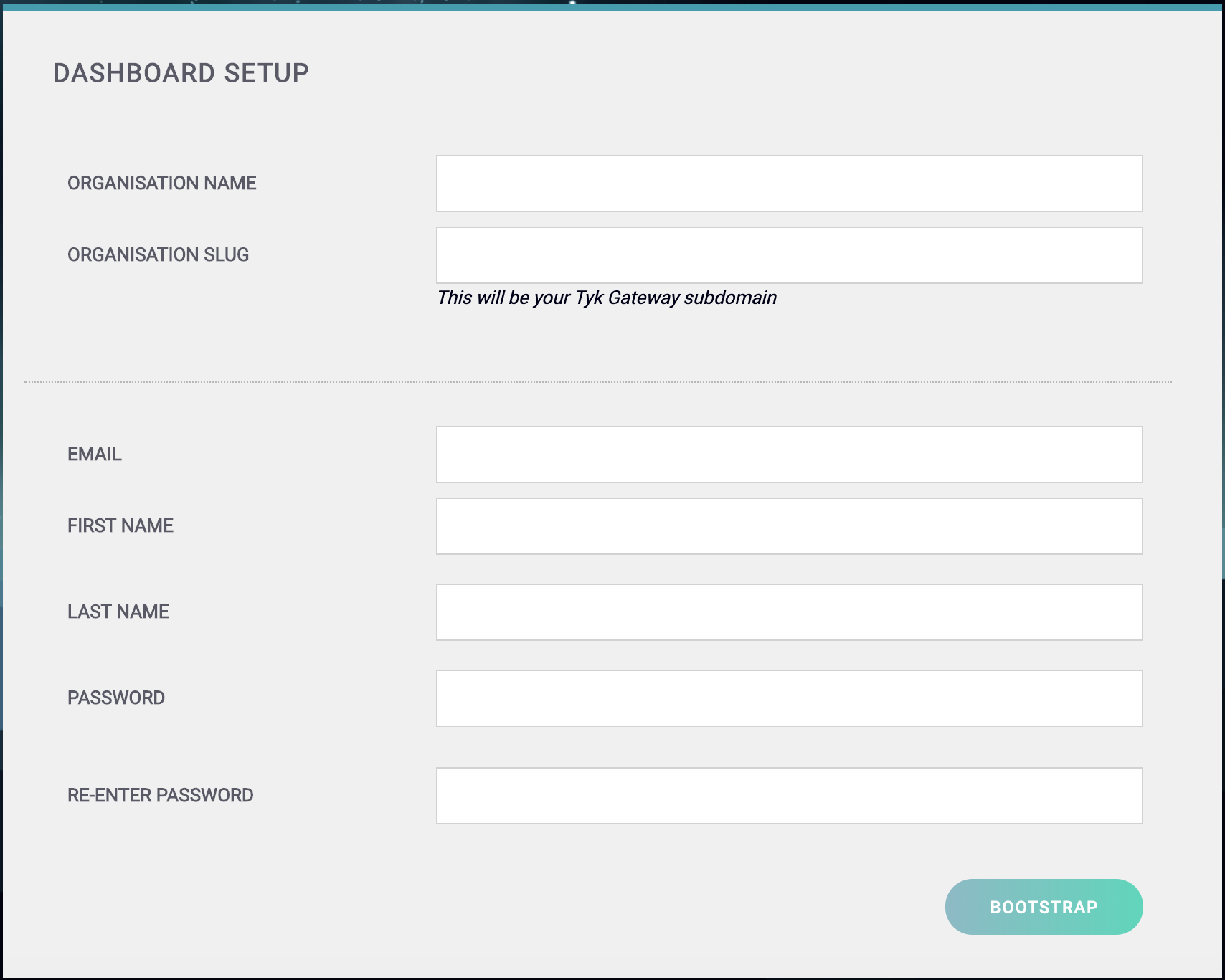
You should get to the Tyk Dashboard Setup screen:
**Step 6 - Create your Organization and Default User**
You need to enter the following:
* Your **Organization Name**
* Your **Organization Slug**
* Your User **Email Address**
* Your User **First and Last Name**
* A **Password** for your User
* **Re-enter** your user **Password**
For a password, we recommend a combination of alphanumeric characters, with both upper and lower case
letters.
Click **Bootstrap** to save the details.
You can now log in to the Tyk Dashboard from `127.0.0.1:3000`, using the username and password created in the Dashboard Setup screen.
**Step 7 - Set up a Portal Catalog**
This creates a portal catalog for your developer portal. For the `Authorization` Header, the Value you need to enter is the `access_key` value from the create user request. In the body add the `org_id` value created in **Step One**.
* **Request**: POST
* **URL**: `127.0.0.1:3000/api/portal/catalogue`
* **Header**: Key `Authorzation` Value `SECRET_VALUE`
* **Body** (raw set to application/json):
*Sample Request*
```json theme={null}
{ "org_id": "5d07b4b0661ea80001b3d40d" }
```
*Sample Response*
```json theme={null}
{
"Status": "OK",
"Message": "5d07b4b0661ea80001b3d40d",
"Meta": null
}
```
**Step 8 - Create your default Portal Pages**
This creates the default home page for your developer portal. For the `Authorization` Header, the Value you need to enter is the `access_key` value from the create user request.
* **Request**: POST
* **URL**: `127.0.0.1:3000/api/portal/catalogue`
* **Header**: Key `Authorzation` Value `SECRET_VALUE`
* **Body** (raw set to application/json):
*Sample Request*
```json theme={null}
{
"fields": {
"JumboCTALink": "#cta",
"JumboCTALinkTitle": "Your awesome APIs, hosted with Tyk!",
"JumboCTATitle": "Tyk Developer Portal",
"PanelOneContent": "Panel 1 content.",
"PanelOneLink": "#panel1",
"PanelOneLinkTitle": "Panel 1 Button",
"PanelOneTitle": "Panel 1 Title",
"PanelThereeContent": "",
"PanelThreeContent": "Panel 3 content.",
"PanelThreeLink": "#panel3",
"PanelThreeLinkTitle": "Panel 3 Button",
"PanelThreeTitle": "Panel 3 Title",
"PanelTwoContent": "Panel 2 content.",
"PanelTwoLink": "#panel2",
"PanelTwoLinkTitle": "Panel 2 Button",
"PanelTwoTitle": "Panel 2 Title",
"SubHeading": "Sub Header"
},
"is_homepage": true,
"slug": "home",
"template_name": "",
"title": "Tyk Developer Portal"
}
```
*Sample Response*
```json theme={null}
{
"Status": "OK",
"Message": "5d07b4b0661ea80001b3d40d",
"Meta": null
}
```
**Step 9 - Setup the Portal URL**
This creates the developer portal URL. For the `Authorization` Header, the Value you need to enter is the `secret` value from your `/confs/tyk_analytics.conf`.
* **Request**: POST
* **URL**: `127.0.0.1:3000/api/portal/configuration`
* **Header**: Key `Authorzation` Value `SECRET_VALUE`
* **Body** (raw set to application/json):
*Sample Request*
```yaml theme={null}
{SECRET_VALUE}
```
*Sample Response*
```json theme={null}
{
"Status": "OK",
"Message": "5d07b4b0661ea80001b3d40d",
"Meta": null
}
```
### Tyk Pro on Windows using WSL
The Tyk Pro Docker demo is our full [Self-Managed](/5.12/#docker-demo) solution, which includes our Gateway, Dashboard, and analytics processing pipeline. This demo will run Tyk Self-Managed on your machine, which contains 5 containers: Tyk Gateway, Tyk Dashboard, Tyk Pump, Redis and MongoDB. This demo is great for proof of concept and demo purposes, but if you want to test performance, you will need to move each component to a separate machine.
This demo is NOT designed for production use or performance testing.
You use this at your own risk. Tyk is not supported on the Windows platform. However you can test it as a proof of concept using our Pro Demo Docker installation.
**Prerequisites**
* MS Windows 10 Pro with [Windows Linux Subsystem](https://docs.microsoft.com/en-us/windows/wsl/install-win10) enabled
* [Docker Desktop for Windows](https://docs.docker.com/docker-for-windows/install/) running with a signed in [Docker ID](https://docs.docker.com/docker-id/)
* Git for Windows
* PowerShell running as administrator
* Postman for [Windows](https://www.getpostman.com/downloads/)
* Our Pro Demo Docker [GitHub repo](https://github.com/TykTechnologies/tyk-pro-docker-demo)
* A free Tyk Self-Managed [Developer license](https://tyk.io/sign-up/)
* Optional: Ubuntu on Windows
**Step 1 - Clone the Repo**
Clone the repo above to a location on your machine.
**Step 2 - Edit your hosts file**
You need to add the following to your Windows hosts file:
```bash theme={null}
127.0.0.1 www.tyk-portal-test.com
127.0.0.1 www.tyk-test.com
```
**Step 3 - Configure file permissions**
In order to mount the files, you need to allow Docker engine has access to your Drive.
You can do that by going to the Docker settings, Shared Drives view, and manage the access.
If after all you will get issue regarding path permissions, you will need to create a separate user specifically for the docker according to this instructions [https://github.com/docker/for-win/issues/3385#issuecomment-571267988](https://github.com/docker/for-win/issues/3385#issuecomment-571267988)
**Step 4 - Add your Developer License**
You should have received your free developer license via email. Copy the license key in the following location from your `\confs\tyk_analytics.conf` file:
```
"license_key": ""
```
**Step 5 - Run the Docker Compose File**
From PowerShell, run the following command from your installation folder:
```console theme={null}
docker-compose up
```
This will will download and setup the five Docker containers. This may take some time and will display all output.
**NOTE**
If you are getting issues related to errors when mounting files, you may need to modify
`docker-compose.yml` file, and change configs paths from related to absolute, and from linux format to windows format, like this:
```
volumes:
- C:\Tyk\confs\tyk_analytics.conf:/opt/tyk-dashboard/tyk_analytics.conf
```
**Step 6 - Got to the Dashboard URL**
Go to:
```bash theme={null}
127.0.0.1:3000
```
You should get to the Tyk Dashboard Setup screen:
**Step 7 - Create your Organization and Default User**
You need to enter the following:
* Your **Organization Name**
* Your **Organization Slug**
* Your User **Email Address**
* Your User **First and Last Name**
* A **Password** for your User
* **Re-enter** your user **Password**
For a password, we recommend a combination of alphanumeric characters, with both upper and lower case
letters.
Click **Bootstrap** to save the details.
You can now log in to the Tyk Dashboard from `127.0.0.1:3000`, using the username and password created in the Dashboard Setup screen.
**Configure your Developer Portal**
To set up your [Developer Portal](/5.12/portal/overview/intro) follow our Self-Managed [tutorial on publishing an API to the Portal Catalog](/5.12/getting-started/tutorials/publish-api).
 **Step 6 - Create your Organization and Default User**
You need to enter the following:
* Your **Organization Name**
* Your **Organization Slug**
* Your User **Email Address**
* Your User **First and Last Name**
* A **Password** for your User
* **Re-enter** your user **Password**
**Step 6 - Create your Organization and Default User**
You need to enter the following:
* Your **Organization Name**
* Your **Organization Slug**
* Your User **Email Address**
* Your User **First and Last Name**
* A **Password** for your User
* **Re-enter** your user **Password**