> ## Documentation Index
> Fetch the complete documentation index at: https://tyk.io/docs/llms.txt
> Use this file to discover all available pages before exploring further.
# Transformation Use Case: SOAP To REST
> How to transform SOAP API to REST API in Tyk
You can transform an existing SOAP service to a JSON REST service. This can be done from the Tyk Dashboard with no coding involved and should take around 10 minutes to perform the transform.
We also have a video which walks you through the SOAP to REST transform.
## Prerequisites
An existing SOAP service and the WSDL definition. For this example, we will use:
* Upstream Target - [https://www.dataaccess.com/webservicesserver/numberconversion.wso](https://www.dataaccess.com/webservicesserver/numberconversion.wso)
* The WSDL definition from - [https://www.dataaccess.com/webservicesserver/numberconversion.wso?WSDL](https://www.dataaccess.com/webservicesserver/numberconversion.wso?WSDL)
* Postman Client (or other endpoint testing tool)
## Steps for Configuration
1. **Import the WSDL API**
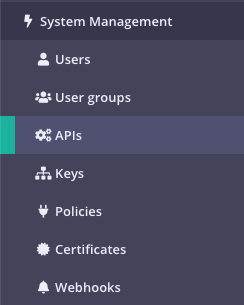
1. Select APIs from the System Management menu
2. Click Import API
3. Select **From WSDL** from the Import an API Definition window
4. In the **Upstream Target** field, enter `https://www.dataaccess.com/webservicesserver/numberconversion.wso` as listed in the Prerequisites.
5. Paste the WSDL definition from the link in Prerequisites
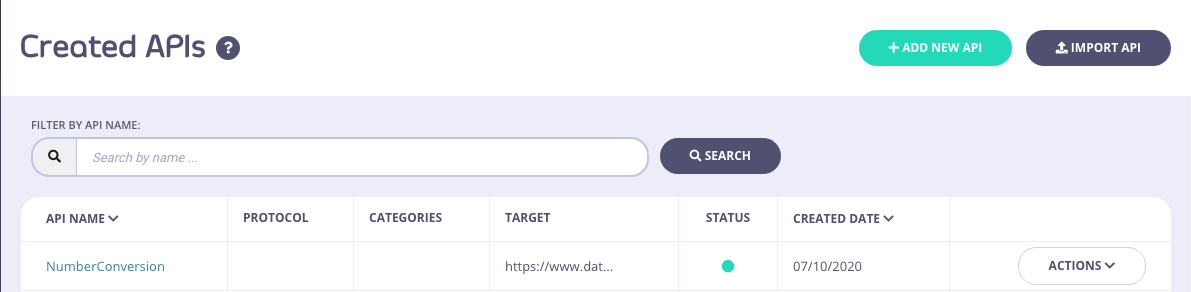
6. Click **Generate API**. You should now have an API named `NumberConversion` in your API list
2. **Add the transforms to an Endpoint**
1. From the API list, select Edit from the Actions menu for the `NumberConversion` API
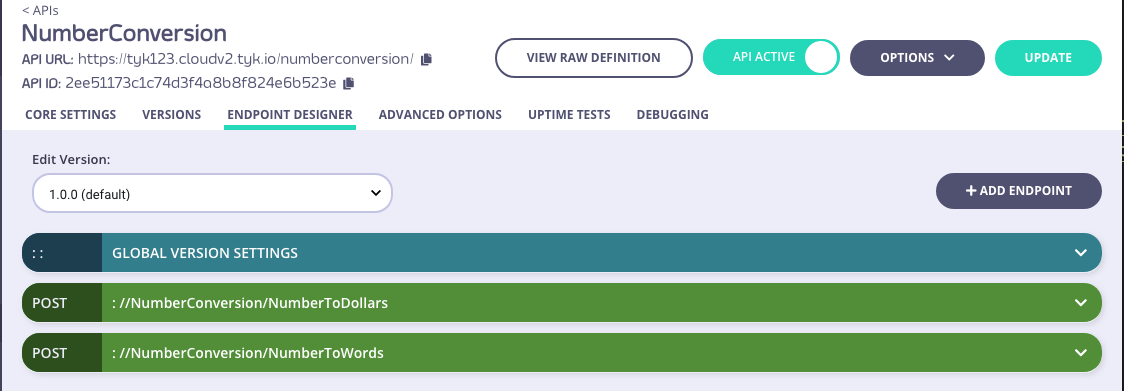
2. Select the **Endpoint Designer** tab. You should see 2 POST endpoints that were imported. We will apply the transforms to the `NumberToWords` endpoint.
3. Expand the `NumberToWords` endpoint. The following plugins should have been added as part of the import process.
* URL rewrite
* Track endpoint
To make the URL a little friendlier, we're going to amend the Relative Path to just `/NumberToWords`. Update your API after doing this.
4. Add the following plugins from the **Plugins** drop-down list:
* Body transform
* Modify headers
3. **Modify the Body Transform Plugin**
**Set up the Request**
We use the `{{.FieldName}}` Golang template syntax to access the JSON request. For this template we will use `{{.numberToConvert}}`.
1. Expand the Body transform plugin. From the Request tab, copy the following into the Template section:
```xml theme={null}
{{.numberToConvert}}
```
2. In the Input field, enter the following:
```json theme={null}
{
"numberToConvert": 35
}
```
The '35' integer can be any number you want to convert
3. Click **Test**. You should get the following in the Output field:
```xml theme={null}
35
```
**Set up the Response**
Again, for the response, we will be using the `{{.FieldName}}` syntax as the following `{{.Envelope.Body.NumberToDollarsResponse.NumberToDollarsResult}}`
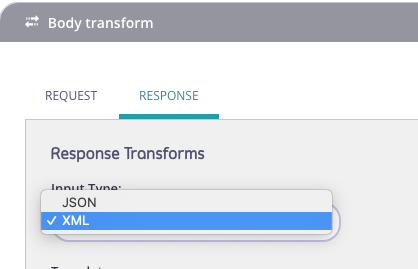
1. For the Input Type, select XML
2. In the Template section enter:
```yaml theme={null}
{
"convertedNumber": "{{.Envelope.Body.NumberToDollarsResponse.NumberToDollarsResult}}"
}
```
3. Enter the following into the input field:
```xml theme={null}
thirty five dollars
```
4. Click Test. You should get the following in the Output field:
```json theme={null}
{
"convertedNumber": "thirty five dollars"
}
```
4. **Change the Content-Type Header**
We now need to change the `content-type` header to allow the SOAP service to receive the payload in XML. We do this by using the **Modify header** plugin
1. Expand the Modify Header plugin
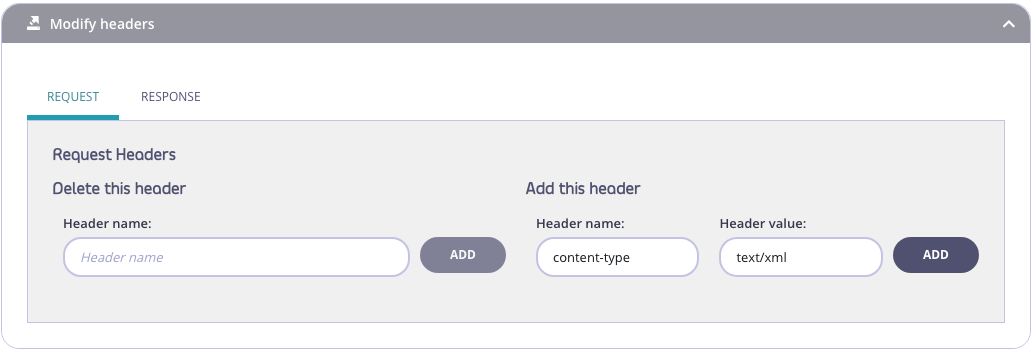
2. From the **Request** tab enter the following in the **Add this header** section
* Header Name: `content-type`
* Header Value: `text/xml`
3. Click Add
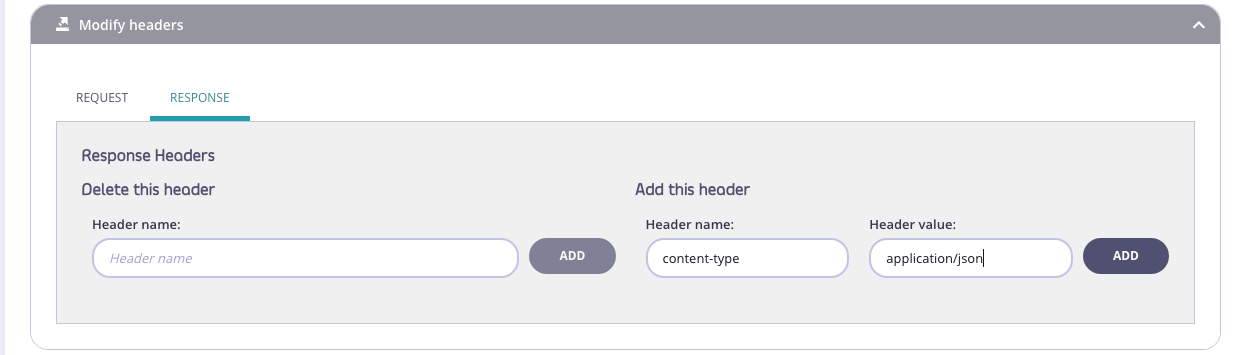
4. From the **Response** tab enter the following in the **Add this header** section
* Header Name: `content-type`
* Header Value: `application/json`
5. Click **Add**
6. Click **Update**
## Testing the Endpoint
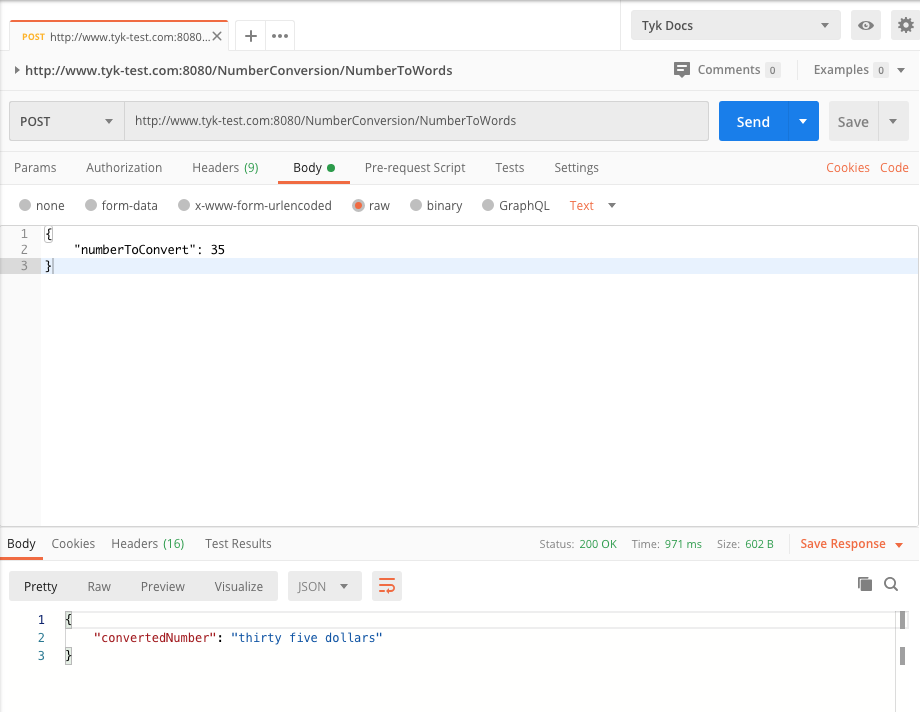
You now need to test the endpoint. We are going to use Postman.
We have not set up any Authentication for this API, it has defaulted to `Open (Keyless)`.
1. Copy the URL for your NumberConversion API with the NumberToWords endpoint - `https://tyk-url/numberconversion/NumberToWords/`
2. Paste it as a POST URL in the Postman URL Request field
3. Enter the following as a raw Body request
```json theme={null}
{
"numberToConvert": 35
}
```
Your Postman request should look similar to below (apart from the URL used)
 2. Click Import API
 3. Select **From WSDL** from the Import an API Definition window
4. In the **Upstream Target** field, enter `https://www.dataaccess.com/webservicesserver/numberconversion.wso` as listed in the Prerequisites.
5. Paste the WSDL definition from the link in Prerequisites
6. Click **Generate API**. You should now have an API named `NumberConversion` in your API list
3. Select **From WSDL** from the Import an API Definition window
4. In the **Upstream Target** field, enter `https://www.dataaccess.com/webservicesserver/numberconversion.wso` as listed in the Prerequisites.
5. Paste the WSDL definition from the link in Prerequisites
6. Click **Generate API**. You should now have an API named `NumberConversion` in your API list
 2. **Add the transforms to an Endpoint**
1. From the API list, select Edit from the Actions menu for the `NumberConversion` API
2. Select the **Endpoint Designer** tab. You should see 2 POST endpoints that were imported. We will apply the transforms to the `NumberToWords` endpoint.
2. **Add the transforms to an Endpoint**
1. From the API list, select Edit from the Actions menu for the `NumberConversion` API
2. Select the **Endpoint Designer** tab. You should see 2 POST endpoints that were imported. We will apply the transforms to the `NumberToWords` endpoint.
 3. Expand the `NumberToWords` endpoint. The following plugins should have been added as part of the import process.
* URL rewrite
* Track endpoint
3. Expand the `NumberToWords` endpoint. The following plugins should have been added as part of the import process.
* URL rewrite
* Track endpoint
 2. In the Template section enter:
```yaml theme={null}
{
"convertedNumber": "{{.Envelope.Body.NumberToDollarsResponse.NumberToDollarsResult}}"
}
```
3. Enter the following into the input field:
```xml theme={null}
2. In the Template section enter:
```yaml theme={null}
{
"convertedNumber": "{{.Envelope.Body.NumberToDollarsResponse.NumberToDollarsResult}}"
}
```
3. Enter the following into the input field:
```xml theme={null}
 4. From the **Response** tab enter the following in the **Add this header** section
* Header Name: `content-type`
* Header Value: `application/json`
4. From the **Response** tab enter the following in the **Add this header** section
* Header Name: `content-type`
* Header Value: `application/json`
 5. Click **Add**
6. Click **Update**
5. Click **Add**
6. Click **Update**
 ## Testing the Endpoint
You now need to test the endpoint. We are going to use Postman.
## Testing the Endpoint
You now need to test the endpoint. We are going to use Postman.