> ## Documentation Index
> Fetch the complete documentation index at: https://tyk.io/docs/llms.txt
> Use this file to discover all available pages before exploring further.
# How to Set Up the GraphQL Playground
> Learn how to set up and use the GraphQL Playground in the Tyk Developer Portal
## Availability
| Component | Version | Editions |
| :--------------- | :------------------------------------------------------------------------------------------- | :--------- |
| Developer Portal | Available since [v1.15.0](/5.10/developer-support/release-notes/portal#1-15-0-release-notes) | Enterprise |
## Prerequisites
* **Dashboard License**: We will configure GraphQL API using Dashboard. [Contact our team](https://tyk.io/contact/) to obtain a license or get self-managed trial license by completing the registration on our [website](https://tyk.io/self-managed-trial/).
* **Working Tyk Environment:** You need access to a running Tyk instance that includes both the Tyk Gateway and Tyk Dashboard components. For setup instructions using Docker, please refer to the [Tyk Getting Started Guide](/5.10/getting-started/quick-start).
* Tyk Developer Portal v1.15.0 or later
## Instructions
Follow these steps to set up the GraphQL Playground in the Tyk Developer Portal:
### 1. Create a GraphQL API
1. In the **Tyk Dashboard**, create a new **GraphQL API** by
* Navigating to **APIs > Add New API**
* In the next screen, click on **Try example** and select **Star Wars GQL API** from the list.
* Click **Use Example** to create the API.
* **Star Wars GQL API** uses [Auth Token](/5.10/api-management/authentication/bearer-token) for authentication. Copy the **Key ID** from the pop-up and save it for later use. We will set the authorization header in the Playground using this Key ID.
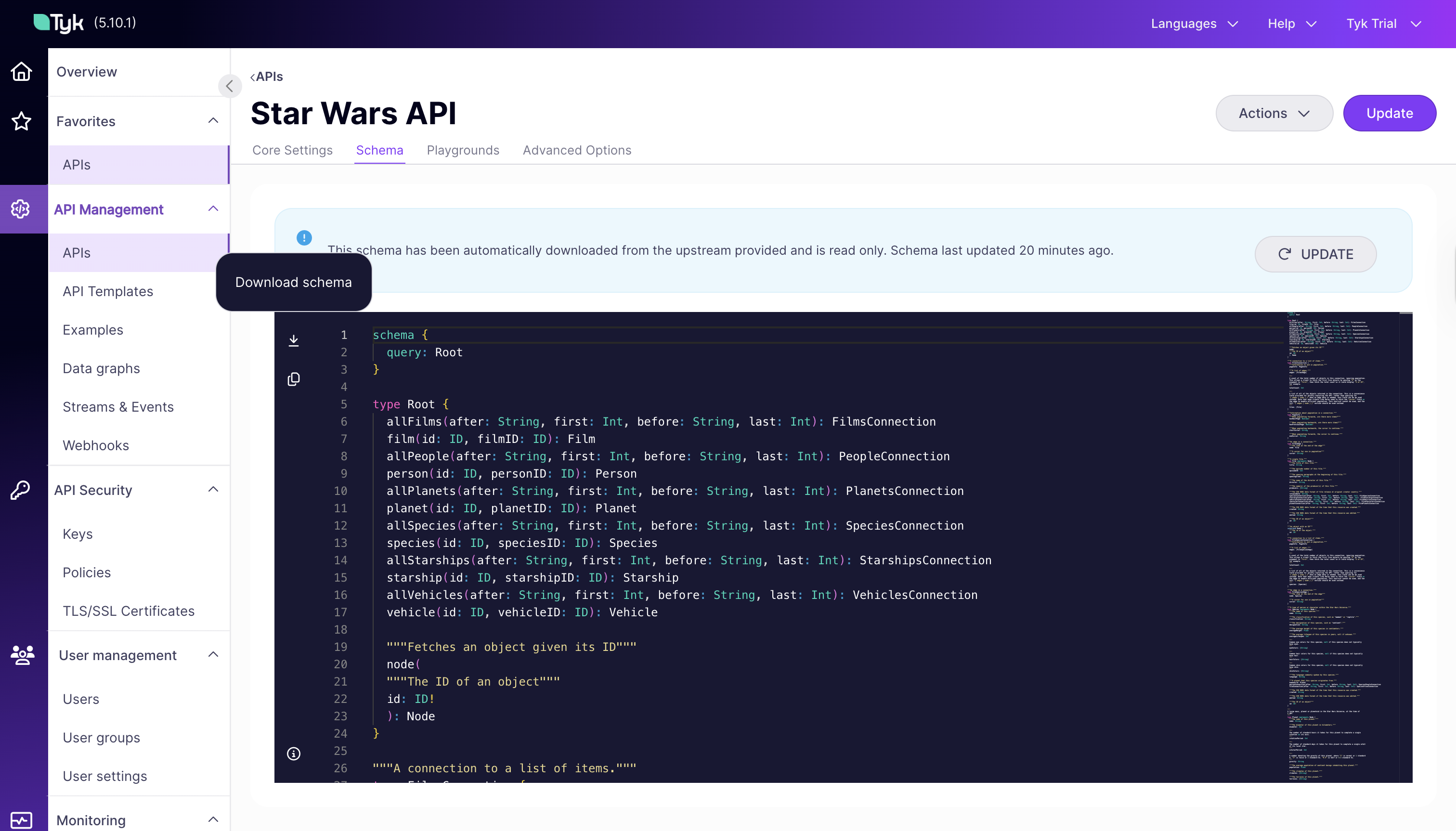
2. Now, go to the **Schema** tab and download the schema.
This schema file will be uploaded to the Developer Portal in a later step.
 ### 2. Create the API Catalog
The Tyk Getting Started Guide creates an API Catalog (`Public catalogue`) by default. If you don't have one, refer to this [guide](/5.10/portal/publish-api-catalog#step-1:-create-the-api-catalog) to create an API Catalog in the Developer Portal.
### 3. Create an API Product
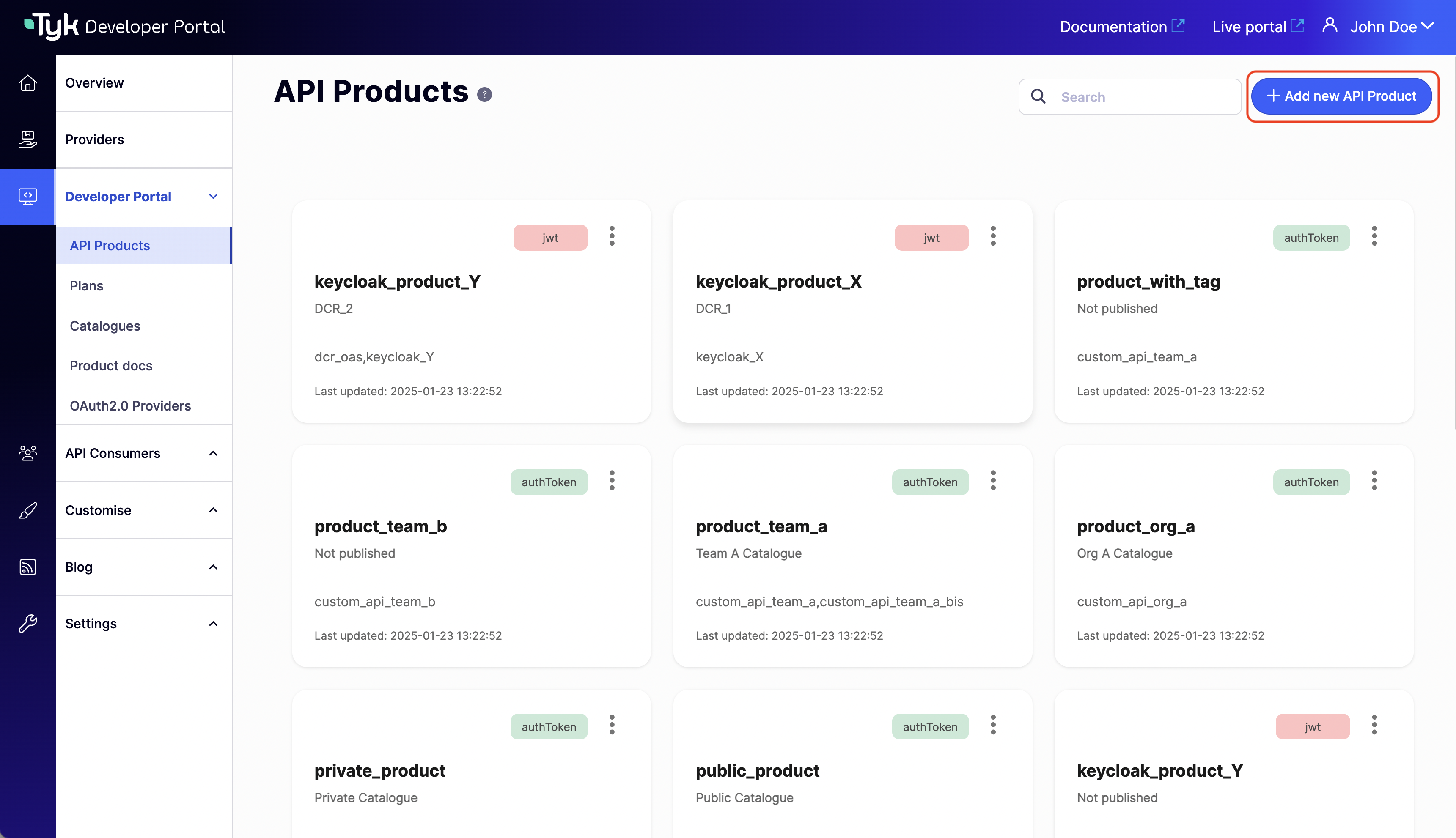
1. Navigate to **Developer Portal > API Products**
2. Click **Add new API Product**
### 2. Create the API Catalog
The Tyk Getting Started Guide creates an API Catalog (`Public catalogue`) by default. If you don't have one, refer to this [guide](/5.10/portal/publish-api-catalog#step-1:-create-the-api-catalog) to create an API Catalog in the Developer Portal.
### 3. Create an API Product
1. Navigate to **Developer Portal > API Products**
2. Click **Add new API Product**
 3. On the **Details** tab, enter the basic product information:
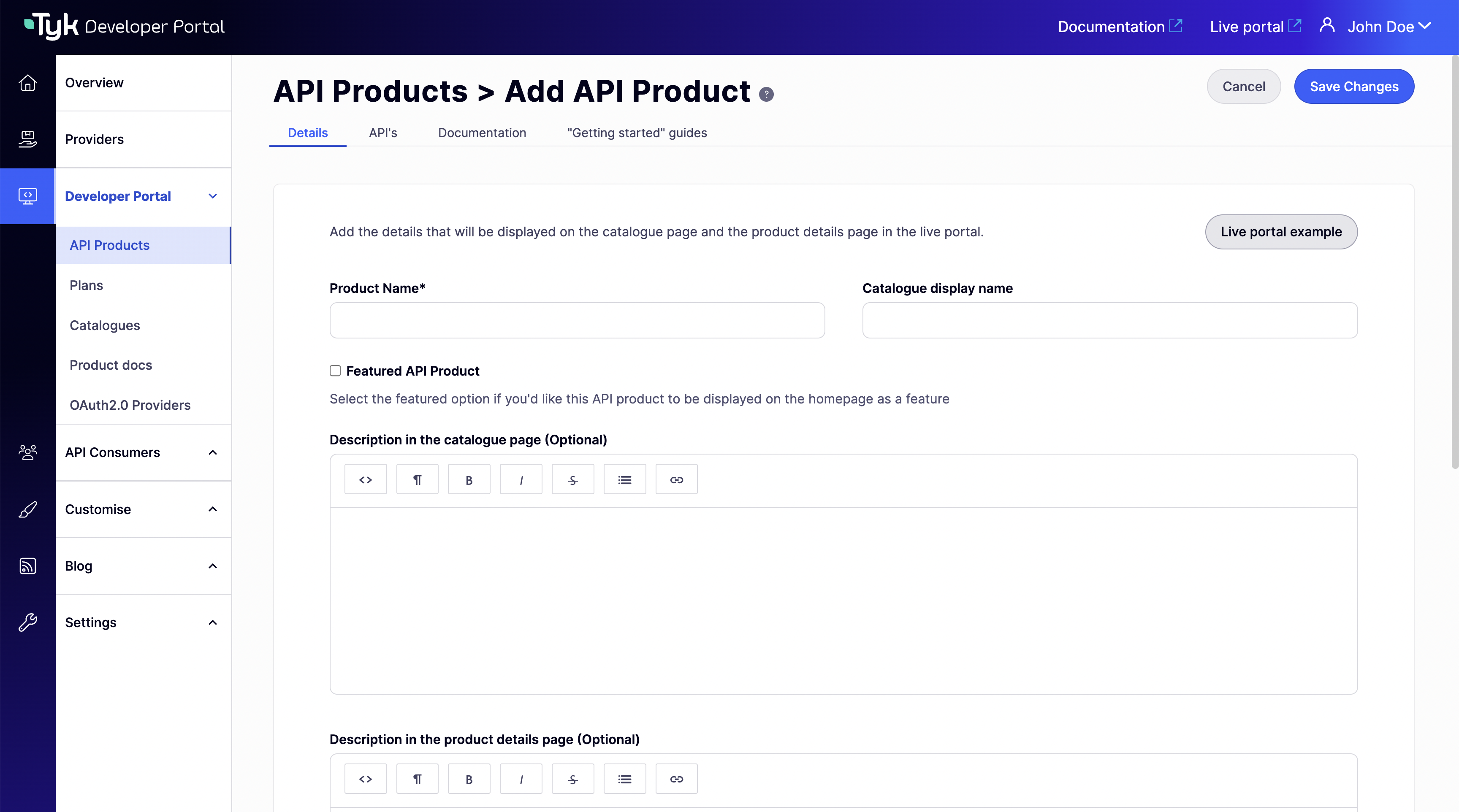 * Product name: A unique product name (e.g., "Star Wars")
* Publish API product to catalogue: Select the catalog you created [previously](/5.10/#2-create-the-api-catalog)
* You can leave the other fields empty for now
4. On the **APIs** tab, select the `Star Wars GQL API` created in the [first step](/5.10/#1-create-a-graphql-api):
5. On the **Documentation** tab:
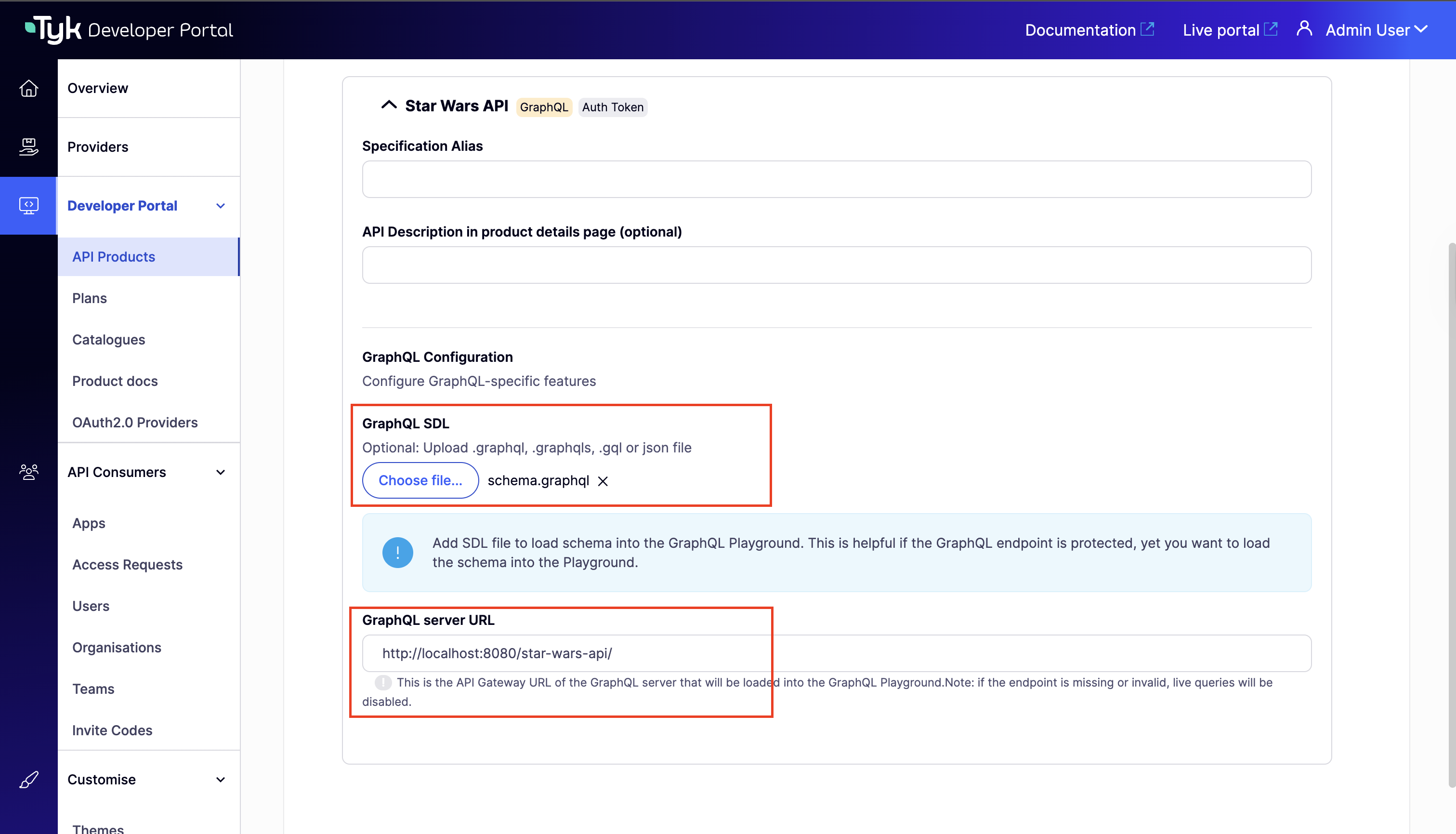
* Add your **GraphQL API endpoint URL** (e.g `http://localhost:8080/star-wars-api/`).
You can find the endpoint URL in the **Core Settings** tab of your GraphQL API in the Dashboard.
* Upload a GraphQL SDL file (in .graphql, .graphqls, .gql, or JSON format)
By default, the GraphQL playground will introspect the schema from the endpoint if no SDL file is provided. However, if the API is protected, introspection will not work, and the schema will be rendered from the uploaded SDL file.
* Product name: A unique product name (e.g., "Star Wars")
* Publish API product to catalogue: Select the catalog you created [previously](/5.10/#2-create-the-api-catalog)
* You can leave the other fields empty for now
4. On the **APIs** tab, select the `Star Wars GQL API` created in the [first step](/5.10/#1-create-a-graphql-api):
5. On the **Documentation** tab:
* Add your **GraphQL API endpoint URL** (e.g `http://localhost:8080/star-wars-api/`).
You can find the endpoint URL in the **Core Settings** tab of your GraphQL API in the Dashboard.
* Upload a GraphQL SDL file (in .graphql, .graphqls, .gql, or JSON format)
By default, the GraphQL playground will introspect the schema from the endpoint if no SDL file is provided. However, if the API is protected, introspection will not work, and the schema will be rendered from the uploaded SDL file.
 6. Click **Save Changes**
### 4. View the Playground
1. Open your **Live Portal**.
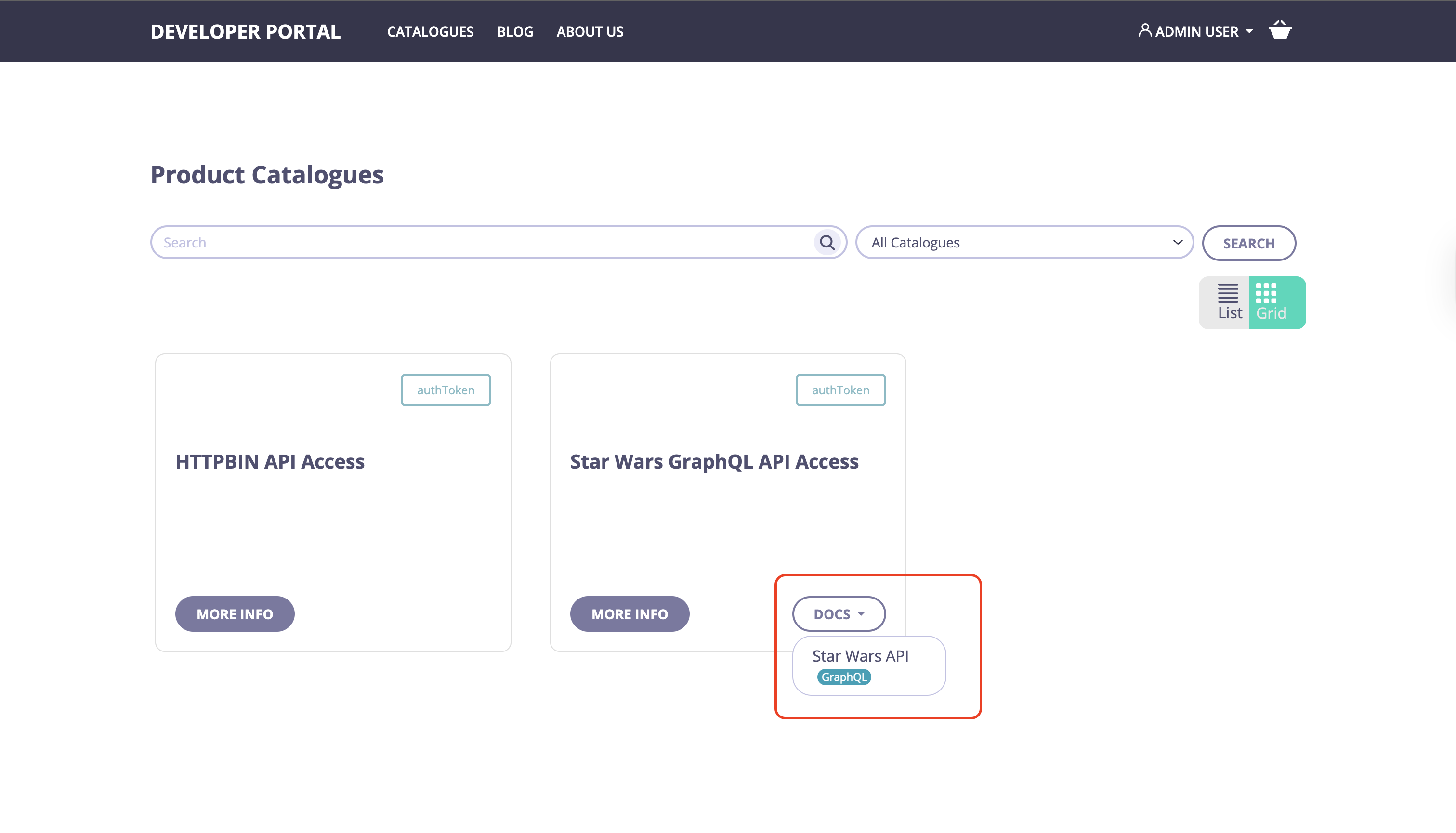
2. Go to **Product Catalogues**, locate your GraphQL Product and Click **Docs**.
6. Click **Save Changes**
### 4. View the Playground
1. Open your **Live Portal**.
2. Go to **Product Catalogues**, locate your GraphQL Product and Click **Docs**.
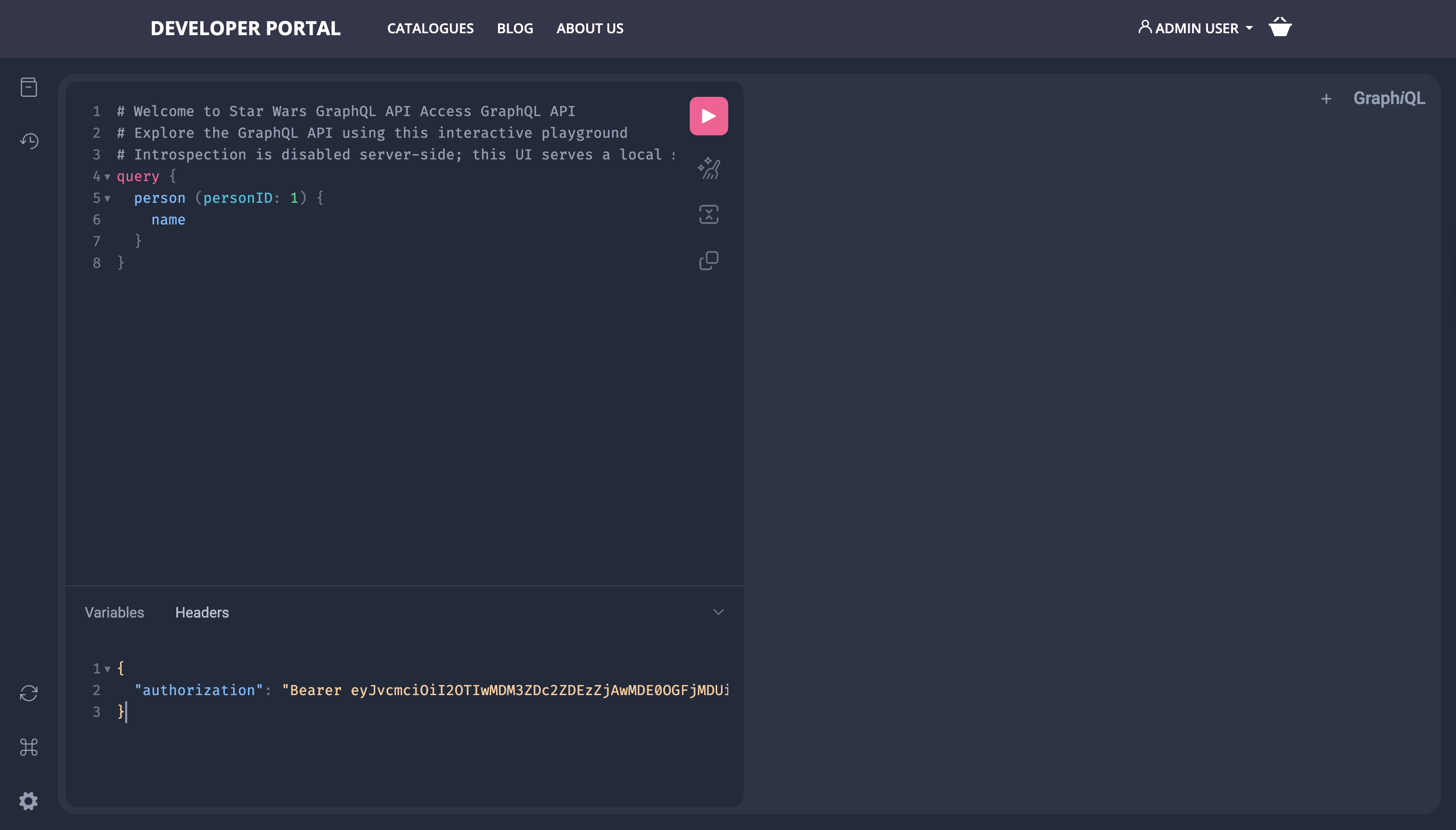
 3. You should now see the **GraphQL Playground**, ready for interactive query testing.
To test authenticated APIs, ensure you set the required authentication headers in the Playground according to your API's authentication settings.
For example, for the `Star Wars GQL API`, add the `Authorization` header with the value `Bearer ` where `` is the token you saved earlier.
```json theme={null}
{
"Authorization": "Bearer YOUR_KEY_ID"
}
```
3. You should now see the **GraphQL Playground**, ready for interactive query testing.
To test authenticated APIs, ensure you set the required authentication headers in the Playground according to your API's authentication settings.
For example, for the `Star Wars GQL API`, add the `Authorization` header with the value `Bearer ` where `` is the token you saved earlier.
```json theme={null}
{
"Authorization": "Bearer YOUR_KEY_ID"
}
```
 ## Troubleshooting
If you encounter a `404 GraphQL API Not Found` error in the GraphQL Playground, it indicates that the Developer Portal cannot locate the specified GraphQL API.
To resolve this issue, ensure that your API ends with a trailing slash (`/`). (e.g `http://localhost:8080/star-wars-api/`)
You can find the endpoint URL in the **Core Settings** tab of your GraphQL API in the Dashboard.
If you are seeing a `"message": "Failed to fetch"` error in the GraphQL Playground, it is likely due to CORS (Cross-Origin Resource Sharing) restrictions. To resolve this issue, follow these steps:
Go to the Dashboard, and add the following CORS configuration to your GraphQL API settings:
```json theme={null}
"CORS": {
"enable": true,
"max_age": 24,
"allow_credentials": true,
"exposed_headers": [
"*"
],
"allowed_headers": [
"*"
],
"options_passthrough": true,
"debug": false,
"allowed_origins": [
"http://localhost:3001"
],
"allowed_methods": []
},
```
* Ensure that the `allowed_origins` field includes the URL of your Developer Portal (e.g., `http://localhost:3001` for local setups).
## Troubleshooting
If you encounter a `404 GraphQL API Not Found` error in the GraphQL Playground, it indicates that the Developer Portal cannot locate the specified GraphQL API.
To resolve this issue, ensure that your API ends with a trailing slash (`/`). (e.g `http://localhost:8080/star-wars-api/`)
You can find the endpoint URL in the **Core Settings** tab of your GraphQL API in the Dashboard.
If you are seeing a `"message": "Failed to fetch"` error in the GraphQL Playground, it is likely due to CORS (Cross-Origin Resource Sharing) restrictions. To resolve this issue, follow these steps:
Go to the Dashboard, and add the following CORS configuration to your GraphQL API settings:
```json theme={null}
"CORS": {
"enable": true,
"max_age": 24,
"allow_credentials": true,
"exposed_headers": [
"*"
],
"allowed_headers": [
"*"
],
"options_passthrough": true,
"debug": false,
"allowed_origins": [
"http://localhost:3001"
],
"allowed_methods": []
},
```
* Ensure that the `allowed_origins` field includes the URL of your Developer Portal (e.g., `http://localhost:3001` for local setups).