> ## Documentation Index
> Fetch the complete documentation index at: https://tyk.io/docs/llms.txt
> Use this file to discover all available pages before exploring further.
# Working with Tyk OAS APIs
> How to work with Tyk OAS APIs
## Overview
Tyk's support for the OpenAPI Specification is designed to fit in with your existing workflows as seamlessly as possible, whether you have one of our paid offerings, or are using our free open-source Gateway. You should be able to do a huge amount in the editor of your choice. The Tyk Dashboard's API Designer will support you whether you want to create a new API from a blank slate, or just to dip into if you want a bit of help with configuring Tyk's powerful transformation middleware.
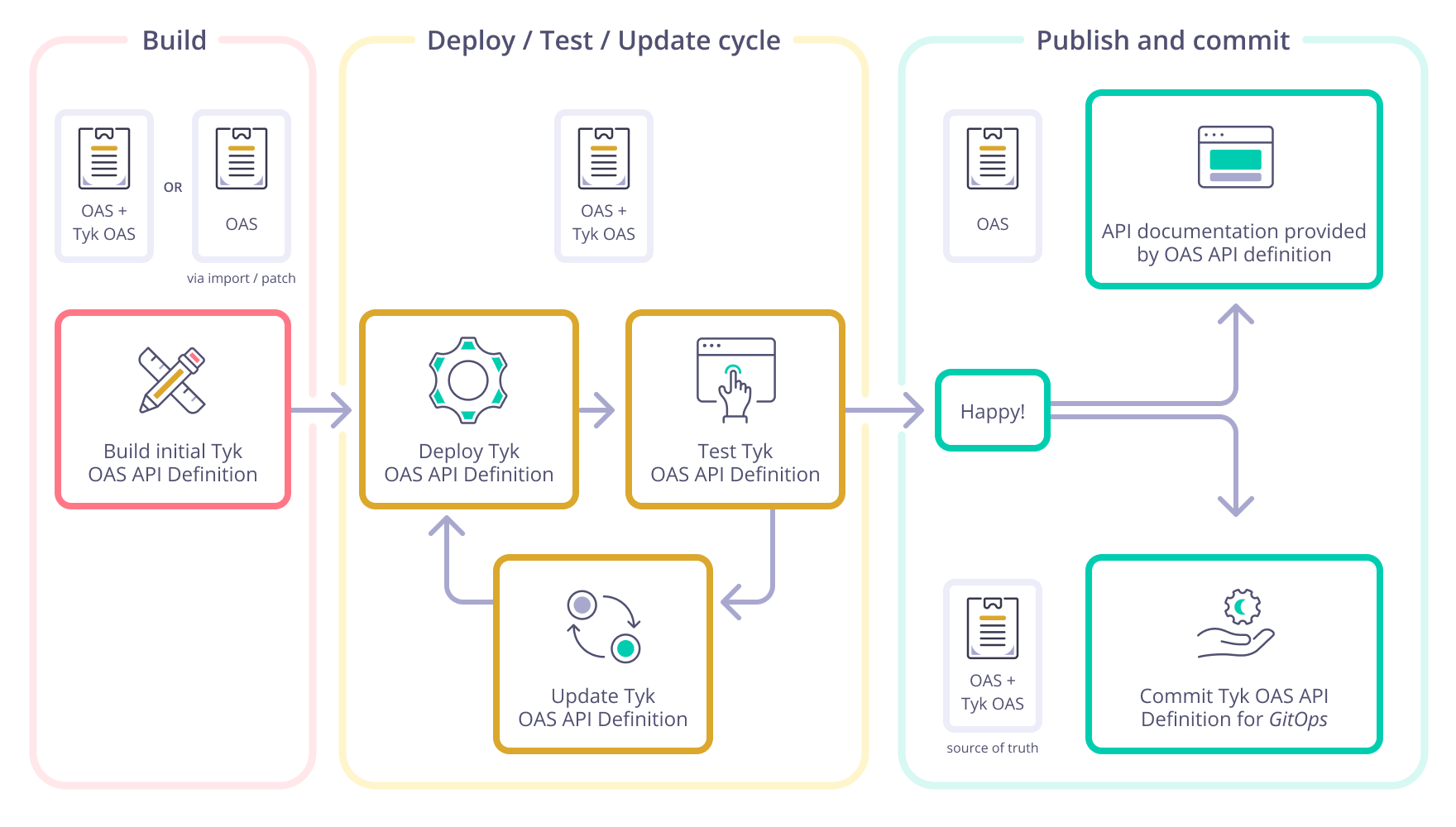
One of the great things about working with Tyk is that the OpenAPI document containing the OAS compliant description of your service is a single file (or group of files) that you deploy throughout your workflow. You can iterate on that document within your source control system until you are totally happy. At this point, you can publish the OpenAPI description to your Developer Portal to document what a Developer needs to use the API (and nothing they don’t need to know). As the OpenAPI description is the source of truth for the Tyk OAS API definition and can be updated without impacting the Tyk Vendor Extension, you can automate deployment of updates to your API on Tyk whenever a new version is committed into your source control. This model is very popular in GitOps and CI/CD environments.
 Warning
In Tyk Gateway release 5.3.0, Tyk OAS APIs gained feature maturity. Tyk Dashboard will automatically migrate any pre-5.3.0 Tyk OAS APIs to the feature mature standard when you upgrade to 5.3.0 or later. Tyk OAS APIs prior to v5.3.0 must be manually migrated if you are using Tyk OSS Gateway. Feature mature Tyk OAS APIs may not work with pre-5.3.0 versions of Tyk Gateway.
It is not possible to rollback to previous versions of Tyk components with Tyk OAS APIs created in 5.3.0.
For further details, please refer to the [release notes](/5.10/developer-support/release-notes/gateway) for Tyk Gateway v5.3.0.
### API Definition Management with Tyk
There are three methods by which API definitions can be deployed to Tyk: using the [Tyk Dashboard API Designer](/5.10/api-management/dashboard-configuration), using the [Tyk Dashboard API](/5.10/api-management/dashboard-configuration#exploring-the-dashboard-api) and using the [Tyk Gateway API](/5.10/tyk-gateway-api).
The first two options provide access to the powerful licensed features of Tyk, whilst the third is used for open source deployments. Tyk provides additional tools to assist with automation when using the Tyk Dashboard API - namely [Tyk Operator](/5.10/api-management/automations/operator)(for Kubernetes deployments) and [Tyk Sync](/5.10/api-management/automations/sync) (for gitops).
| Feature | API Designer | Tyk Dashboard API | Tyk Gateway API |
| :---------------------------------------------------------------------------------------------------------------------- | :----------- | :---------------- | :-------------- |
| Work with YAML format | ✅ | ✅ | ❌ |
| Work with JSON format | ✅ | ✅ | ✅ |
| Import an OpenAPI description | ✅ | ✅ | ✅ |
| Import a complete Tyk OAS API definition | ✅ | ✅ | ✅ |
| Import [multi-part OpenAPI descriptions](/5.10/api-management/gateway-config-managing-oas#multi-part-openapi-documents) | ✅ | ✅ | ❌ |
| Apply API [Templates](/5.10/api-management/dashboard-configuration#governance-using-api-templates) | ✅ | ✅ | ❌ |
| Export the OpenAPI description | ✅ | ✅ | ✅ |
| Export the Tyk OAS API definition | ✅ | ✅ | ✅ |
| Update API with new OpenAPI description | ✅ | ✅ | ✅ |
| Manage API versions | ✅ | ✅ | ✅ |
| Assign APIs to [Categories](/5.10/api-management/dashboard-configuration#governance-using-api-categories) | ✅ | ✅ | ❌ |
| Assign API [Owners](/5.10/api-management/user-management#api-ownership) | ✅ | ✅ | ❌ |
## Creating an API
Tyk is designed to fit into your workflow, so has full support for you to import your existing OpenAPI descriptions as the starting point for a Tyk OAS API. Tyk can automatically configure aspects of the Gateway's API security and management functions based upon the content of the OpenAPI description, for example using the security settings to configure client authentication or the endpoint examples and schemas to configure request validation and mock response middleware.
Alternatively, if you don't have an existing OpenAPI description, you can use the API Designer to bootstrap one for you: build your API in Tyk and then export an OAS compliant description that you can use elsewhere, for example as documentation for your new API.
### Using Tyk Dashboard API Designer to create an API
In this tutorial we guide you through the steps to create a new Tyk OAS API using the GUI.
1. Start by selecting **APIs** from the **API Management** section
Warning
In Tyk Gateway release 5.3.0, Tyk OAS APIs gained feature maturity. Tyk Dashboard will automatically migrate any pre-5.3.0 Tyk OAS APIs to the feature mature standard when you upgrade to 5.3.0 or later. Tyk OAS APIs prior to v5.3.0 must be manually migrated if you are using Tyk OSS Gateway. Feature mature Tyk OAS APIs may not work with pre-5.3.0 versions of Tyk Gateway.
It is not possible to rollback to previous versions of Tyk components with Tyk OAS APIs created in 5.3.0.
For further details, please refer to the [release notes](/5.10/developer-support/release-notes/gateway) for Tyk Gateway v5.3.0.
### API Definition Management with Tyk
There are three methods by which API definitions can be deployed to Tyk: using the [Tyk Dashboard API Designer](/5.10/api-management/dashboard-configuration), using the [Tyk Dashboard API](/5.10/api-management/dashboard-configuration#exploring-the-dashboard-api) and using the [Tyk Gateway API](/5.10/tyk-gateway-api).
The first two options provide access to the powerful licensed features of Tyk, whilst the third is used for open source deployments. Tyk provides additional tools to assist with automation when using the Tyk Dashboard API - namely [Tyk Operator](/5.10/api-management/automations/operator)(for Kubernetes deployments) and [Tyk Sync](/5.10/api-management/automations/sync) (for gitops).
| Feature | API Designer | Tyk Dashboard API | Tyk Gateway API |
| :---------------------------------------------------------------------------------------------------------------------- | :----------- | :---------------- | :-------------- |
| Work with YAML format | ✅ | ✅ | ❌ |
| Work with JSON format | ✅ | ✅ | ✅ |
| Import an OpenAPI description | ✅ | ✅ | ✅ |
| Import a complete Tyk OAS API definition | ✅ | ✅ | ✅ |
| Import [multi-part OpenAPI descriptions](/5.10/api-management/gateway-config-managing-oas#multi-part-openapi-documents) | ✅ | ✅ | ❌ |
| Apply API [Templates](/5.10/api-management/dashboard-configuration#governance-using-api-templates) | ✅ | ✅ | ❌ |
| Export the OpenAPI description | ✅ | ✅ | ✅ |
| Export the Tyk OAS API definition | ✅ | ✅ | ✅ |
| Update API with new OpenAPI description | ✅ | ✅ | ✅ |
| Manage API versions | ✅ | ✅ | ✅ |
| Assign APIs to [Categories](/5.10/api-management/dashboard-configuration#governance-using-api-categories) | ✅ | ✅ | ❌ |
| Assign API [Owners](/5.10/api-management/user-management#api-ownership) | ✅ | ✅ | ❌ |
## Creating an API
Tyk is designed to fit into your workflow, so has full support for you to import your existing OpenAPI descriptions as the starting point for a Tyk OAS API. Tyk can automatically configure aspects of the Gateway's API security and management functions based upon the content of the OpenAPI description, for example using the security settings to configure client authentication or the endpoint examples and schemas to configure request validation and mock response middleware.
Alternatively, if you don't have an existing OpenAPI description, you can use the API Designer to bootstrap one for you: build your API in Tyk and then export an OAS compliant description that you can use elsewhere, for example as documentation for your new API.
### Using Tyk Dashboard API Designer to create an API
In this tutorial we guide you through the steps to create a new Tyk OAS API using the GUI.
1. Start by selecting **APIs** from the **API Management** section
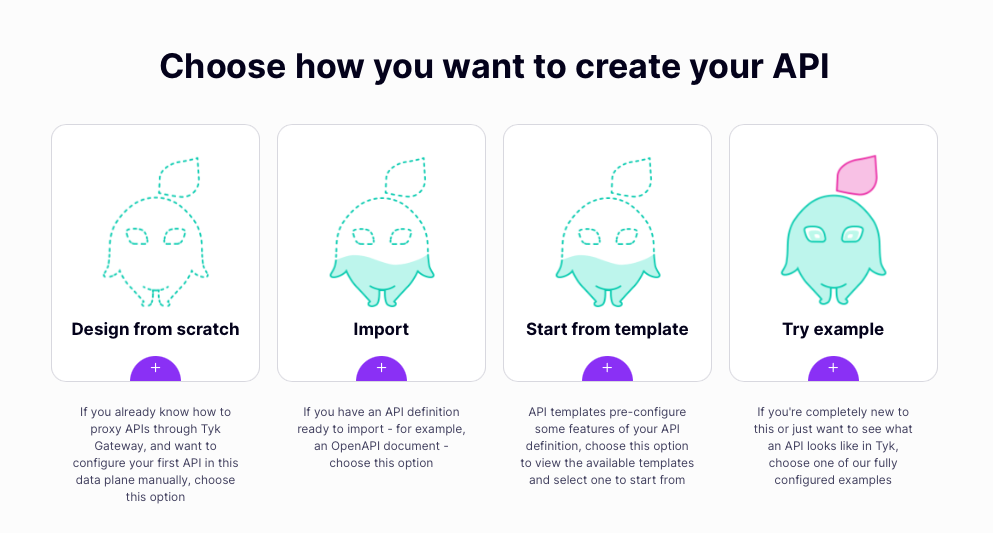
 2. Now select **Add New API** and then, choose **Design from scratch**
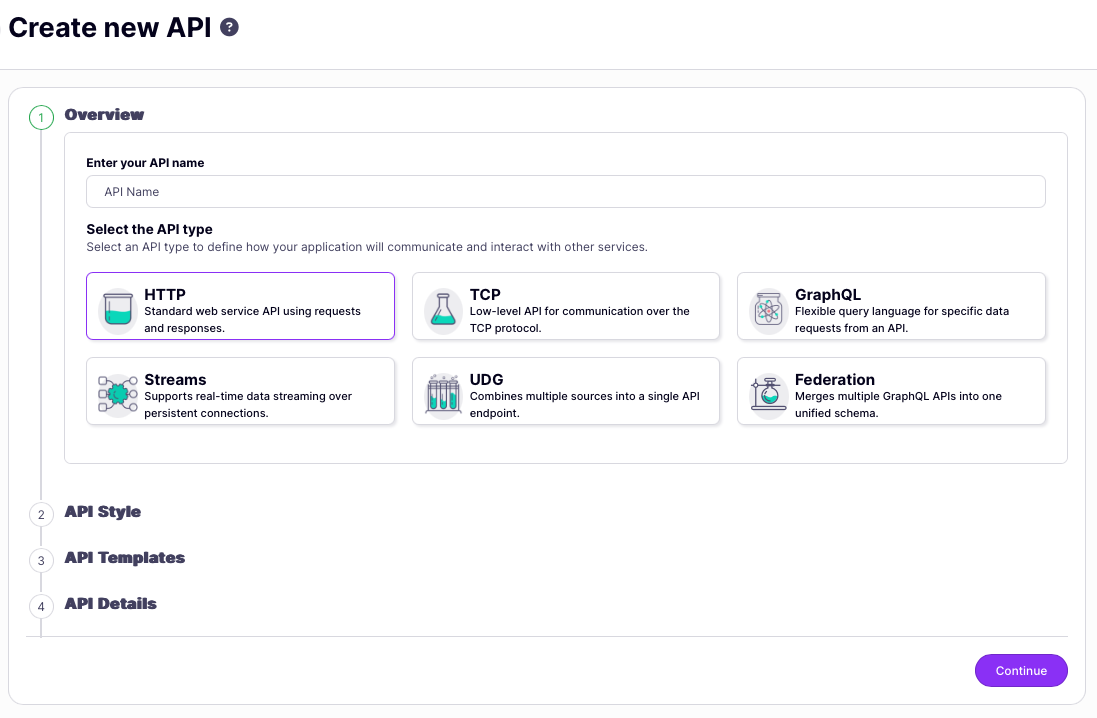
 3. Now complete the basic configuration for your new API following the guided steps providing:
* API name
* API type (**HTTP**)
* API style (**OpenAPI**)
* [API template](/5.10/api-management/dashboard-configuration#working-with-api-templates-using-the-template-designer) (optional)
* Upstream URL
3. Now complete the basic configuration for your new API following the guided steps providing:
* API name
* API type (**HTTP**)
* API style (**OpenAPI**)
* [API template](/5.10/api-management/dashboard-configuration#working-with-api-templates-using-the-template-designer) (optional)
* Upstream URL
 4. Deploy the API to your Gateway
* If you are using Tyk Cloud or a [sharded](/5.10/api-management/multiple-environments) deployment you will be prompted to select on which Gateways the API should be deployed
4. Deploy the API to your Gateway
* If you are using Tyk Cloud or a [sharded](/5.10/api-management/multiple-environments) deployment you will be prompted to select on which Gateways the API should be deployed
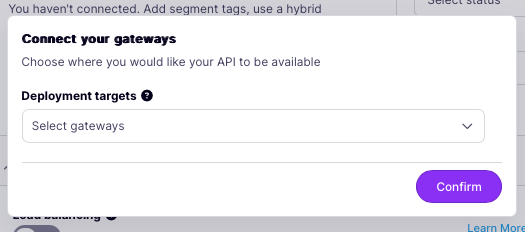 * You need to set the **API status** (if you set this to **Active**, Tyk will accept requests to the API)
* You need to set the **Access** (set this to **External** to expose your API outside Tyk so that your clients can consume it)
* When creating a new API you will probably want to set API status to **Inactive** while you configure the rest of the API definition
* You need to set the **API status** (if you set this to **Active**, Tyk will accept requests to the API)
* You need to set the **Access** (set this to **External** to expose your API outside Tyk so that your clients can consume it)
* When creating a new API you will probably want to set API status to **Inactive** while you configure the rest of the API definition
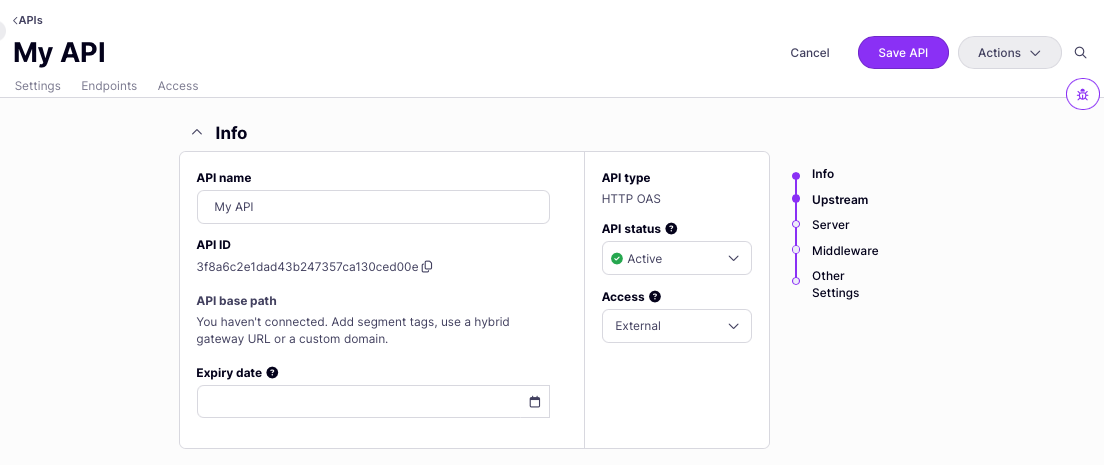 Click **Save API** to create the API definition and, depending on the options you chose for API status and access, deploy the API to your gateway to start serving traffic.
You can see the URL given to your API, in the Info section displayed at the top of the page (**API URL**).
5. Secure your API by configuring [client authentication](/5.10/api-management/client-authentication)
From the API page:
1. Click **Edit**
2. Scroll down to the **Server** section and enable **Authentication**
3. Select **Auth Token** from the drop-down list
4. For **Authentication token location** select **Use header value**
5. Note that the default Auth key header name is *Authorization*
6. Save your API
6. Declare endpoints for your API
1. After selecting **Edit**, move to the **Endpoints** tab.
Click **Save API** to create the API definition and, depending on the options you chose for API status and access, deploy the API to your gateway to start serving traffic.
You can see the URL given to your API, in the Info section displayed at the top of the page (**API URL**).
5. Secure your API by configuring [client authentication](/5.10/api-management/client-authentication)
From the API page:
1. Click **Edit**
2. Scroll down to the **Server** section and enable **Authentication**
3. Select **Auth Token** from the drop-down list
4. For **Authentication token location** select **Use header value**
5. Note that the default Auth key header name is *Authorization*
6. Save your API
6. Declare endpoints for your API
1. After selecting **Edit**, move to the **Endpoints** tab.
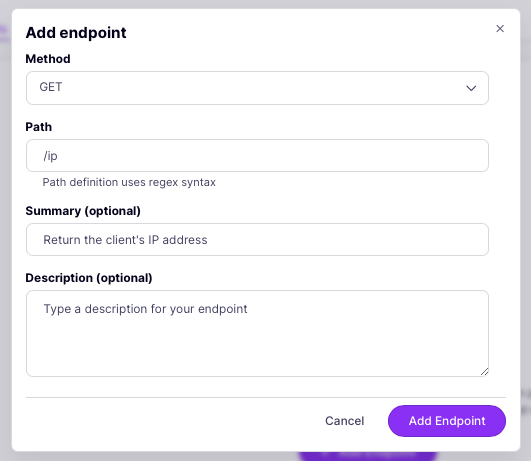
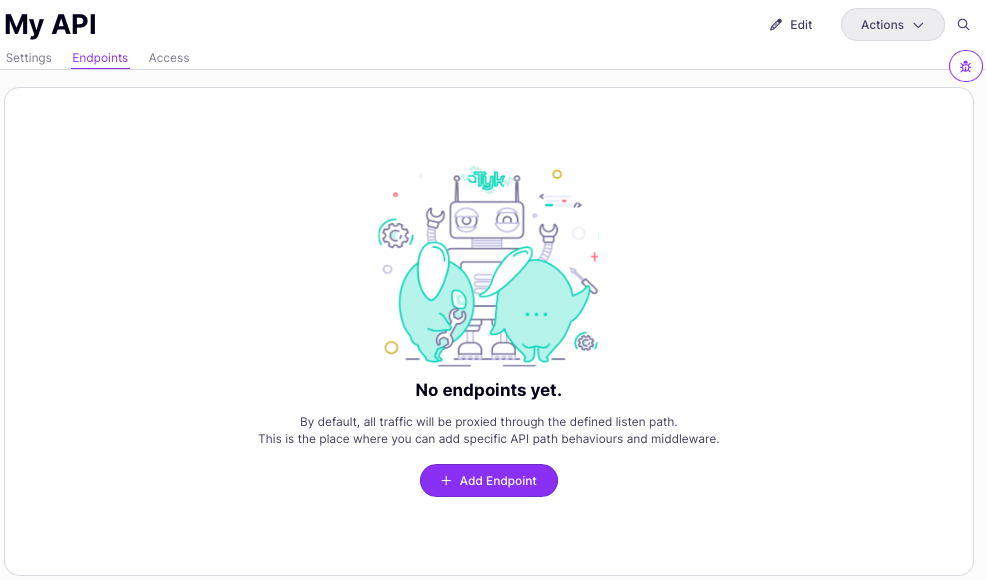 2. Click **Add Endpoint** then complete the requested details for the new endpoint:
* Select a method from the drop-down list
* Add a path for your endpoint
* Add an optional summary and description
* select **Add Endpoint**
2. Click **Add Endpoint** then complete the requested details for the new endpoint:
* Select a method from the drop-down list
* Add a path for your endpoint
* Add an optional summary and description
* select **Add Endpoint**
 3. Your new endpoint will now be listed in the Endpoints tab
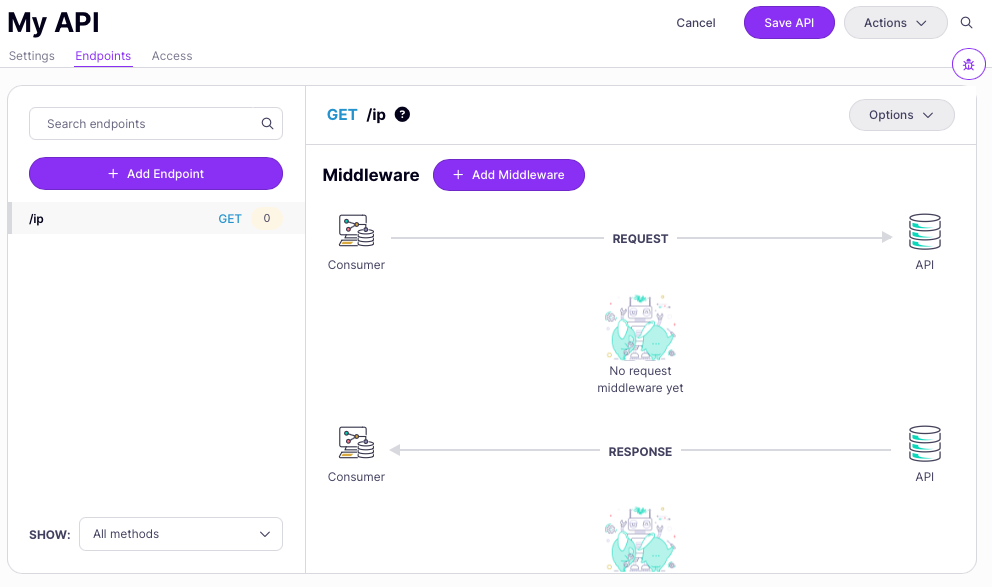 4. You can now add [middleware](/5.10/api-management/traffic-transformation) to your endpoint via the **Add Middleware** button.
5. Click **Save API** to apply the changes to your API.
7. Test your API
From the **Info** section, copy the [API base path](/5.10/api-management/gateway-config-managing-oas#api-base-path) and send a request to the API without providing an authorization token:
```
curl --location --request GET 'http://localhost:8181/petstore/' \
--header 'Authorization: wrongkey'
```
Note that the Gateway will respond with the following error message, confirming that authentication is required:
```.json theme={null}
{
"error": "Access to this API has been disallowed"
}
```
### Using your own code editor to create Tyk OAS API definitions
The API definition is often generated either from the codebase or using API design tools (such as [Swagger Editor](https://editor.swagger.io/), [Postman](https://www.postman.com/) and [Stoplight](https://stoplight.io/)).
To enjoy writing a *Tyk OAS API definition* as if it is [a native programming language](https://tyk.io/blog/get-productive-with-the-tyk-intellisense-extension/), you can add the [Tyk OAS API definition schema](https://raw.githubusercontent.com/TykTechnologies/tyk-schemas/main/JSON/draft-04/schema_TykOasApiDef_3.0.x.json) to your favorite IDE or editor. We have published a Tyk VS Code extension that provides Tyk API schema validation and auto-completion (both OAS and other schemas) in the [VS Code marketplace](https://marketplace.visualstudio.com/items?itemName=TykTechnologiesLimited.tyk-schemas). You can use it to create Tyk objects in your IDE (Tyk API definitions, Key and Tyk config file).
#### Loading the API definition into Tyk
Armed with a Tyk OAS API definition, in YAML or JSON format, you can use this to create an API in Tyk Dashboard with only a few clicks.
1. Start by selecting **APIs** from the **API Management** section
2. Now select **Add New API** and then, choose **Import**.
Note that you can optionally apply an [API template](/5.10/api-management/dashboard-configuration#governance-using-api-templates) by choosing **Start from template** as explained [here](/5.10/api-management/dashboard-configuration#using-a-template-when-creating-a-new-api), however in this explanation we will not be applying a template.
3. From the Import API screen, select **Tyk API** because the object you want to import to Tyk is a complete API definition.
4. You can now add [middleware](/5.10/api-management/traffic-transformation) to your endpoint via the **Add Middleware** button.
5. Click **Save API** to apply the changes to your API.
7. Test your API
From the **Info** section, copy the [API base path](/5.10/api-management/gateway-config-managing-oas#api-base-path) and send a request to the API without providing an authorization token:
```
curl --location --request GET 'http://localhost:8181/petstore/' \
--header 'Authorization: wrongkey'
```
Note that the Gateway will respond with the following error message, confirming that authentication is required:
```.json theme={null}
{
"error": "Access to this API has been disallowed"
}
```
### Using your own code editor to create Tyk OAS API definitions
The API definition is often generated either from the codebase or using API design tools (such as [Swagger Editor](https://editor.swagger.io/), [Postman](https://www.postman.com/) and [Stoplight](https://stoplight.io/)).
To enjoy writing a *Tyk OAS API definition* as if it is [a native programming language](https://tyk.io/blog/get-productive-with-the-tyk-intellisense-extension/), you can add the [Tyk OAS API definition schema](https://raw.githubusercontent.com/TykTechnologies/tyk-schemas/main/JSON/draft-04/schema_TykOasApiDef_3.0.x.json) to your favorite IDE or editor. We have published a Tyk VS Code extension that provides Tyk API schema validation and auto-completion (both OAS and other schemas) in the [VS Code marketplace](https://marketplace.visualstudio.com/items?itemName=TykTechnologiesLimited.tyk-schemas). You can use it to create Tyk objects in your IDE (Tyk API definitions, Key and Tyk config file).
#### Loading the API definition into Tyk
Armed with a Tyk OAS API definition, in YAML or JSON format, you can use this to create an API in Tyk Dashboard with only a few clicks.
1. Start by selecting **APIs** from the **API Management** section
2. Now select **Add New API** and then, choose **Import**.
Note that you can optionally apply an [API template](/5.10/api-management/dashboard-configuration#governance-using-api-templates) by choosing **Start from template** as explained [here](/5.10/api-management/dashboard-configuration#using-a-template-when-creating-a-new-api), however in this explanation we will not be applying a template.
3. From the Import API screen, select **Tyk API** because the object you want to import to Tyk is a complete API definition.
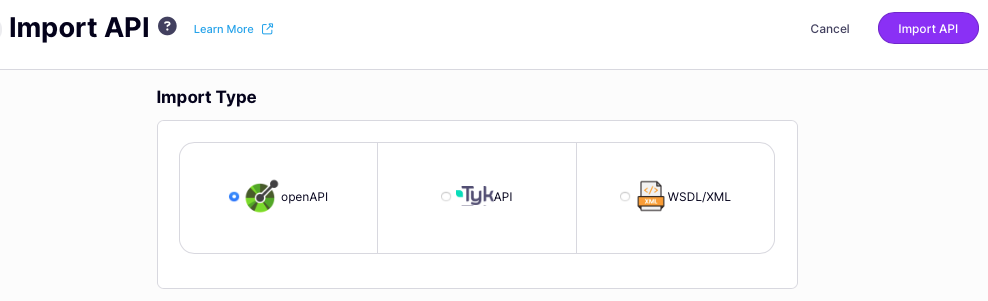 On the Import API screen, there are three options for Import Type, it is important to select the correct one for the object that you want to load into Tyk:
* openAPI is used only for [OpenAPI descriptions](/5.10/api-management/gateway-config-tyk-oas#openapi-description) (without the [Tyk Vendor Extension](/5.10/api-management/gateway-config-tyk-oas#tyk-vendor-extension))
* TykAPI is used for a full [Tyk OAS API definition](/5.10/api-management/gateway-config-tyk-oas#what-is-a-tyk-oas-api-definition) (comprising OpenAPI description plus Tyk Vendor Extension) or Tyk Classic API definition
* WSDL/XML is used for WSDL/XML content and will result in a Tyk Classic API
4. Now you can paste the entire Tyk OAS API definition into the text editor.
On the Import API screen, there are three options for Import Type, it is important to select the correct one for the object that you want to load into Tyk:
* openAPI is used only for [OpenAPI descriptions](/5.10/api-management/gateway-config-tyk-oas#openapi-description) (without the [Tyk Vendor Extension](/5.10/api-management/gateway-config-tyk-oas#tyk-vendor-extension))
* TykAPI is used for a full [Tyk OAS API definition](/5.10/api-management/gateway-config-tyk-oas#what-is-a-tyk-oas-api-definition) (comprising OpenAPI description plus Tyk Vendor Extension) or Tyk Classic API definition
* WSDL/XML is used for WSDL/XML content and will result in a Tyk Classic API
4. Now you can paste the entire Tyk OAS API definition into the text editor.
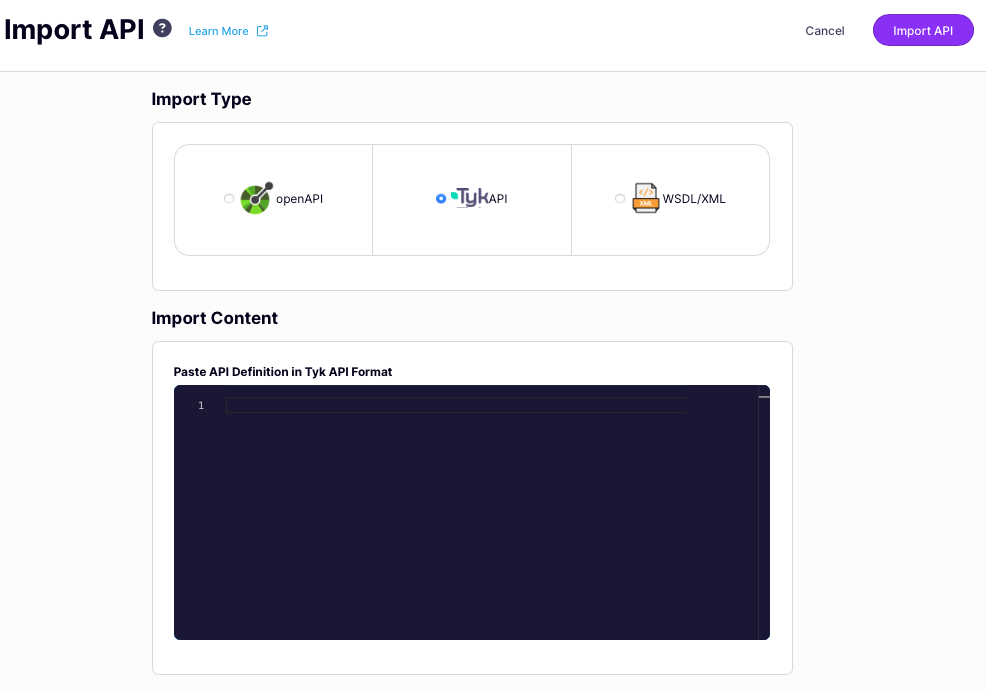 5. Select **Import API** to complete the import and create the API based on your API definition.
When making calls to the Tyk Dashboard API you'll need to set the domain name and port for your environment and provide credentials in the `Authorization` field for Tyk to authorize your request, as follows:
| Interface | Port | Authorization Header | Authorization credentials |
| :---------------- | :--- | :------------------- | :-------------------------- |
| Tyk Dashboard API | 3000 | `Authorization` | From Dashboard User Profile |
You can obtain your authorization credential (Dashboard API key) from the Tyk Dashboard UI:
* Select **Edit profile** from the dropdown that appears when you click on your username in the top right corner of the screen
* Scroll to the bottom of the page were you will see your **Tyk Dashboard API Access Credentials**
You will also need to have ‘admin’ or ‘api:write’ permission if [RBAC](/5.10/api-management/user-management) is enabled.
To create the API in Tyk, you simply send your Tyk OAS API Definition in the payload to the `POST /api/apis/oas` endpoint of your Tyk Dashboard API.
| Property | Description |
| :----------- | :--------------------- |
| Resource URL | `/api/apis/oas` |
| Method | `POST` |
| Type | None |
| Body | Tyk OAS API Definition |
| Parameters | Query: `templateID` |
Using [this](https://bit.ly/39jUnuq) API definition it is possible to create a Tyk OAS API on your Tyk Gateway that forwards requests to the [Swagger Petstore](https://petstore3.swagger.io) request/response service.
```
curl -H "Authorization: ${DASH_KEY}" -H "Content-Type: application/json" ${DASH_URL}/apis/oas -d "$(wget -qO- https://bit.ly/39jUnuq)"
```
**Check request response**
If the command succeeds, you will see the following response, where `Meta` contains the unique identifier (`id`) for the API you have just created. If you did not provide a value in the `id` field, then Tyk will automatically assign one.
```
{
"Status": "OK",
"Message": "API created",
"Meta": {NEW-API-ID}
}
```
What you have done is to send a Tyk OAS API definition to Tyk Dashboard's `/api/apis/oas` endpoint resulting in the creation of the API in your Tyk Dashboard which will automatically deploy it to your Gateway.
You can use the optional `templateId` parameter to apply an [API Template](/5.10/api-management/dashboard-configuration#applying-a-template-when-creating-an-api-from-a-tyk-oas-api-definition) to your API definition when creating the API.
When making calls to the Tyk Gateway API you'll need to set the domain name and port for your environment and provide credentials in the `x-tyk-authorization` field for Tyk to authorize your request, as follows:
| Interface | Port | Authorization Header | Authorization credentials |
| :-------------- | :--- | :-------------------- | :------------------------------- |
| Tyk Gateway API | 8080 | `x-tyk-authorization` | `secret` value set in `tyk.conf` |
To create the API in Tyk, you simply send your Tyk OAS API Definition in the payload to the `POST /tyk/apis/oas` endpoint of your Tyk Gateway API.
Using [this](https://bit.ly/39tnXgO) minimal API definition it is possible to create a Tyk OAS API on your Tyk Gateway using only 30 lines:
```curl theme={null}
curl --location --request POST 'http://{your-tyk-host}:{port}/tyk/apis/oas' \
--header 'x-tyk-authorization: {your-secret}' \
--header 'Content-Type: text/plain' \
--data-raw
'{
"info": {
"title": "Petstore",
"version": "1.0.0"
},
"openapi": "3.0.3",
"components": {},
"paths": {},
"x-tyk-api-gateway": {
"info": {
"name": "Petstore",
"state": {
"active": true
}
},
"upstream": {
"url": "https://petstore.swagger.io/v2"
},
"server": {
"listenPath": {
"value": "/petstore/",
"strip": true
}
}
}
}'
```
**Check request response**
If the command succeeds, you will see the following response, where `key` contains the unique identifier (`id`) for the API you have just created. If you did not provide a value in the `id` field, then Tyk will automatically assign one.
```.json theme={null}
{
"key": {NEW-API-ID},
"status": "ok",
"action": "added"
}
```
What you have done is to send a Tyk OAS API definition to Tyk Gateway's `/tyk/apis/oas` endpoint resulting in the creation of the API in your Tyk Gateway.
**Restart or hot reload**
Once you have created your API you need to load it into the Gateway so that it can serve traffic. To do this you can either restart the Tyk Gateway or issue a [hot reload](/5.10/tyk-stack/tyk-gateway/important-prerequisites#hot-reload-is-critical-in-tyk-ce) command:
```.curl theme={null}
curl -H "x-tyk-authorization: {your-secret}" -s http://{your-tyk-host}:{port}/tyk/reload/group
```
You can go to the `/apps` folder of your Tyk Gateway installation (by default in `/var/tyk-gateway`) to see where Tyk has stored your Tyk OAS API Definition.
### Importing an OpenAPI description to create an API
Tyk will automatically update the `servers` section in the imported OpenAPI description, adding the base path URL to which requests should be sent to access the new API. It will take the existing entry and use this to generate the upstream (target) URL if none is provided.
If you have a valid OAS 3.0 compliant OpenAPI description, in YAML or JSON format, you can use this to create an API in Tyk Dashboard with only a few clicks.
1. Start by selecting **APIs** from the **API Management** section
2. Now select **Add New API** and then, choose **Import**.
3. From the Import API screen, select **openAPI** because the object you want to import to Tyk is an OpenAPI description.
On the Import API screen, there are three options for Import Type, it is important to select the correct one for the object that you want to load into Tyk:
* openAPI is used only for [OpenAPI descriptions](/5.10/api-management/gateway-config-tyk-oas#openapi-description) (without the [Tyk Vendor Extension](/5.10/api-management/gateway-config-tyk-oas#tyk-vendor-extension))
* TykAPI is used for a full [Tyk OAS API definition](/5.10/api-management/gateway-config-tyk-oas#what-is-a-tyk-oas-api-definition) (comprising OpenAPI description plus Tyk Vendor Extension) or Tyk Classic API definition
* WSDL/XML is used for WSDL/XML content and will result in a Tyk Classic API
4. Now you can choose the location of the OpenAPI description, which can be:
* pasted into the text editor
* uploaded using a file picker
* retrieved from a file server
5. Select **Import API** to complete the import and create the API based on your API definition.
When making calls to the Tyk Dashboard API you'll need to set the domain name and port for your environment and provide credentials in the `Authorization` field for Tyk to authorize your request, as follows:
| Interface | Port | Authorization Header | Authorization credentials |
| :---------------- | :--- | :------------------- | :-------------------------- |
| Tyk Dashboard API | 3000 | `Authorization` | From Dashboard User Profile |
You can obtain your authorization credential (Dashboard API key) from the Tyk Dashboard UI:
* Select **Edit profile** from the dropdown that appears when you click on your username in the top right corner of the screen
* Scroll to the bottom of the page were you will see your **Tyk Dashboard API Access Credentials**
You will also need to have ‘admin’ or ‘api:write’ permission if [RBAC](/5.10/api-management/user-management) is enabled.
To create the API in Tyk, you simply send your Tyk OAS API Definition in the payload to the `POST /api/apis/oas` endpoint of your Tyk Dashboard API.
| Property | Description |
| :----------- | :--------------------- |
| Resource URL | `/api/apis/oas` |
| Method | `POST` |
| Type | None |
| Body | Tyk OAS API Definition |
| Parameters | Query: `templateID` |
Using [this](https://bit.ly/39jUnuq) API definition it is possible to create a Tyk OAS API on your Tyk Gateway that forwards requests to the [Swagger Petstore](https://petstore3.swagger.io) request/response service.
```
curl -H "Authorization: ${DASH_KEY}" -H "Content-Type: application/json" ${DASH_URL}/apis/oas -d "$(wget -qO- https://bit.ly/39jUnuq)"
```
**Check request response**
If the command succeeds, you will see the following response, where `Meta` contains the unique identifier (`id`) for the API you have just created. If you did not provide a value in the `id` field, then Tyk will automatically assign one.
```
{
"Status": "OK",
"Message": "API created",
"Meta": {NEW-API-ID}
}
```
What you have done is to send a Tyk OAS API definition to Tyk Dashboard's `/api/apis/oas` endpoint resulting in the creation of the API in your Tyk Dashboard which will automatically deploy it to your Gateway.
You can use the optional `templateId` parameter to apply an [API Template](/5.10/api-management/dashboard-configuration#applying-a-template-when-creating-an-api-from-a-tyk-oas-api-definition) to your API definition when creating the API.
When making calls to the Tyk Gateway API you'll need to set the domain name and port for your environment and provide credentials in the `x-tyk-authorization` field for Tyk to authorize your request, as follows:
| Interface | Port | Authorization Header | Authorization credentials |
| :-------------- | :--- | :-------------------- | :------------------------------- |
| Tyk Gateway API | 8080 | `x-tyk-authorization` | `secret` value set in `tyk.conf` |
To create the API in Tyk, you simply send your Tyk OAS API Definition in the payload to the `POST /tyk/apis/oas` endpoint of your Tyk Gateway API.
Using [this](https://bit.ly/39tnXgO) minimal API definition it is possible to create a Tyk OAS API on your Tyk Gateway using only 30 lines:
```curl theme={null}
curl --location --request POST 'http://{your-tyk-host}:{port}/tyk/apis/oas' \
--header 'x-tyk-authorization: {your-secret}' \
--header 'Content-Type: text/plain' \
--data-raw
'{
"info": {
"title": "Petstore",
"version": "1.0.0"
},
"openapi": "3.0.3",
"components": {},
"paths": {},
"x-tyk-api-gateway": {
"info": {
"name": "Petstore",
"state": {
"active": true
}
},
"upstream": {
"url": "https://petstore.swagger.io/v2"
},
"server": {
"listenPath": {
"value": "/petstore/",
"strip": true
}
}
}
}'
```
**Check request response**
If the command succeeds, you will see the following response, where `key` contains the unique identifier (`id`) for the API you have just created. If you did not provide a value in the `id` field, then Tyk will automatically assign one.
```.json theme={null}
{
"key": {NEW-API-ID},
"status": "ok",
"action": "added"
}
```
What you have done is to send a Tyk OAS API definition to Tyk Gateway's `/tyk/apis/oas` endpoint resulting in the creation of the API in your Tyk Gateway.
**Restart or hot reload**
Once you have created your API you need to load it into the Gateway so that it can serve traffic. To do this you can either restart the Tyk Gateway or issue a [hot reload](/5.10/tyk-stack/tyk-gateway/important-prerequisites#hot-reload-is-critical-in-tyk-ce) command:
```.curl theme={null}
curl -H "x-tyk-authorization: {your-secret}" -s http://{your-tyk-host}:{port}/tyk/reload/group
```
You can go to the `/apps` folder of your Tyk Gateway installation (by default in `/var/tyk-gateway`) to see where Tyk has stored your Tyk OAS API Definition.
### Importing an OpenAPI description to create an API
Tyk will automatically update the `servers` section in the imported OpenAPI description, adding the base path URL to which requests should be sent to access the new API. It will take the existing entry and use this to generate the upstream (target) URL if none is provided.
If you have a valid OAS 3.0 compliant OpenAPI description, in YAML or JSON format, you can use this to create an API in Tyk Dashboard with only a few clicks.
1. Start by selecting **APIs** from the **API Management** section
2. Now select **Add New API** and then, choose **Import**.
3. From the Import API screen, select **openAPI** because the object you want to import to Tyk is an OpenAPI description.
On the Import API screen, there are three options for Import Type, it is important to select the correct one for the object that you want to load into Tyk:
* openAPI is used only for [OpenAPI descriptions](/5.10/api-management/gateway-config-tyk-oas#openapi-description) (without the [Tyk Vendor Extension](/5.10/api-management/gateway-config-tyk-oas#tyk-vendor-extension))
* TykAPI is used for a full [Tyk OAS API definition](/5.10/api-management/gateway-config-tyk-oas#what-is-a-tyk-oas-api-definition) (comprising OpenAPI description plus Tyk Vendor Extension) or Tyk Classic API definition
* WSDL/XML is used for WSDL/XML content and will result in a Tyk Classic API
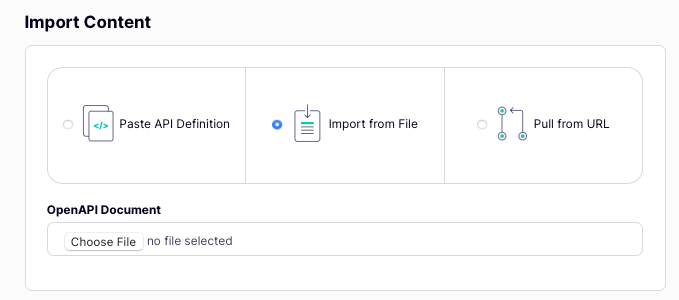
4. Now you can choose the location of the OpenAPI description, which can be:
* pasted into the text editor
* uploaded using a file picker
* retrieved from a file server
 5. You can optionally apply an [API template](/5.10/api-management/dashboard-configuration#governance-using-api-templates) from the drop-down.
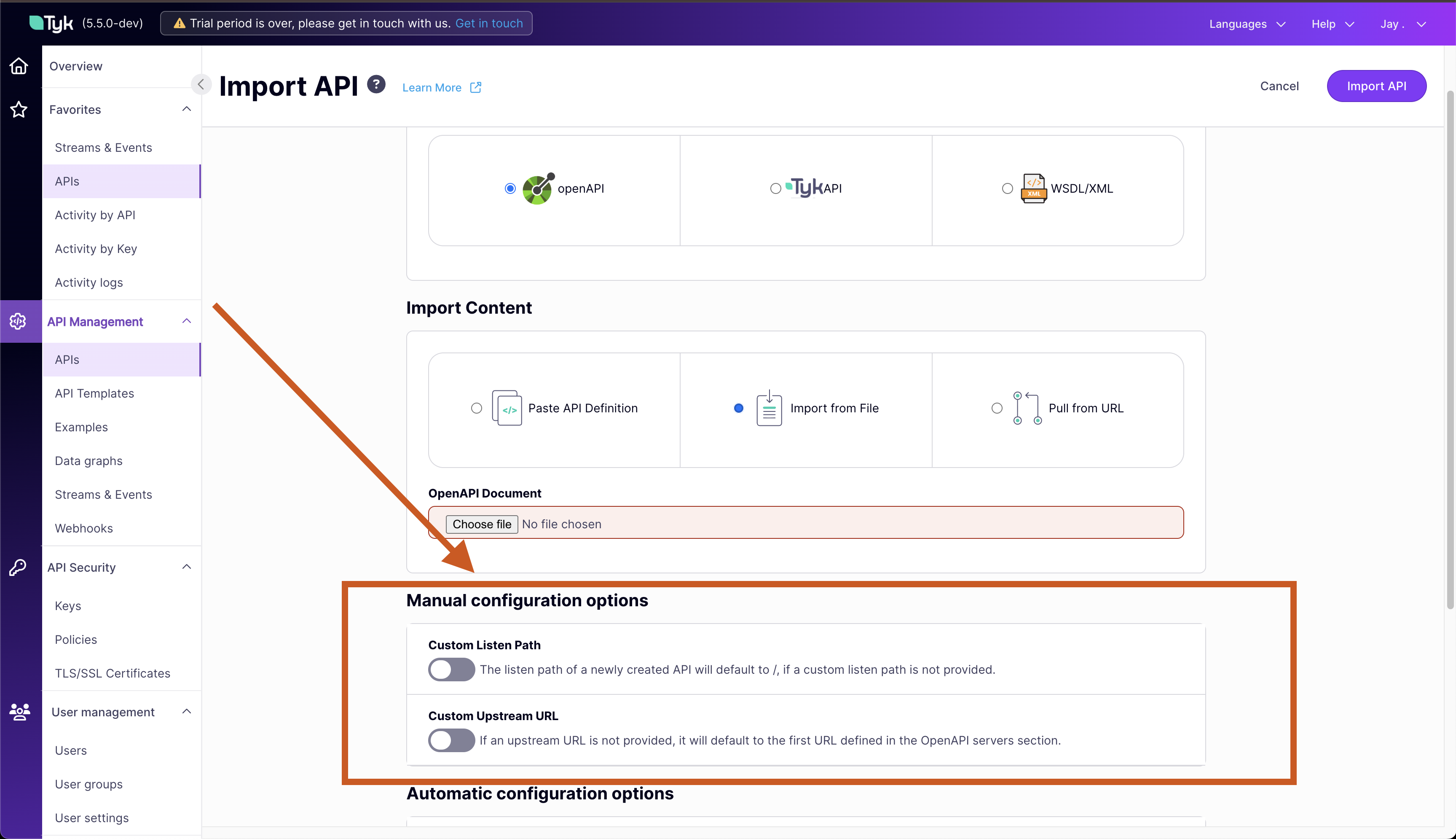
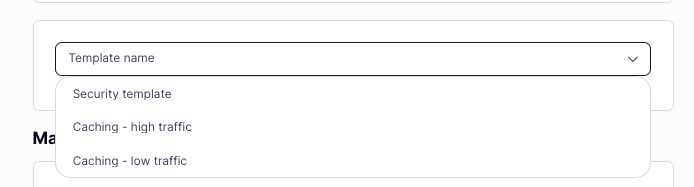 6. You can configure the *listen path* and *upstream (target) URL* in the **Manual configuration options** section. Note that if you do not provide a listen path, Tyk will default to `/` and if you do not provide an upstream URL, Tyk will use the first value provided in the [servers.url](/5.10/api-management/gateway-config-managing-oas#api-base-path) section in the OpenAPI description.
 7. Tyk can automatically configure the request processing middleware chain based upon configuration defined by the OpenAPI Specification. If your OpenAPI desription contains the relevant data then select the characteristics you would like to configure.
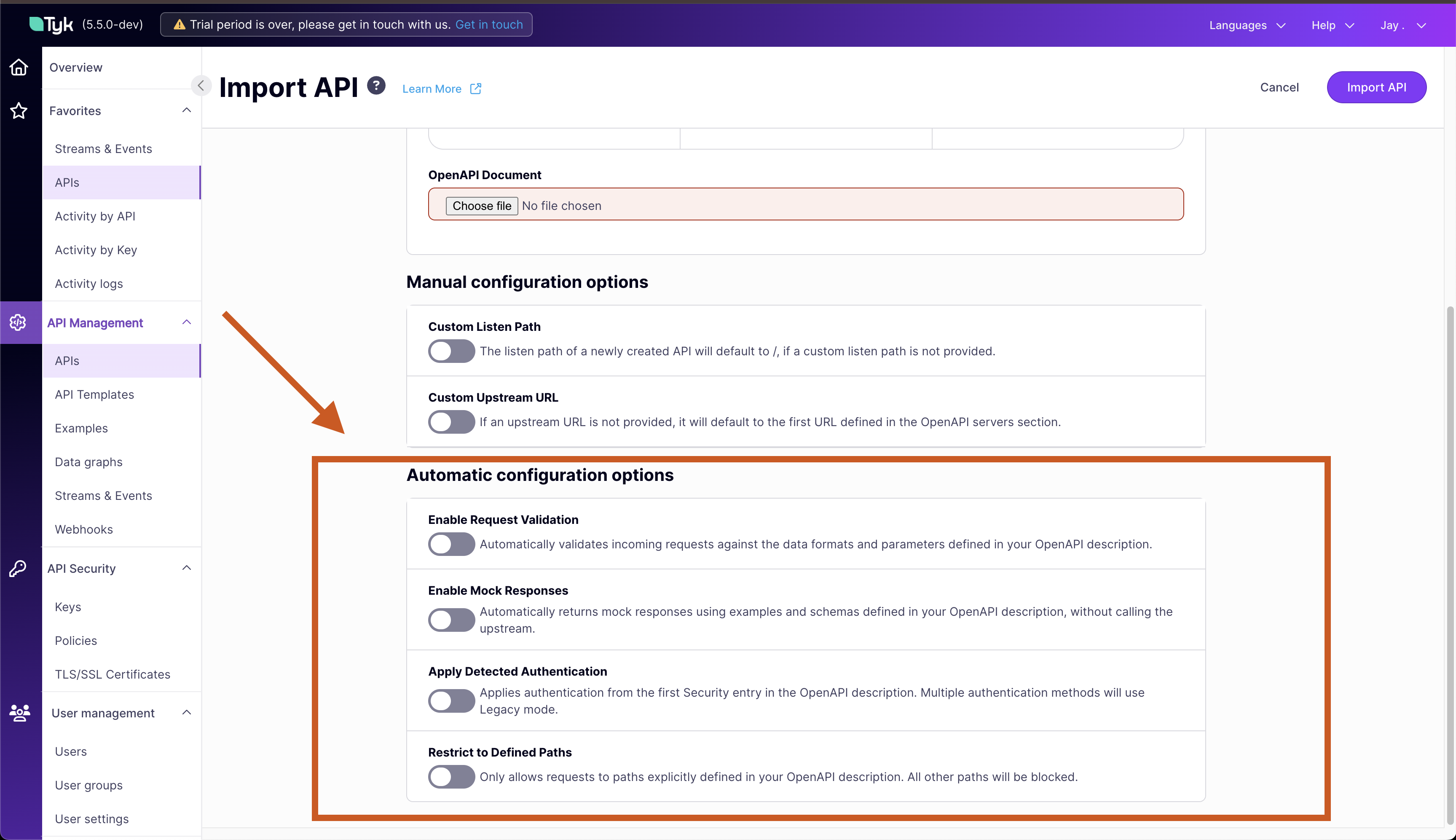 | Middleware | OpenAPI data used for configuration |
| ---------------------------------------------------------------------------------------------------------------------------- | ----------------------------------------------- |
| [Request validation](/5.10/api-management/traffic-transformation/request-validation#request-schema-in-openapi-specification) | Endpoints that have `requestBody` or `schema` |
| [Mock response](/5.10/api-management/traffic-transformation/mock-response#mock-responses-using-openapi-metadata) | Endpoints with `examples` or `schema` |
| [Client authentication](/5.10/api-management/client-authentication#how-does-tyk-implement-authentication-and-authorization) | Defined in `security` and `securitySchemes` |
| [Allow list](/5.10/api-management/traffic-transformation/allow-list) | Restrict access only to declared endpoint paths |
8. Select **Import API** to complete the import and create the API based on your API definition.
When making calls to the Tyk Dashboard API you'll need to set the domain name and port for your environment and provide credentials in the `Authorization` field for Tyk to authorize your request, as follows:
| Interface | Port | Authorization Header | Authorization credentials |
| :---------------- | :--- | :------------------- | :-------------------------- |
| Tyk Dashboard API | 3000 | `Authorization` | From Dashboard User Profile |
You can obtain your authorization credential (Dashboard API key) from the Tyk Dashboard UI:
* Select **Edit profile** from the dropdown that appears when you click on your username in the top right corner of the screen
* Scroll to the bottom of the page were you will see your **Tyk Dashboard API Access Credentials**
You will also need to have ‘admin’ or ‘api:write’ permission if [RBAC](/5.10/api-management/user-management) is enabled.
To create the API in Tyk, you simply send your OpenAPI document in the payload to the `POST /api/apis/oas/import` endpoint of your Tyk Dashboard API.
| Property | Description |
| :----------- | :------------------------------------------------------------------------------------------------------------------------------- |
| Resource URL | `/api/apis/oas/import` |
| Method | `POST` |
| Type | None |
| Body | OpenAPI Document |
| Parameters | Query: `listenPath` `upstreamURL` `authentication` `allowList` `validateRequest` `mockResponse` `apiID` `templateId` |
The optional parameters are:
| Parameter | Effect | Default if omitted |
| :---------------- | :---------------------------------------------------------------------------------------------------------------------------------------------------------------------------------------------- | :---------------------------------------------------------------------------------------------------------------------------------------------- |
| `listenPath` | Set the listen path for the API | Defaults to `/` |
| `upstreamURL` | Set the upstream (target) URL | Defaults to the first URL in the `servers` section of the [OpenAPI description](/5.10/api-management/gateway-config-managing-oas#api-base-path) |
| `authentication` | Configure [client authentication](/5.10/api-management/client-authentication#how-does-tyk-implement-authentication-and-authorization) based on `security` and `securitySchemes` | Client authentication is not configured |
| `allowList` | Enable [allow list](/5.10/api-management/traffic-transformation/allow-list) middleware for all endpoints declared in the OpenAPI description | Allow list not configured |
| `validateRequest` | Configure [request validation](/5.10/api-management/traffic-transformation/request-validation#request-schema-in-openapi-specification) for all endpoints with `requestBody` or `schema` defined | Request validation not configured |
| `mockResponse` | Configure [mock response](/5.10/api-management/traffic-transformation/mock-response#mock-responses-using-openapi-metadata) for all endpoints with `examples` or `schema` defined | Mock response not configured |
| `apiID` | Id to be assigned to the new API | Tyk will determine and assign a unique Id |
| `templateId` | Apply the selected [API template](/5.10/api-management/dashboard-configuration#applying-a-template-when-creating-an-api-from-a-tyk-oas-api-definition) when creating the API | No template is applied |
**Check request response**
If the command succeeds, you will see the following response, where `Meta` contains the unique identifier (`id`) for the API you have just created.
```
{
"Status": "OK",
"Message": "API created",
"Meta": {NEW-API-ID}
}
```
When making calls to the Tyk Gateway API you'll need to set the domain name and port for your environment and provide credentials in the `x-tyk-authorization` field for Tyk to authorize your request, as follows:
| Interface | Port | Authorization Header | Authorization credentials |
| :-------------- | :--- | :-------------------- | :------------------------------- |
| Tyk Gateway API | 8080 | `x-tyk-authorization` | `secret` value set in `tyk.conf` |
To create the API in Tyk, you simply send your OpenAPI document in the payload to the `POST /tyk/apis/oas/import` endpoint of your Tyk Gateway API.
| Property | Description |
| :----------- | :----------------------------------------------------------------------------------------------------------------- |
| Resource URL | `/tyk/apis/oas/import` |
| Method | `POST` |
| Type | None |
| Body | OpenAPI Document |
| Parameters | Query: `listenPath` `upstreamURL` `authentication` `allowList` `validateRequest` `mockResponse` `apiID` |
The optional parameters are:
| Parameter | Effect | Default if omitted |
| :---------------- | :---------------------------------------------------------------------------------------------------------------------------------------------------------------------------------------------- | :---------------------------------------------------------------------------------------------------------------------------------------------- |
| `listenPath` | Set the listen path for the API | Defaults to `/` |
| `upstreamURL` | Set the upstream (target) URL | Defaults to the first URL in the `servers` section of the [OpenAPI description](/5.10/api-management/gateway-config-managing-oas#api-base-path) |
| `authentication` | Configure [client authentication](/5.10/api-management/client-authentication#how-does-tyk-implement-authentication-and-authorization) based on `security` and `securitySchemes` | Client authentication is not configured |
| `allowList` | Enable [allow list](/5.10/api-management/traffic-transformation/allow-list) middleware for all endpoints declared in the OpenAPI description | Allow list not configured |
| `validateRequest` | Configure [request validation](/5.10/api-management/traffic-transformation/request-validation#request-schema-in-openapi-specification) for all endpoints with `requestBody` or `schema` defined | Request validation not configured |
| `mockResponse` | Configure [mock response](/5.10/api-management/traffic-transformation/mock-response#mock-responses-using-openapi-metadata) for all endpoints with `examples` or `schema` defined | Mock response not configured |
| `apiID` | Id to be assigned to the new API | Tyk will determine and assign a unique Id |
**Check request response**
If the command succeeds, you will see the following response, where `key` contains the unique identifier (`id`) for the API you have just created.
```.json theme={null}
{
"key": {NEW-API-ID},
"status": "ok",
"action": "added"
}
```
**Restart or hot reload**
Once you have created your API you need to load it into the Gateway so that it can serve traffic. To do this you can either restart the Tyk Gateway or issue a [hot reload](/5.10/tyk-stack/tyk-gateway/important-prerequisites#hot-reload-is-critical-in-tyk-ce) command:
```.curl theme={null}
curl -H "x-tyk-authorization: {your-secret}" -s http://{your-tyk-host}:{port}/tyk/reload/group
```
You can go to the `/apps` folder of your Tyk Gateway installation (by default in `/var/tyk-gateway`) to see where Tyk has stored your Tyk OAS API Definition.
#### API base path
The [API base path](https://swagger.io/docs/specification/v3_0/api-host-and-base-path/) is the URL that a client should use when consuming (sending requests to) the API deployed on Tyk. This will comprise the address of the Tyk Gateway plus the API's listen path.
**Detecting an Existing API Base Path**
When creating an API, Tyk analyzes the `servers.url` section of the OpenAPI description to determine if it already contains a valid API base path.
* If the first entry in `servers.url` is an address on the Tyk Gateway, then this is considered a valid API base path.
* If there is not a valid API base path, then Tyk will assume that the first value in `servers.url` is the address of the upstream service - and so will use this as the *upstream (target) URL* for the API proxy. If there are multiple entries in `servers.url` Tyk will only consider the first entry and ignore all others.
Tyk supports [OpenAPI server variables](https://learn.openapis.org/specification/servers.html#server-variables), so if the first `servers` entry contains a parameterised URL, Tyk will fill in the parameters with the values provided in the `variables` associated with that entry.
**Setting the API Base Path**
If the `servers.url` section did not contain a valid *API base path* then Tyk will insert a new entry in the first location in `servers.url` with a valid API base path comprising the Tyk Gateway address plus the *listen path* for the API.
For example, given the following fragment of the OpenAPI description and importing to a Tyk Gateway at `https://my-gateway.com` specifying a listen path of `my-api`:
```yaml theme={null}
servers:
- url: https://upstream-A.com
- url: http://upstream-B.com
```
Tyk will configure the Tyk OAS API with the following:
```yaml theme={null}
servers:
- url: https://my-gateway.com/my-api/
- url: https://upstream-A.com
- url: http://upstream-B.com
x-tyk-api-gateway:
server:
listenPath:
value: /my-api/
upstream:
url: https://upstream-A.com
```
This can introduce a change to the "source of truth" (OpenAPI description) for the API (the addition of the API base path). We recommend that you export the modified OpenAPI description and apply this to your documentation, as it provides the address to which clients should direct their traffic.
**Upstream URL Override**
The servers section is not analyzed if an upstream (target) URL is specified during the import action. If an upstream URL was specified, that will be used as the upstream for the API. The API base path will still be constructed and added to the `servers` section of the OpenAPI description.
**Tyk does not support relative URLs**
If the first entry is a relative URL, or another format that Tyk cannot process, the import will fail with an error.
For example attempting to import an OpenAPI description containing this configuration:
```yaml theme={null}
servers:
- url: /relative-url
- url: http://upstream-B.com
```
will error with the following message:
```json theme={null}
{
"status": "error",
"message": "error validating servers entry in OAS: Please update \"/relative-url\" to be a valid url or pass a valid url with upstreamURL query param"
}
```
#### Multi-part OpenAPI documents
OAS 3.0 allows an OpenAPI description to be [split across multiple files](https://swagger.io/docs/specification/v3_0/using-ref/) by use of the `$ref` keyword.
This allows you to share snippets of the API definition across multiple APIs, or to have specific ownership of elements of the API configuration owned by different teams.
From Tyk 5.8.0 there is full support for these multi-part OpenAPI documents with Tyk Dashboard.
We consider two different types of file containing these OpenAPI descriptions:
* the **main fragment**, which contains the `info` section
* the **secondary fragments**, which contain snippets of the OpenAPI description that are referred to using external references (`$ref`)
Note that secondary fragments can also contain external references to other secondary fragments (but not to the main fragment).
When creating or updating an API, you simply provide Tyk with the **main fragment** and ensure that all of the references can be resolved.
Resolution can be:
* local, by providing a ZIP archive containing all fragments
* remote, by providing resolvable paths to the secondary fragments (this is particularly used if the main fragment is provided via URL, as all fragments can then exist on the same file server).
The **main fragment** must be in a file named `openapi.json` or `openapi.yaml` (depending on the format used).
##### Creating the ZIP Archive
When creating ZIP archives for the multi-part OpenAPI import feature, it's important to exclude operating system metadata files that could interfere with the import process.
* **MacOS Users**
When using the `zip` command on MacOS, include the `-X` flag to exclude extended attributes and hidden files: `zip -X -r archive.zip directory/`
* **Linux Users**
When using the `zip` command on Linux, you can exclude hidden files using: `zip -r archive.zip directory/ -x "*/\.*"`
To exclude specific metadata files: `zip -r archive.zip directory/ -x "*/\.*" "*/Thumbs.db" "*/.DS_Store"`
* **Windows Users**
When using PowerShell to create ZIP archives on Windows, you can exclude hidden and system files with: `Compress-Archive -Path "directory\*" -DestinationPath "archive.zip" -CompressionLevel Optimal`
To exclude specific metadata files (like Thumbs.db or .DS\_Store) you can use: `Get-ChildItem "directory" -Recurse -File | Where-Object { $_.Name -notmatch '(^\.DS_Store$|^Thumbs\.db$)' } | Compress-Archive -DestinationPath "archive.zip"`
* **Using GUI Tools**
If using GUI tools like WinZip, WinRAR, or the built-in archive utilities:
* Ensure options to include hidden/system files are disabled
* Look for options like "Store Mac OS X resource forks/special files" and disable them
* Some tools have specific options to exclude .DS\_Store files and other metadata
Including these unwanted files may cause validation errors during the import process.
## Maintaining your APIs
Once a Tyk OAS API has been created in Tyk the Gateway will manage traffic to the exposed endpoints and proxy requests to the upstream service.
Your service might evolve over time, with new features and endpoints being added and others retired. Tyk's flexible API versioning and update options provide you with choice for how to reflect this evolution in the APIs you expose to your clients.
Your OpenAPI description is a living document that describes your upstream service. When this changes (for example, due to the addition of a new endpoint) you can use Tyk's [update API](/5.10/api-management/gateway-config-managing-oas#updating-an-api) feature to seamlessly apply the updated OpenAPI description, instantly extending the API proxy to handle traffic as your upstream evolves.
Alternatively, and especially when you need to make breaking changes as your services and APIs evolve, you can create new [versions](/5.10/api-management/api-versioning) of your API and use configurable version identifiers to route traffic to the appropriate target.
### Updating an API
As developers working on services it can be necessary to regularly update the API when, for example, we add endpoints or support new methods.
One of the most powerful features of working with Tyk OAS is that you can make changes to the OpenAPI description outside Tyk and then update your API with the updated details. You can simply update the OpenAPI part of the Tyk OAS API definition without having to make any changes to the [Tyk Vendor Extension](/5.10/api-management/gateway-config-tyk-oas#tyk-vendor-extension) (`x-tyk-api-gateway`).
You can alternatively work on the full Tyk OAS API definition outside Tyk and update your existing API proxy with the new configuration, without having to create a [new version](/5.10/api-management/api-versioning) of the API.
If you have an updated OpenAPI description or Tyk OAS API definition, in YAML or JSON format, you can use this to modify your existing API in Tyk Dashboard with only a few clicks.
1. Start by selecting your API from the list on the **APIs** page in the **API Management** section.
2. Now select **Update OAS** from the **Actions** dropdown.
| Middleware | OpenAPI data used for configuration |
| ---------------------------------------------------------------------------------------------------------------------------- | ----------------------------------------------- |
| [Request validation](/5.10/api-management/traffic-transformation/request-validation#request-schema-in-openapi-specification) | Endpoints that have `requestBody` or `schema` |
| [Mock response](/5.10/api-management/traffic-transformation/mock-response#mock-responses-using-openapi-metadata) | Endpoints with `examples` or `schema` |
| [Client authentication](/5.10/api-management/client-authentication#how-does-tyk-implement-authentication-and-authorization) | Defined in `security` and `securitySchemes` |
| [Allow list](/5.10/api-management/traffic-transformation/allow-list) | Restrict access only to declared endpoint paths |
8. Select **Import API** to complete the import and create the API based on your API definition.
When making calls to the Tyk Dashboard API you'll need to set the domain name and port for your environment and provide credentials in the `Authorization` field for Tyk to authorize your request, as follows:
| Interface | Port | Authorization Header | Authorization credentials |
| :---------------- | :--- | :------------------- | :-------------------------- |
| Tyk Dashboard API | 3000 | `Authorization` | From Dashboard User Profile |
You can obtain your authorization credential (Dashboard API key) from the Tyk Dashboard UI:
* Select **Edit profile** from the dropdown that appears when you click on your username in the top right corner of the screen
* Scroll to the bottom of the page were you will see your **Tyk Dashboard API Access Credentials**
You will also need to have ‘admin’ or ‘api:write’ permission if [RBAC](/5.10/api-management/user-management) is enabled.
To create the API in Tyk, you simply send your OpenAPI document in the payload to the `POST /api/apis/oas/import` endpoint of your Tyk Dashboard API.
| Property | Description |
| :----------- | :------------------------------------------------------------------------------------------------------------------------------- |
| Resource URL | `/api/apis/oas/import` |
| Method | `POST` |
| Type | None |
| Body | OpenAPI Document |
| Parameters | Query: `listenPath` `upstreamURL` `authentication` `allowList` `validateRequest` `mockResponse` `apiID` `templateId` |
The optional parameters are:
| Parameter | Effect | Default if omitted |
| :---------------- | :---------------------------------------------------------------------------------------------------------------------------------------------------------------------------------------------- | :---------------------------------------------------------------------------------------------------------------------------------------------- |
| `listenPath` | Set the listen path for the API | Defaults to `/` |
| `upstreamURL` | Set the upstream (target) URL | Defaults to the first URL in the `servers` section of the [OpenAPI description](/5.10/api-management/gateway-config-managing-oas#api-base-path) |
| `authentication` | Configure [client authentication](/5.10/api-management/client-authentication#how-does-tyk-implement-authentication-and-authorization) based on `security` and `securitySchemes` | Client authentication is not configured |
| `allowList` | Enable [allow list](/5.10/api-management/traffic-transformation/allow-list) middleware for all endpoints declared in the OpenAPI description | Allow list not configured |
| `validateRequest` | Configure [request validation](/5.10/api-management/traffic-transformation/request-validation#request-schema-in-openapi-specification) for all endpoints with `requestBody` or `schema` defined | Request validation not configured |
| `mockResponse` | Configure [mock response](/5.10/api-management/traffic-transformation/mock-response#mock-responses-using-openapi-metadata) for all endpoints with `examples` or `schema` defined | Mock response not configured |
| `apiID` | Id to be assigned to the new API | Tyk will determine and assign a unique Id |
| `templateId` | Apply the selected [API template](/5.10/api-management/dashboard-configuration#applying-a-template-when-creating-an-api-from-a-tyk-oas-api-definition) when creating the API | No template is applied |
**Check request response**
If the command succeeds, you will see the following response, where `Meta` contains the unique identifier (`id`) for the API you have just created.
```
{
"Status": "OK",
"Message": "API created",
"Meta": {NEW-API-ID}
}
```
When making calls to the Tyk Gateway API you'll need to set the domain name and port for your environment and provide credentials in the `x-tyk-authorization` field for Tyk to authorize your request, as follows:
| Interface | Port | Authorization Header | Authorization credentials |
| :-------------- | :--- | :-------------------- | :------------------------------- |
| Tyk Gateway API | 8080 | `x-tyk-authorization` | `secret` value set in `tyk.conf` |
To create the API in Tyk, you simply send your OpenAPI document in the payload to the `POST /tyk/apis/oas/import` endpoint of your Tyk Gateway API.
| Property | Description |
| :----------- | :----------------------------------------------------------------------------------------------------------------- |
| Resource URL | `/tyk/apis/oas/import` |
| Method | `POST` |
| Type | None |
| Body | OpenAPI Document |
| Parameters | Query: `listenPath` `upstreamURL` `authentication` `allowList` `validateRequest` `mockResponse` `apiID` |
The optional parameters are:
| Parameter | Effect | Default if omitted |
| :---------------- | :---------------------------------------------------------------------------------------------------------------------------------------------------------------------------------------------- | :---------------------------------------------------------------------------------------------------------------------------------------------- |
| `listenPath` | Set the listen path for the API | Defaults to `/` |
| `upstreamURL` | Set the upstream (target) URL | Defaults to the first URL in the `servers` section of the [OpenAPI description](/5.10/api-management/gateway-config-managing-oas#api-base-path) |
| `authentication` | Configure [client authentication](/5.10/api-management/client-authentication#how-does-tyk-implement-authentication-and-authorization) based on `security` and `securitySchemes` | Client authentication is not configured |
| `allowList` | Enable [allow list](/5.10/api-management/traffic-transformation/allow-list) middleware for all endpoints declared in the OpenAPI description | Allow list not configured |
| `validateRequest` | Configure [request validation](/5.10/api-management/traffic-transformation/request-validation#request-schema-in-openapi-specification) for all endpoints with `requestBody` or `schema` defined | Request validation not configured |
| `mockResponse` | Configure [mock response](/5.10/api-management/traffic-transformation/mock-response#mock-responses-using-openapi-metadata) for all endpoints with `examples` or `schema` defined | Mock response not configured |
| `apiID` | Id to be assigned to the new API | Tyk will determine and assign a unique Id |
**Check request response**
If the command succeeds, you will see the following response, where `key` contains the unique identifier (`id`) for the API you have just created.
```.json theme={null}
{
"key": {NEW-API-ID},
"status": "ok",
"action": "added"
}
```
**Restart or hot reload**
Once you have created your API you need to load it into the Gateway so that it can serve traffic. To do this you can either restart the Tyk Gateway or issue a [hot reload](/5.10/tyk-stack/tyk-gateway/important-prerequisites#hot-reload-is-critical-in-tyk-ce) command:
```.curl theme={null}
curl -H "x-tyk-authorization: {your-secret}" -s http://{your-tyk-host}:{port}/tyk/reload/group
```
You can go to the `/apps` folder of your Tyk Gateway installation (by default in `/var/tyk-gateway`) to see where Tyk has stored your Tyk OAS API Definition.
#### API base path
The [API base path](https://swagger.io/docs/specification/v3_0/api-host-and-base-path/) is the URL that a client should use when consuming (sending requests to) the API deployed on Tyk. This will comprise the address of the Tyk Gateway plus the API's listen path.
**Detecting an Existing API Base Path**
When creating an API, Tyk analyzes the `servers.url` section of the OpenAPI description to determine if it already contains a valid API base path.
* If the first entry in `servers.url` is an address on the Tyk Gateway, then this is considered a valid API base path.
* If there is not a valid API base path, then Tyk will assume that the first value in `servers.url` is the address of the upstream service - and so will use this as the *upstream (target) URL* for the API proxy. If there are multiple entries in `servers.url` Tyk will only consider the first entry and ignore all others.
Tyk supports [OpenAPI server variables](https://learn.openapis.org/specification/servers.html#server-variables), so if the first `servers` entry contains a parameterised URL, Tyk will fill in the parameters with the values provided in the `variables` associated with that entry.
**Setting the API Base Path**
If the `servers.url` section did not contain a valid *API base path* then Tyk will insert a new entry in the first location in `servers.url` with a valid API base path comprising the Tyk Gateway address plus the *listen path* for the API.
For example, given the following fragment of the OpenAPI description and importing to a Tyk Gateway at `https://my-gateway.com` specifying a listen path of `my-api`:
```yaml theme={null}
servers:
- url: https://upstream-A.com
- url: http://upstream-B.com
```
Tyk will configure the Tyk OAS API with the following:
```yaml theme={null}
servers:
- url: https://my-gateway.com/my-api/
- url: https://upstream-A.com
- url: http://upstream-B.com
x-tyk-api-gateway:
server:
listenPath:
value: /my-api/
upstream:
url: https://upstream-A.com
```
This can introduce a change to the "source of truth" (OpenAPI description) for the API (the addition of the API base path). We recommend that you export the modified OpenAPI description and apply this to your documentation, as it provides the address to which clients should direct their traffic.
**Upstream URL Override**
The servers section is not analyzed if an upstream (target) URL is specified during the import action. If an upstream URL was specified, that will be used as the upstream for the API. The API base path will still be constructed and added to the `servers` section of the OpenAPI description.
**Tyk does not support relative URLs**
If the first entry is a relative URL, or another format that Tyk cannot process, the import will fail with an error.
For example attempting to import an OpenAPI description containing this configuration:
```yaml theme={null}
servers:
- url: /relative-url
- url: http://upstream-B.com
```
will error with the following message:
```json theme={null}
{
"status": "error",
"message": "error validating servers entry in OAS: Please update \"/relative-url\" to be a valid url or pass a valid url with upstreamURL query param"
}
```
#### Multi-part OpenAPI documents
OAS 3.0 allows an OpenAPI description to be [split across multiple files](https://swagger.io/docs/specification/v3_0/using-ref/) by use of the `$ref` keyword.
This allows you to share snippets of the API definition across multiple APIs, or to have specific ownership of elements of the API configuration owned by different teams.
From Tyk 5.8.0 there is full support for these multi-part OpenAPI documents with Tyk Dashboard.
We consider two different types of file containing these OpenAPI descriptions:
* the **main fragment**, which contains the `info` section
* the **secondary fragments**, which contain snippets of the OpenAPI description that are referred to using external references (`$ref`)
Note that secondary fragments can also contain external references to other secondary fragments (but not to the main fragment).
When creating or updating an API, you simply provide Tyk with the **main fragment** and ensure that all of the references can be resolved.
Resolution can be:
* local, by providing a ZIP archive containing all fragments
* remote, by providing resolvable paths to the secondary fragments (this is particularly used if the main fragment is provided via URL, as all fragments can then exist on the same file server).
The **main fragment** must be in a file named `openapi.json` or `openapi.yaml` (depending on the format used).
##### Creating the ZIP Archive
When creating ZIP archives for the multi-part OpenAPI import feature, it's important to exclude operating system metadata files that could interfere with the import process.
* **MacOS Users**
When using the `zip` command on MacOS, include the `-X` flag to exclude extended attributes and hidden files: `zip -X -r archive.zip directory/`
* **Linux Users**
When using the `zip` command on Linux, you can exclude hidden files using: `zip -r archive.zip directory/ -x "*/\.*"`
To exclude specific metadata files: `zip -r archive.zip directory/ -x "*/\.*" "*/Thumbs.db" "*/.DS_Store"`
* **Windows Users**
When using PowerShell to create ZIP archives on Windows, you can exclude hidden and system files with: `Compress-Archive -Path "directory\*" -DestinationPath "archive.zip" -CompressionLevel Optimal`
To exclude specific metadata files (like Thumbs.db or .DS\_Store) you can use: `Get-ChildItem "directory" -Recurse -File | Where-Object { $_.Name -notmatch '(^\.DS_Store$|^Thumbs\.db$)' } | Compress-Archive -DestinationPath "archive.zip"`
* **Using GUI Tools**
If using GUI tools like WinZip, WinRAR, or the built-in archive utilities:
* Ensure options to include hidden/system files are disabled
* Look for options like "Store Mac OS X resource forks/special files" and disable them
* Some tools have specific options to exclude .DS\_Store files and other metadata
Including these unwanted files may cause validation errors during the import process.
## Maintaining your APIs
Once a Tyk OAS API has been created in Tyk the Gateway will manage traffic to the exposed endpoints and proxy requests to the upstream service.
Your service might evolve over time, with new features and endpoints being added and others retired. Tyk's flexible API versioning and update options provide you with choice for how to reflect this evolution in the APIs you expose to your clients.
Your OpenAPI description is a living document that describes your upstream service. When this changes (for example, due to the addition of a new endpoint) you can use Tyk's [update API](/5.10/api-management/gateway-config-managing-oas#updating-an-api) feature to seamlessly apply the updated OpenAPI description, instantly extending the API proxy to handle traffic as your upstream evolves.
Alternatively, and especially when you need to make breaking changes as your services and APIs evolve, you can create new [versions](/5.10/api-management/api-versioning) of your API and use configurable version identifiers to route traffic to the appropriate target.
### Updating an API
As developers working on services it can be necessary to regularly update the API when, for example, we add endpoints or support new methods.
One of the most powerful features of working with Tyk OAS is that you can make changes to the OpenAPI description outside Tyk and then update your API with the updated details. You can simply update the OpenAPI part of the Tyk OAS API definition without having to make any changes to the [Tyk Vendor Extension](/5.10/api-management/gateway-config-tyk-oas#tyk-vendor-extension) (`x-tyk-api-gateway`).
You can alternatively work on the full Tyk OAS API definition outside Tyk and update your existing API proxy with the new configuration, without having to create a [new version](/5.10/api-management/api-versioning) of the API.
If you have an updated OpenAPI description or Tyk OAS API definition, in YAML or JSON format, you can use this to modify your existing API in Tyk Dashboard with only a few clicks.
1. Start by selecting your API from the list on the **APIs** page in the **API Management** section.
2. Now select **Update OAS** from the **Actions** dropdown.
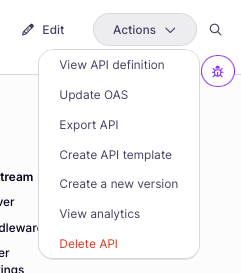 3. Now you can choose the location of the file that you want to use to update your API, which can be:
* pasted into the text editor
* uploaded using a file picker
* retrieved from a file server
3. Now you can choose the location of the file that you want to use to update your API, which can be:
* pasted into the text editor
* uploaded using a file picker
* retrieved from a file server
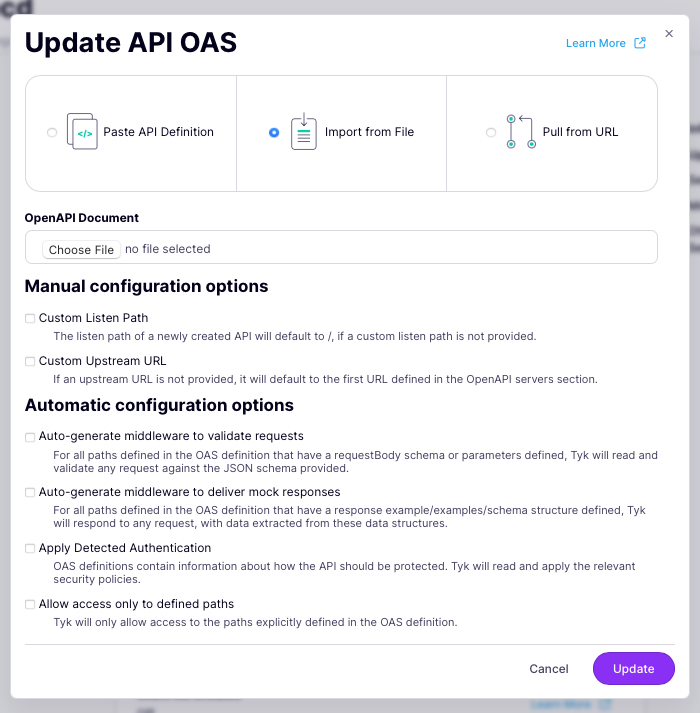 4. You can re-configure the *listen path* and *upstream (target) URL* in the **Manual configuration options** section, but if you do not provide these then Tyk will leave them unchanged.
5. Tyk must select the options to automatically configure the request processing middleware chain based upon configuration defined by the OpenAPI Specification for any new endpoints added in the update. If your OpenAPI desription contains the relevant data then select the characteristics you would like to configure.
| Middleware | OpenAPI data used for configuration |
| ---------------------------------------------------------------------------------------------------------------------------- | ----------------------------------------------- |
| [Request validation](/5.10/api-management/traffic-transformation/request-validation#request-schema-in-openapi-specification) | Endpoints that have `requestBody` or `schema` |
| [Mock response](/5.10/api-management/traffic-transformation/mock-response#mock-responses-using-openapi-metadata) | Endpoints with `examples` or `schema` |
| [Client authentication](/5.10/api-management/client-authentication#how-does-tyk-implement-authentication-and-authorization) | Defined in `security` and `securitySchemes` |
| [Allow list](/5.10/api-management/traffic-transformation/allow-list) | Restrict access only to declared endpoint paths |
6. Select **Import API** to complete the update.
When making calls to the Tyk Dashboard API you'll need to set the domain name and port for your environment and provide credentials in the `Authorization` field for Tyk to authorize your request, as follows:
| Interface | Port | Authorization Header | Authorization credentials |
| :---------------- | :--- | :------------------- | :-------------------------- |
| Tyk Dashboard API | 3000 | `Authorization` | From Dashboard User Profile |
You can obtain your authorization credential (Dashboard API key) from the Tyk Dashboard UI:
* Select **Edit profile** from the dropdown that appears when you click on your username in the top right corner of the screen
* Scroll to the bottom of the page were you will see your **Tyk Dashboard API Access Credentials**
You will also need to have ‘admin’ or ‘api:write’ permission if [RBAC](/5.10/api-management/user-management) is enabled.
**Applying an Updated OpenAPI Description**
To update just the OpenAPI description of your API in Tyk, you simply send the OpenAPI document in the payload to the `PATCH /api/apis/oas/{API-ID}` endpoint of your Tyk Gateway API.
| Property | Description |
| :----------- | :----------------------- |
| Resource URL | `/api/apis/oas/{API-ID}` |
| Method | `PATCH` |
| Type | None |
| Body | OpenAPI document |
| Parameters | Path: `{API-ID}` |
You need to specify which API to update - and do so using the `API-ID` value from the response you received from Tyk when creating the API. You can find this in the `x-tyk-api-gateway.info.id` field of the Tyk OAS API Definition stored in your main storage.
**Applying an Updated Tyk OAS API Definition**
To update the whole API in Tyk, you simply send the Tyk OAS API definition in the payload to the `PATCH /api/apis/oas/{API-ID}` endpoint of your Tyk Gateway API.
| Property | Description |
| :----------- | :----------------------- |
| Resource URL | `/api/apis/oas/{API-ID}` |
| Method | `PATCH` |
| Type | None |
| Body | Tyk OAS API Definition |
| Parameters | Path: `{API-ID}` |
You need to specify which API to update - and do so using the `API-ID` value from the response you received from Tyk when creating the API. You can find this in the `x-tyk-api-gateway.info.id` field of the Tyk OAS API Definition stored in your main storage.
**Check request response**
If the command succeeds, you will see the following response, where `Meta` contains the unique identifier (`id`) for the API you have just updated:
```.json theme={null}
{
"Status": "OK",
"Message": "API modified",
"Meta": {API-ID}
}
```
When making calls to the Tyk Gateway API you'll need to set the domain name and port for your environment and provide credentials in the `x-tyk-authorization` field for Tyk to authorize your request, as follows:
| Interface | Port | Authorization Header | Authorization credentials |
| :-------------- | :--- | :-------------------- | :------------------------------- |
| Tyk Gateway API | 8080 | `x-tyk-authorization` | `secret` value set in `tyk.conf` |
**Applying an Updated OpenAPI Description**
To update just the OpenAPI description of your API in Tyk, you simply send the OpenAPI document in the payload to the `PATCH /tyk/apis/oas/{API-ID}` endpoint of your Tyk Gateway API.
| Property | Description |
| :----------- | :------------------------------------ |
| Resource URL | `/tyk/apis/oas/{API-ID}` |
| Method | `PATCH` |
| Type | None |
| Body | OpenAPI document |
| Parameters | Path: `{API-ID}` Query: `templateId` |
You need to specify which API to update - and do so using the `API-ID` value from the response you received from Tyk when creating the API. You can find this in the `x-tyk-api-gateway.info.id` field of the Tyk OAS API Definition that Tyk has stored in the `/apps` folder of your Tyk Gateway installation.
**Applying an Updated Tyk OAS API Definition**
To update the whole API in Tyk, you simply send the Tyk OAS API definition in the payload to the `PATCH /tyk/apis/oas/{API-ID}` endpoint of your Tyk Gateway API.
| Property | Description |
| :----------- | :----------------------- |
| Resource URL | `/tyk/apis/oas/{API-ID}` |
| Method | `PATCH` |
| Type | None |
| Body | Tyk OAS API Definition |
| Parameters | Path: `{API-ID}` |
You need to specify which API to update - and do so using the `API-ID` value from the response you received from Tyk when creating the API. You can find this in the `x-tyk-api-gateway.info.id` field of the Tyk OAS API Definition that Tyk has stored in the `/apps` folder of your Tyk Gateway installation.
**Check request response**
If the command succeeds, you will see the following response, where `key` contains the unique identifier (`id`) for the API you have just updated:
```.json theme={null}
{
"key": {API-ID},
"status": "ok",
"action": "modified"
}
```
**Restart or hot reload**
Once you have updated your API you need to load it into the Gateway so that it can serve traffic. To do this you can either restart the Tyk Gateway or issue a [hot reload](/5.10/tyk-stack/tyk-gateway/important-prerequisites#hot-reload-is-critical-in-tyk-ce) command:
```.curl theme={null}
curl -H "x-tyk-authorization: {your-secret}" -s http://{your-tyk-host}:{port}/tyk/reload/group
```
### Exporting an API asset
Each API on Tyk has an API definition comprising the OpenAPI description and the Tyk Vendor Extension. We offer the facility for you to export (download) two assets for an API - just the OpenAPI description, or the full Tyk OAS API definition.
From Tyk 5.8.0, when using Tyk Dashboard these can be exported in either JSON or YAML format; for Tyk Gateway API users the assets can only be exported in JSON format.
1. Start by selecting your API from the list on the **APIs** page in the **API Management** section.
2. Select **Export API** from the **Actions** dropdown.
3. Now you can choose what you want to export, the filename (a default is offered which is based on the API Id) and the file format (JSON or YAML).
4. You can re-configure the *listen path* and *upstream (target) URL* in the **Manual configuration options** section, but if you do not provide these then Tyk will leave them unchanged.
5. Tyk must select the options to automatically configure the request processing middleware chain based upon configuration defined by the OpenAPI Specification for any new endpoints added in the update. If your OpenAPI desription contains the relevant data then select the characteristics you would like to configure.
| Middleware | OpenAPI data used for configuration |
| ---------------------------------------------------------------------------------------------------------------------------- | ----------------------------------------------- |
| [Request validation](/5.10/api-management/traffic-transformation/request-validation#request-schema-in-openapi-specification) | Endpoints that have `requestBody` or `schema` |
| [Mock response](/5.10/api-management/traffic-transformation/mock-response#mock-responses-using-openapi-metadata) | Endpoints with `examples` or `schema` |
| [Client authentication](/5.10/api-management/client-authentication#how-does-tyk-implement-authentication-and-authorization) | Defined in `security` and `securitySchemes` |
| [Allow list](/5.10/api-management/traffic-transformation/allow-list) | Restrict access only to declared endpoint paths |
6. Select **Import API** to complete the update.
When making calls to the Tyk Dashboard API you'll need to set the domain name and port for your environment and provide credentials in the `Authorization` field for Tyk to authorize your request, as follows:
| Interface | Port | Authorization Header | Authorization credentials |
| :---------------- | :--- | :------------------- | :-------------------------- |
| Tyk Dashboard API | 3000 | `Authorization` | From Dashboard User Profile |
You can obtain your authorization credential (Dashboard API key) from the Tyk Dashboard UI:
* Select **Edit profile** from the dropdown that appears when you click on your username in the top right corner of the screen
* Scroll to the bottom of the page were you will see your **Tyk Dashboard API Access Credentials**
You will also need to have ‘admin’ or ‘api:write’ permission if [RBAC](/5.10/api-management/user-management) is enabled.
**Applying an Updated OpenAPI Description**
To update just the OpenAPI description of your API in Tyk, you simply send the OpenAPI document in the payload to the `PATCH /api/apis/oas/{API-ID}` endpoint of your Tyk Gateway API.
| Property | Description |
| :----------- | :----------------------- |
| Resource URL | `/api/apis/oas/{API-ID}` |
| Method | `PATCH` |
| Type | None |
| Body | OpenAPI document |
| Parameters | Path: `{API-ID}` |
You need to specify which API to update - and do so using the `API-ID` value from the response you received from Tyk when creating the API. You can find this in the `x-tyk-api-gateway.info.id` field of the Tyk OAS API Definition stored in your main storage.
**Applying an Updated Tyk OAS API Definition**
To update the whole API in Tyk, you simply send the Tyk OAS API definition in the payload to the `PATCH /api/apis/oas/{API-ID}` endpoint of your Tyk Gateway API.
| Property | Description |
| :----------- | :----------------------- |
| Resource URL | `/api/apis/oas/{API-ID}` |
| Method | `PATCH` |
| Type | None |
| Body | Tyk OAS API Definition |
| Parameters | Path: `{API-ID}` |
You need to specify which API to update - and do so using the `API-ID` value from the response you received from Tyk when creating the API. You can find this in the `x-tyk-api-gateway.info.id` field of the Tyk OAS API Definition stored in your main storage.
**Check request response**
If the command succeeds, you will see the following response, where `Meta` contains the unique identifier (`id`) for the API you have just updated:
```.json theme={null}
{
"Status": "OK",
"Message": "API modified",
"Meta": {API-ID}
}
```
When making calls to the Tyk Gateway API you'll need to set the domain name and port for your environment and provide credentials in the `x-tyk-authorization` field for Tyk to authorize your request, as follows:
| Interface | Port | Authorization Header | Authorization credentials |
| :-------------- | :--- | :-------------------- | :------------------------------- |
| Tyk Gateway API | 8080 | `x-tyk-authorization` | `secret` value set in `tyk.conf` |
**Applying an Updated OpenAPI Description**
To update just the OpenAPI description of your API in Tyk, you simply send the OpenAPI document in the payload to the `PATCH /tyk/apis/oas/{API-ID}` endpoint of your Tyk Gateway API.
| Property | Description |
| :----------- | :------------------------------------ |
| Resource URL | `/tyk/apis/oas/{API-ID}` |
| Method | `PATCH` |
| Type | None |
| Body | OpenAPI document |
| Parameters | Path: `{API-ID}` Query: `templateId` |
You need to specify which API to update - and do so using the `API-ID` value from the response you received from Tyk when creating the API. You can find this in the `x-tyk-api-gateway.info.id` field of the Tyk OAS API Definition that Tyk has stored in the `/apps` folder of your Tyk Gateway installation.
**Applying an Updated Tyk OAS API Definition**
To update the whole API in Tyk, you simply send the Tyk OAS API definition in the payload to the `PATCH /tyk/apis/oas/{API-ID}` endpoint of your Tyk Gateway API.
| Property | Description |
| :----------- | :----------------------- |
| Resource URL | `/tyk/apis/oas/{API-ID}` |
| Method | `PATCH` |
| Type | None |
| Body | Tyk OAS API Definition |
| Parameters | Path: `{API-ID}` |
You need to specify which API to update - and do so using the `API-ID` value from the response you received from Tyk when creating the API. You can find this in the `x-tyk-api-gateway.info.id` field of the Tyk OAS API Definition that Tyk has stored in the `/apps` folder of your Tyk Gateway installation.
**Check request response**
If the command succeeds, you will see the following response, where `key` contains the unique identifier (`id`) for the API you have just updated:
```.json theme={null}
{
"key": {API-ID},
"status": "ok",
"action": "modified"
}
```
**Restart or hot reload**
Once you have updated your API you need to load it into the Gateway so that it can serve traffic. To do this you can either restart the Tyk Gateway or issue a [hot reload](/5.10/tyk-stack/tyk-gateway/important-prerequisites#hot-reload-is-critical-in-tyk-ce) command:
```.curl theme={null}
curl -H "x-tyk-authorization: {your-secret}" -s http://{your-tyk-host}:{port}/tyk/reload/group
```
### Exporting an API asset
Each API on Tyk has an API definition comprising the OpenAPI description and the Tyk Vendor Extension. We offer the facility for you to export (download) two assets for an API - just the OpenAPI description, or the full Tyk OAS API definition.
From Tyk 5.8.0, when using Tyk Dashboard these can be exported in either JSON or YAML format; for Tyk Gateway API users the assets can only be exported in JSON format.
1. Start by selecting your API from the list on the **APIs** page in the **API Management** section.
2. Select **Export API** from the **Actions** dropdown.
3. Now you can choose what you want to export, the filename (a default is offered which is based on the API Id) and the file format (JSON or YAML).
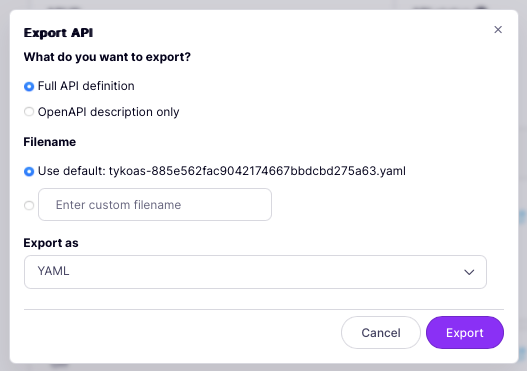 4. Finally select **Export** to save the file to your local machine.
When making calls to the Tyk Dashboard API you'll need to set the domain name and port for your environment and provide credentials in the `Authorization` field for Tyk to authorize your request, as follows:
| Interface | Port | Authorization Header | Authorization credentials |
| :---------------- | :--- | :------------------- | :-------------------------- |
| Tyk Dashboard API | 3000 | `Authorization` | From Dashboard User Profile |
You can obtain your authorization credential (Dashboard API key) from the Tyk Dashboard UI:
* Select **Edit profile** from the dropdown that appears when you click on your username in the top right corner of the screen
* Scroll to the bottom of the page were you will see your **Tyk Dashboard API Access Credentials**
You will also need to have ‘admin’ or ‘api:write’ permission if [RBAC](/5.10/api-management/user-management) is enabled.
To export an API asset, you use the `GET /api/apis/oas/{API-ID}/export` endpoint, indicating whether you require the full Tyk OAS API definition or only the OpenAPI description using the `mode` parameter.
| Property | Description |
| :----------- | :----------------------------------------------- |
| Resource URL | `/api/apis/oas/{API-ID}` |
| Method | `GET` |
| Type | None |
| Parameters | Path: `{API-ID}` Query: `mode` `Content-Type` |
Where:
* `API-ID` is the unique `id` assigned in the Tyk Vendor Extension that identifies the API
* `mode` to identify the asset to export: `public` for the OpenAPI description (default empty for full API definition)
* `Content-Type` to select the format for the exported asset: `application/x-yaml` or `application/json`
When making calls to the Tyk Gateway API you'll need to set the domain name and port for your environment and provide credentials in the `x-tyk-authorization` field for Tyk to authorize your request, as follows:
| Interface | Port | Authorization Header | Authorization credentials |
| :-------------- | :--- | :-------------------- | :------------------------------- |
| Tyk Gateway API | 8080 | `x-tyk-authorization` | `secret` value set in `tyk.conf` |
To export an API asset, you use the `GET /tyk/apis/oas/{API-ID}/export` endpoint, indicating whether you require the full Tyk OAS API definition or only the OpenAPI description using the `mode` parameter.
| Property | Description |
| :----------- | :------------------------------ |
| Resource URL | `/tyk/apis/oas/{API-ID}` |
| Method | `GET` |
| Type | None |
| Parameters | Path: `{API-ID}` Query: `mode` |
Where:
* `API-ID` is the unique `id` assigned in the Tyk Vendor Extension that identifies the API
* `mode=public` to export the OpenAPI description (otherwise, export the full API definition)
4. Finally select **Export** to save the file to your local machine.
When making calls to the Tyk Dashboard API you'll need to set the domain name and port for your environment and provide credentials in the `Authorization` field for Tyk to authorize your request, as follows:
| Interface | Port | Authorization Header | Authorization credentials |
| :---------------- | :--- | :------------------- | :-------------------------- |
| Tyk Dashboard API | 3000 | `Authorization` | From Dashboard User Profile |
You can obtain your authorization credential (Dashboard API key) from the Tyk Dashboard UI:
* Select **Edit profile** from the dropdown that appears when you click on your username in the top right corner of the screen
* Scroll to the bottom of the page were you will see your **Tyk Dashboard API Access Credentials**
You will also need to have ‘admin’ or ‘api:write’ permission if [RBAC](/5.10/api-management/user-management) is enabled.
To export an API asset, you use the `GET /api/apis/oas/{API-ID}/export` endpoint, indicating whether you require the full Tyk OAS API definition or only the OpenAPI description using the `mode` parameter.
| Property | Description |
| :----------- | :----------------------------------------------- |
| Resource URL | `/api/apis/oas/{API-ID}` |
| Method | `GET` |
| Type | None |
| Parameters | Path: `{API-ID}` Query: `mode` `Content-Type` |
Where:
* `API-ID` is the unique `id` assigned in the Tyk Vendor Extension that identifies the API
* `mode` to identify the asset to export: `public` for the OpenAPI description (default empty for full API definition)
* `Content-Type` to select the format for the exported asset: `application/x-yaml` or `application/json`
When making calls to the Tyk Gateway API you'll need to set the domain name and port for your environment and provide credentials in the `x-tyk-authorization` field for Tyk to authorize your request, as follows:
| Interface | Port | Authorization Header | Authorization credentials |
| :-------------- | :--- | :-------------------- | :------------------------------- |
| Tyk Gateway API | 8080 | `x-tyk-authorization` | `secret` value set in `tyk.conf` |
To export an API asset, you use the `GET /tyk/apis/oas/{API-ID}/export` endpoint, indicating whether you require the full Tyk OAS API definition or only the OpenAPI description using the `mode` parameter.
| Property | Description |
| :----------- | :------------------------------ |
| Resource URL | `/tyk/apis/oas/{API-ID}` |
| Method | `GET` |
| Type | None |
| Parameters | Path: `{API-ID}` Query: `mode` |
Where:
* `API-ID` is the unique `id` assigned in the Tyk Vendor Extension that identifies the API
* `mode=public` to export the OpenAPI description (otherwise, export the full API definition)